
If you display online events in your WordPress site for a global audience, you’ve probably encountered the dreaded “What time is the event for me?” message. This is where the ability to show your events in a local timezone is so important.
In this post we’ll cover:
- Why time zones matter, especially for online/international events
- The time zone features you need from your WordPress events calendar plugin for running online events across timezones
- How EventKoi handles time zones (with screenshots) so your global audience sees the right time for them
Why time zones matter for your events (and why they’re tricky)
When your audience is spread across countries, and perhaps continents, time zones can be a major friction point. Here are examples of issues you might face:
- If you show an event in your time zone, it can be tricky for global attendees to make that time zone conversion in their heads.
- Daylight Saving Time adds extra complexity: UTC offsets aren’t always enough.
- Caching, local browser time zone detection, and exporting ICS/calendar invites add subtle bugs.
The time zone features you need from your WordPress events calendar for running online events across time zones
- Auto-detect local event times in the local time zone of each visitor (or at least shows local time + event time)
- Simple setup: no manual configuration needed for each event.
- Time zone switching. When attendees are in a different time zone from the event location, this feature lets them view event times in both their own local time and the event’s local time.
How EventKoi solves the local time zone challenge
Automatic time zone detection

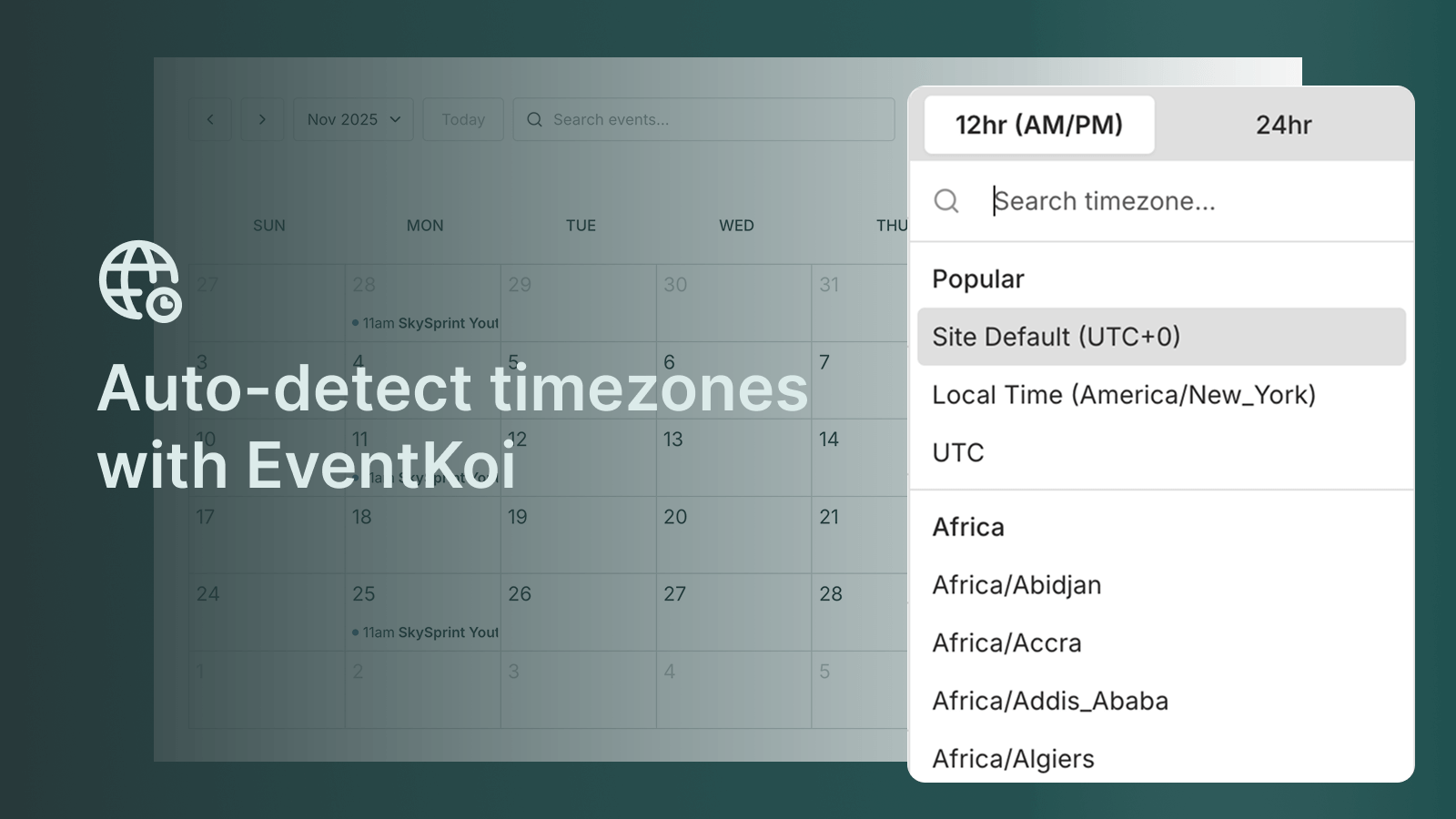
EventKoi detects the local time zone of your site visitor and automatically displays event timings in their time zone.
A site visitor can see on the top right hand corner of the calendar what time zone the events are displayed in.
Built‐in time zone switcher

When you click on the detected time zone, you’ll see a popup that allows you to search or select from popular time zones.
So if a site visitor is in New York, but they’re attending an event in London next month, they can switch to the London time zone in order to get a better idea of the actual timings of the event.
You’ll also see a 12/24hr clock toggle. You can also set whether you want your calendar to display 12 or 24hr by default in the Default Settings.
No set up required: Show local timezone automatically
Time zone detection and time zone switcher work automatically. Every calendar comes with these features without any additional effort from you.
This means that as long as you are using an EventKoi calendar, your international event attendees never have to worry about getting their time zones confused again.
EventKoi’s time zone defaults

In case you’re wondering, EventKoi auto-detects your WordPress site time zone and uses it as a default. This is simpler to manage and ensures EventKoi’s time zone is aligned with your site.
Next steps
Calendar demo
If you would like to see our time zone detection and switcher in action, you can check out our calendar demo.
Embedding calendar
And if you’re curious about how to embed an EventKoi calendar on your website, here are three different ways:

- Each calendar comes with its own default link, which you can copy by going into the calendar and navigating to the Embed tab.
- You can paste your calendar shortcode into any post or page
- Add a calendar block in the block editor.
To learn more, read our documentation on adding a calendar to your site.