
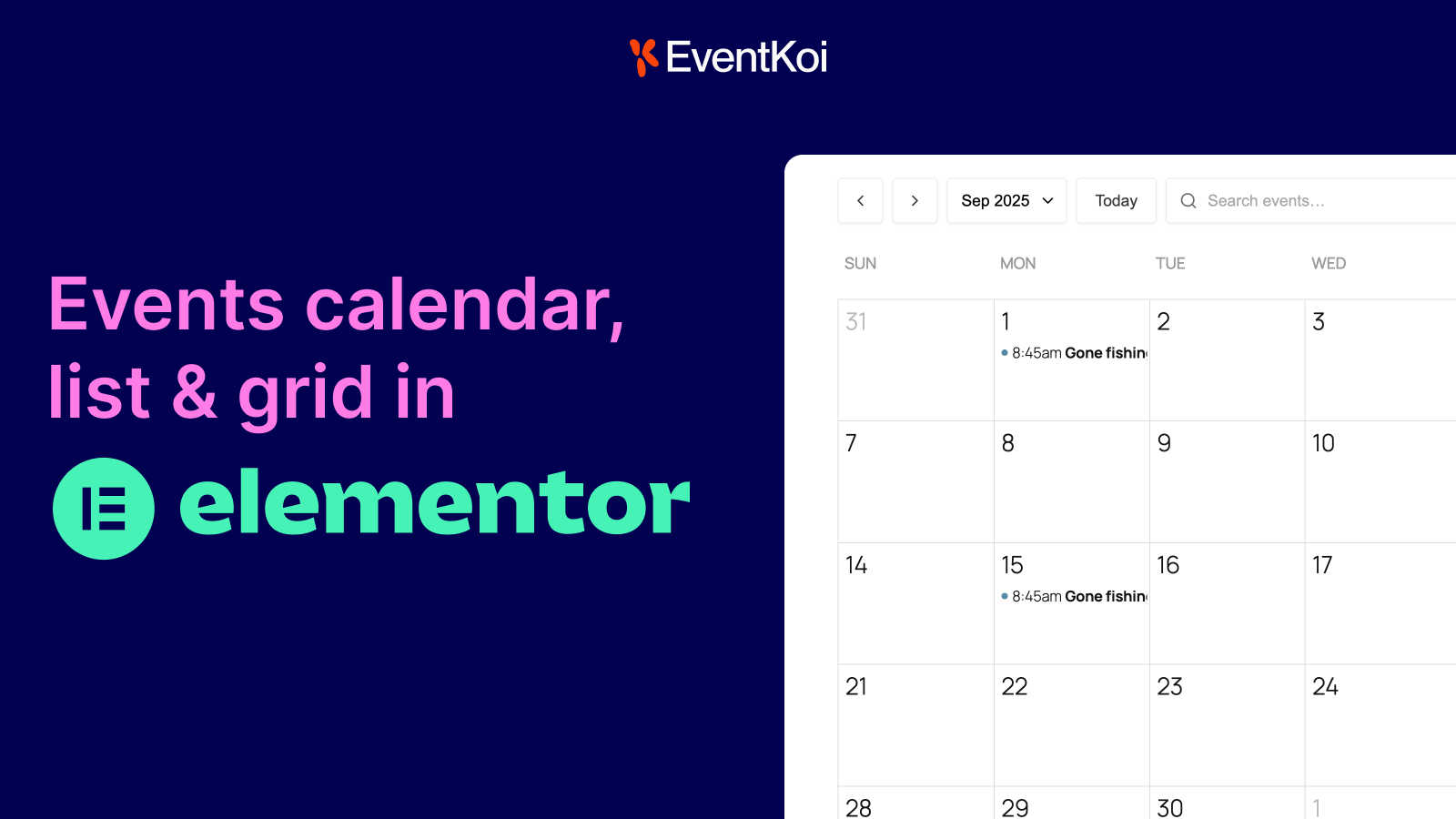
This guide takes you from a fresh install to events showing on your Elementor site, in four steps. You will set up the template every event page uses, create an event, design the page, and then display your events as a calendar, a list or a grid.
Most guides have you build an event template from a blank page. With EventKoi you can skip that, because it comes with Elementor templates out of the box.
If you are still choosing a plugin, start with our comparison of the best Elementor event calendar plugins. This guide uses EventKoi throughout.
What you need, and what is free
You need WordPress, Elementor and EventKoi.
| Feature | Elementor | EventKoi |
|---|---|---|
| Ready-made Elementor event templates (Step 1) | Free | Lite (free) |
| EventKoi Calendar widget and Event widget | Free | Lite (free) |
| Calendar or list shortcode | Free | Lite (free) |
| Dynamic tags in your own templates | Pro | Pro |
| Loop Grid or Loop Carousel of events | Pro | Pro |
Step 1: Turn on the Elementor event templates
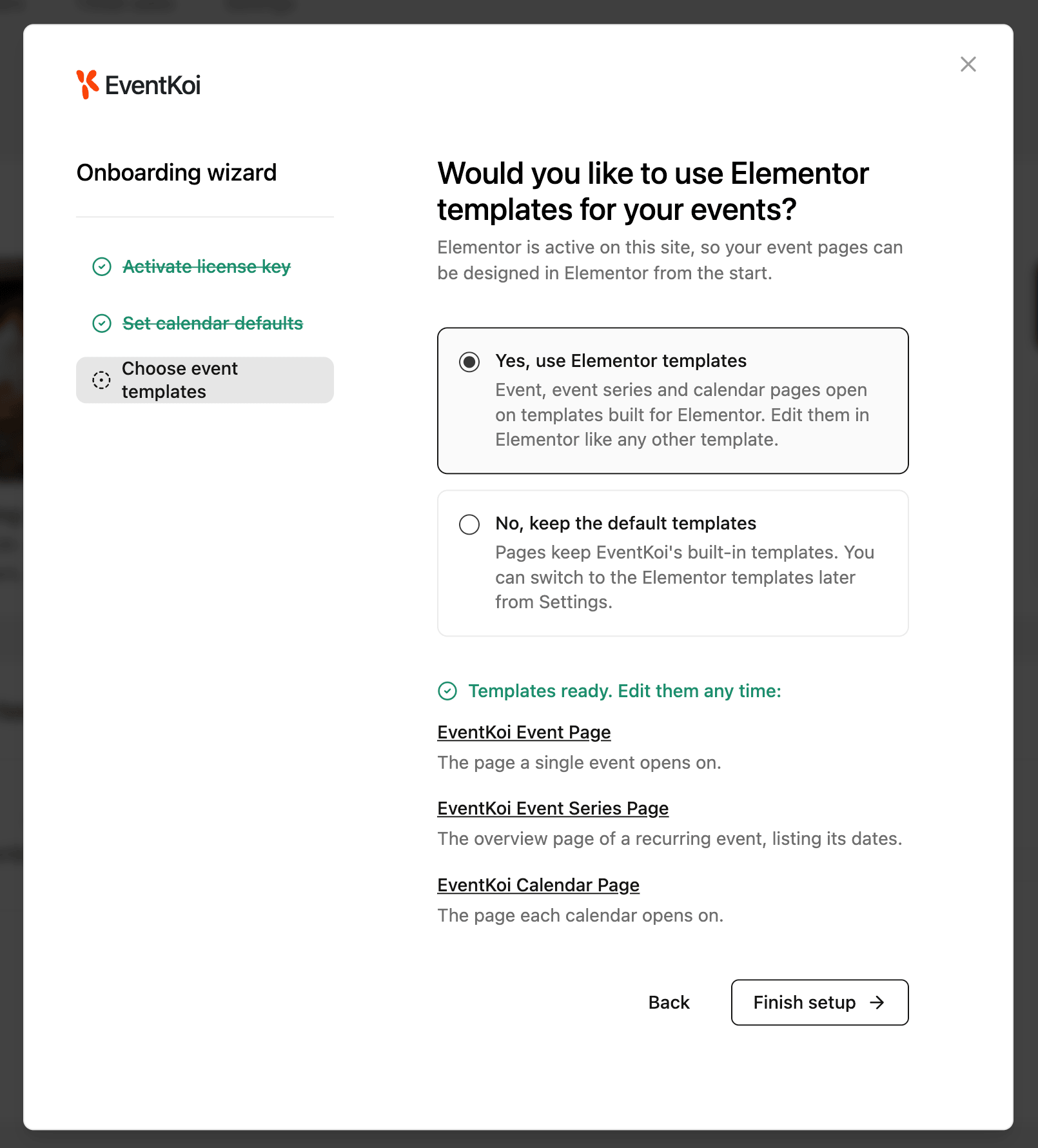
EventKoi can create three Elementor templates for you:
- EventKoi Event Page: the page a single event opens on.
- EventKoi Event Series Page: the overview page of a recurring event, listing its dates.
- EventKoi Calendar Page: the page each calendar opens on.
This works with the free version of Elementor and EventKoi, because the templates are built from EventKoi’s own Elementor widgets.
During setup: when Elementor is active, the onboarding wizard asks “Would you like to use Elementor templates for your events?” Choose Yes, use Elementor templates.
After setup: go to Events > Settings. Under Default settings, scroll to Single event pages and switch to the Elementor templates there.
From now on, every event, series and calendar page uses these templates. If you change your mind, Switch back to default templates returns every page to EventKoi’s built-in design.
Step 2: Create your first event
- Go to Events > Events and click Add event. (If you ran the setup wizard, a demo event is already there to practise with.)
- Enter the Event name.
- Set the date and time.
- Add a location, if the event has one.
- Add the event details, image and any tickets or RSVPs.
- Click Publish.


Step 3: Customise your event page in Elementor
Open any event on your site. It now uses the EventKoi Event Page template from Step 1.
Edit the template
- In the event editor, find Event template.
- Click Edit template to open the template in Elementor.
- Change fonts, colors, spacing and layout like any other Elementor template, then click Publish.
Your changes apply to every event that uses this template.

Optional: build a template of your own with dynamic tags
Do this when you want a different layout, for example one for workshops and one for concerts. You need Elementor Pro and EventKoi Pro.
- Go to Elementor > Templates and click Add New.
- Create a single page template, name it (for example “Workshop event page”), and open it in Elementor.
- Drag a Heading widget onto the page, click the dynamic tags icon next to the title field, open the EventKoi group and choose Event Title.
- Repeat with Text Editor widgets for Event Datetime and Event Details, and an Image widget for Event Image.
- Publish the template.
EventKoi has 45 dynamic tags, including the date in pieces (day name, day, month, year), each part of the location, ticket prices, tickets left, RSVP spots left, and the schedule of a recurring event (“Every Tuesday”). That lets you build details like a “TUE 14 OCT” date badge or a “3 spots left” label.

Assign the template
- Open an event and go to Event template.
- Choose your template from the list. Default template uses whatever is set for all events.
- Save the event.
To use one template for every event, set it as the Default event template in Events > Settings instead.
Step 4: Display your events (4 ways)
Your template controls the page each event opens on. To show your events on other pages, such as the homepage or a “What’s on” page, use one of these.
Option 1: EventKoi Calendar widget (free)
Best for a month or week calendar, like a community group or school with lots of events.
- In the Elementor editor, search for EventKoi Calendar and drag it onto the page.
- Under Select Calendar, choose which calendar to show.
- Choose the views visitors can switch between: Month, Week and List.
- Optional: turn on Show calendar filter and Show timezone.
- Style colors and typography in the Style tab.

To learn more about the calendar widget, read this doc:
Option 2: EventKoi Event widget (free)
Best for featuring one event on a landing page.
- Search for EventKoi Event and drag it onto the page.
- Choose the event under Select Event.
- Add the data items you want to show, such as date, location and price, and style each one.
Option 3: Calendar shortcode (free)
Best if your site already uses shortcodes.
- Add a Shortcode widget.
- Paste
[eventkoi_calendar id="12" display="calendar"], replacing 12 with your calendar’s ID. - For a list instead, use
display="list".
Styling options are more limited than the widget.
To learn more about existing EventKoi shortcodes, head here →
Option 4: Loop Grid or Loop Carousel (Elementor Pro and EventKoi Pro)
Best for an “Upcoming events” section of cards that matches the rest of your site.
- Add a Loop Grid (or Loop Carousel) widget and click to create its item template.
- Add a Heading, Image and Text Editor, and connect each to an EventKoi dynamic tag. Then click Save & Back.
- In the Query section, set the source to Events. [CHECK: label shown in the Source dropdown.]
- In the EventKoi Query section that appears, set:
- Order by: Upcoming events (or Past events, Event start, Publish date, Last modified, Title).
- Include recurring instances: shows each date of a recurring event as its own card.
- Events per page.
- Events starting on or after / on or before: an optional date range.
- Style the grid like any other Loop Grid.


FAQ
Can each event use a different Elementor template?
Yes. Every event has an Event template setting. Leave it on Default template, or pick a different template for that event.
Does the template work for recurring events?
Yes. Recurring events also get the EventKoi Event Series Page, which lists every date. On the page for a single date, the Event Instance Datetime tag shows that date and Event Rule Summary shows the schedule, such as “Every Tuesday”.
How do I show only upcoming events in a Loop Grid?
Set Order by to Upcoming events in the EventKoi Query section.
Why isn’t my template showing on the event page?
Check the event’s Event template setting. If it says Default template, check which template is set as the Default event template in Events > Settings.
Do I need Elementor Pro?
Not for Steps 1 and 2, the Calendar widget, the Event widget or the shortcode. You need Elementor Pro for dynamic tags and the Loop Grid.
—
Check before publishing
- Free vs Pro table: checked against Lite 1.4.6.1 and the Pro dev build 1.4.6.1. Lite has only the EventKoi Calendar and Event widgets for Elementor. Dynamic tags, the EventKoi Query for Loop Grid and Loop Carousel, and the ready-made templates are Pro only. The ready-made templates use EventKoi’s widgets plus a button and only check that Elementor is active, so they work with free Elementor.
- Ready-made templates: quoted from the Pro dev build. Confirm they are in the Pro version customers have now. If not, cut Step 1 and the related FAQ line.
- The three [CHECK] items: the settings control label and location, and the Loop Grid source label.
- Menu path for creating an event: Events > Events > Add event, taken from the admin source. The demo event note comes from the current post.
- 45 dynamic tags: counted in the Pro source. The custom taxonomies post says “over 40”. Pick one figure for both posts.
- Shortcode:
idanddisplayconfirmed in source. - Docs links: add the docs links from the current post (creating an event, template guide, dynamic tags, widget guide, shortcode reference) in the matching steps.
- Roundup link: link from /blog/best-event-calendar-plugins-for-elementor/ to this post where it mentions dynamic templates, with the anchor “build an event template in Elementor”.
What changed from the current post
- Removed the plugin comparison (EventKoi, The Events Calendar, Eventin, with prices). It duplicated the roundup. Replaced with one link to it.
- Four clear steps: turn on the templates, create an event, customise the page, display events.
- Added the ready-made Elementor templates, the current dynamic tag count, the Event widget, and the EventKoi Query options for Loop Grid and Loop Carousel.
- Added a how-to FAQ that does not repeat the roundup’s questions.