
At it’s simplest, the Event Query Loop block lets you display a list of events based on specific parameters like date range, or order by date.
But it’s actually so much more than that.
There’s a lot to cover here and the Query Loop block can be quite overwhelming. So I’ll do my best to go through everything step by step.
To begin with, we’ll keep things at the Event Query Loop block level and go through the query options and the layout options. For many people, this is all you’ll ever need, and you won’t need to dive deeper into the inner blocks which can get complicated very quickly.
After that, we’ll look at all the inner blocks that make up the Event Query Loop block. This is kind of looking into the anatomy of the human body. First looking at the bones, lungs and heart. And then deeper into the veins and cells.
The best way to read this post is by playing with the Event Query Loop block at the same time. That way, you can read about a feature, then try it out immediately.
If you aren’t already using EventKoi, you can test out the Event Query Loop block on our EventKoi Pro sandboxed demo or by trying out EventKoi Lite, which is available on WP.org.
Ready?
Query options
The first thing to cover is query options. This lets you determine which events to display on your site.
You can access this by making sure the EK Event Query Loop block is selected (and not one of the inner blocks). On the right hand settings panel, you’ll see a variety of query settings.

You can query:
- Number of events per page
- Order by and order direction
- Select calendars to display
- Start and end date (this lets you display events during a specific time period)
Displaying recurring event instances
By default, the Event Query Loop block only displays an overview of a recurring event, rather than each recurring event instance.
If you want to display each recurring event instance, you can toggle on Include recurring instances.
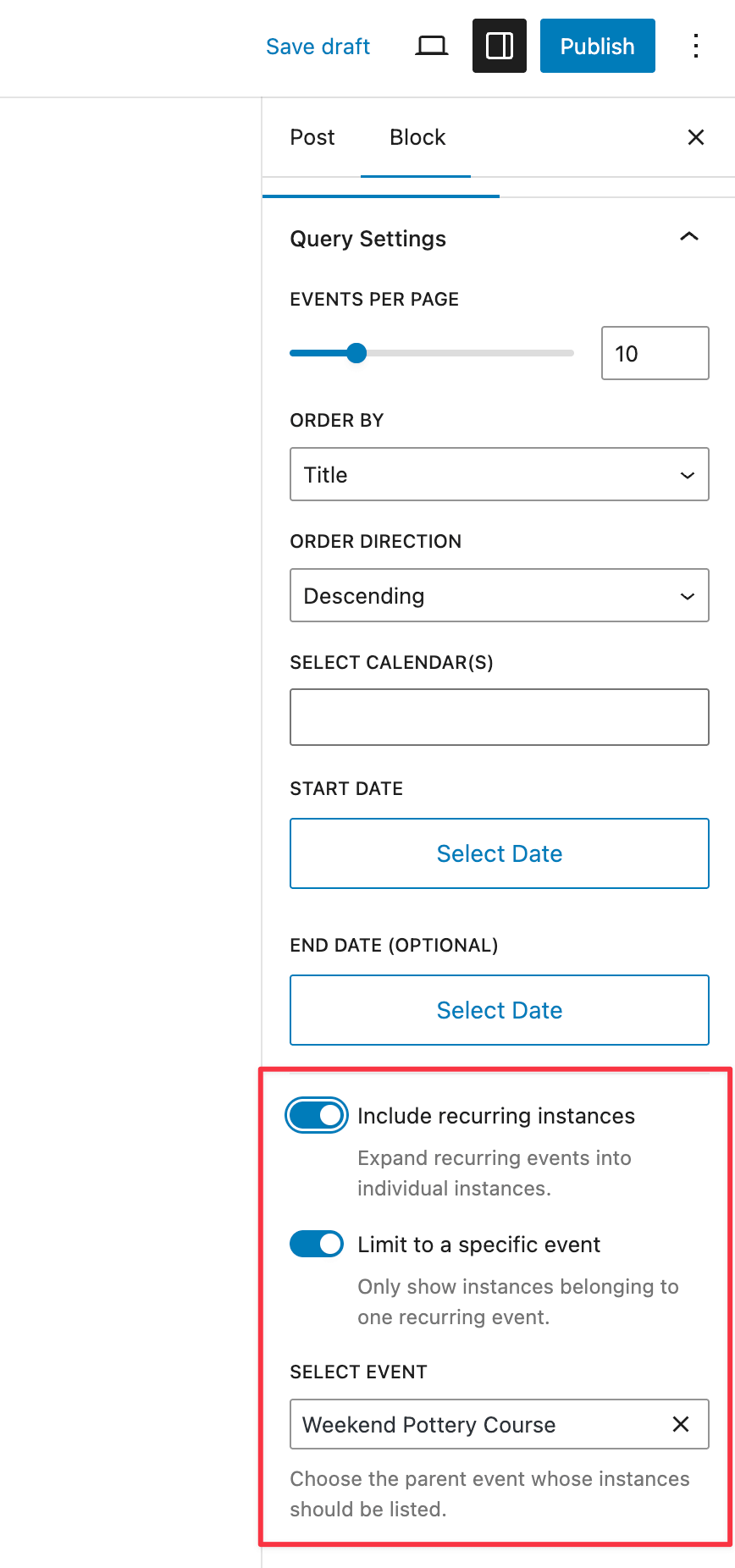
Once you toggle that on, all recurring instances will appear. However, if you only want one specific event to display, you can toggle on Limit to a specific event and select the event for which you want to display all individual instances.
Layout
The next thing to learn is layouts.
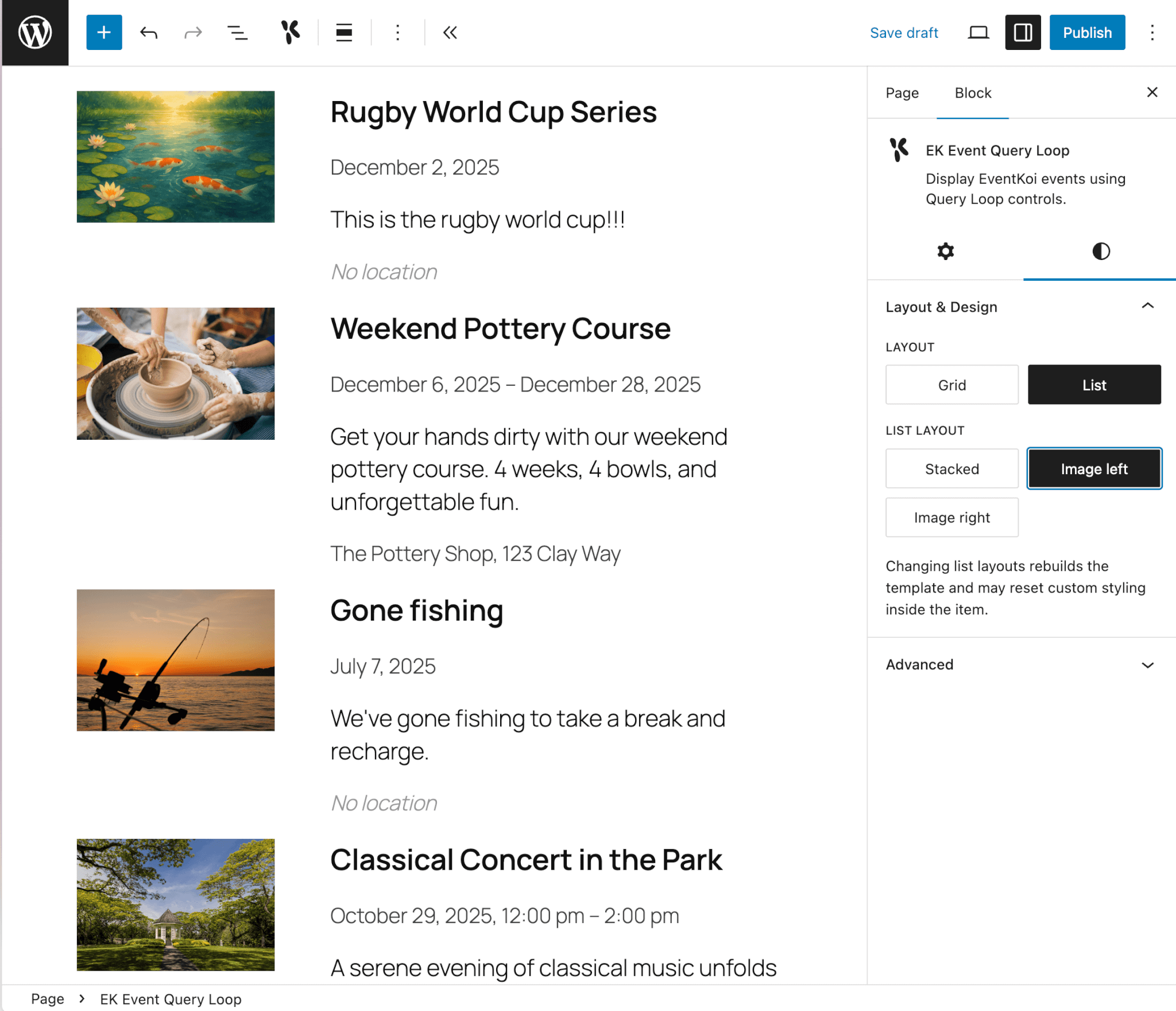
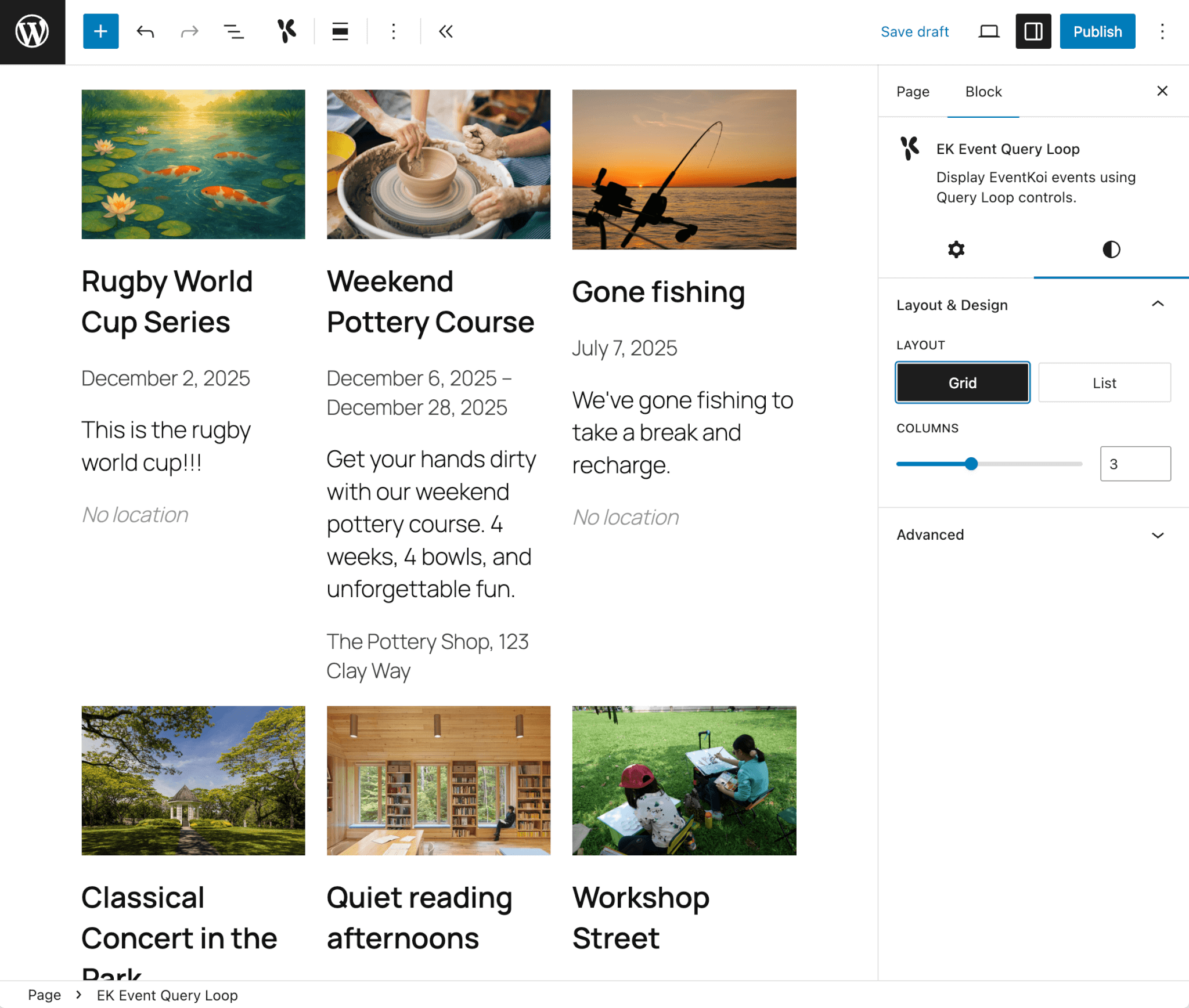
The Event Query Loop comes with 2 simple layout options: List or Grid. To access the layout options, make sure the EK Event Query Loop block is selected. Than click on the design tab. There you’ll see a section called Layout & Design, and you can select between a Grid or List layout.
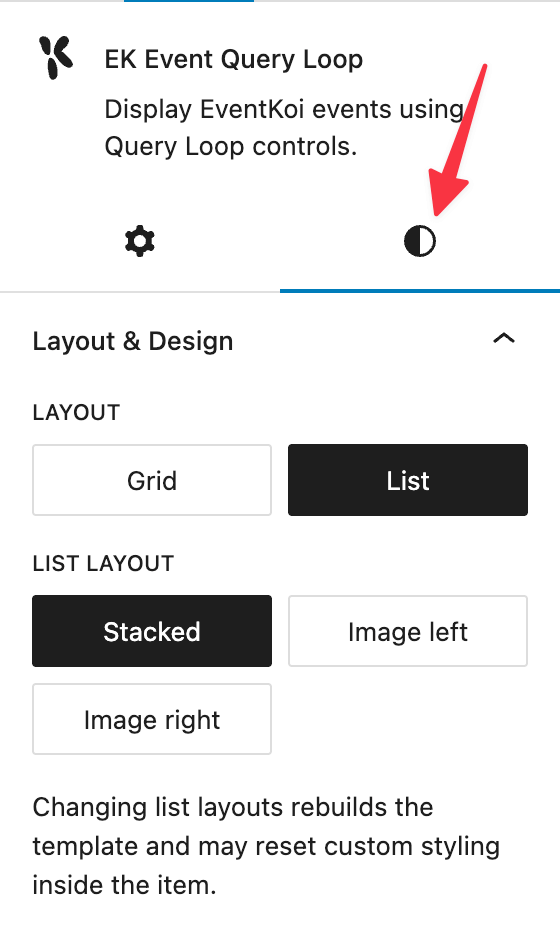
List layout
With the List layout, you have the option of a single column stacked list; or double column, with the image on the left or right.
Because it is using the columns block, you’re able to adjust column width, padding and margins.
Grid layout
With the grid layout, you can select the number of columns for your grid and even the block spacing.
Customising your own layouts
It is possible to completely customise your own layouts without code. There are only two things to look out for when doing so.
- You must choose between List or Grid layouts. Whatever you build will be a subset of either of those layouts.
- Add your blocks underneath the EK Event Query Item. If you add an Event Data block above EK Event Query Item, it will display an error.

As a developer, you’re able to build custom designs and patterns for the Event Query Loop block in the same way you would for the Query Loop block.
Breaking down the Event Query Loop block
The Event Query Loop block is a block variation of the core WordPress Query Loop block. This gives you access to the power of the Query Loop block without having to build those specific features ourselves. Most importantly, it gives you complete customisation of the layout by using groups, rows, columns, etc.
To understand this, we have to unpack what goes into the Event Query Loop block…
If you create a new post or page and add an EK Event Query Loop block, then click on the List View icon, you’ll be able to see a collapsed view of the Event Query Loop block in list view.
Then, click the EK Event Query Loop block to expand it and see all the blocks nested inside.
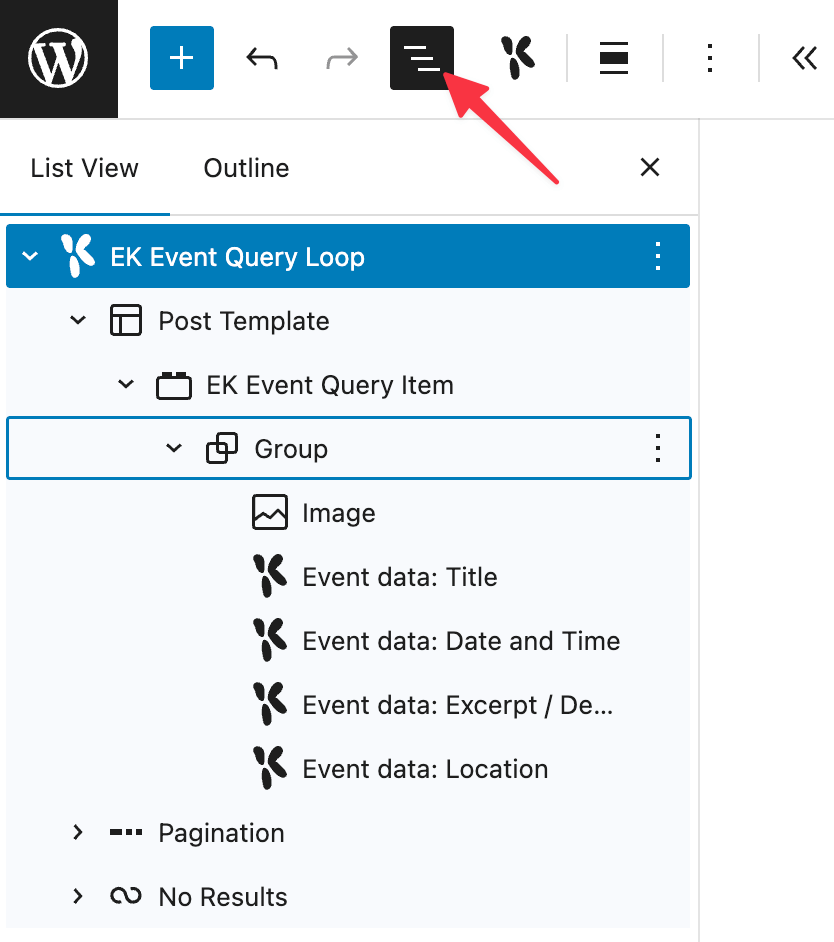
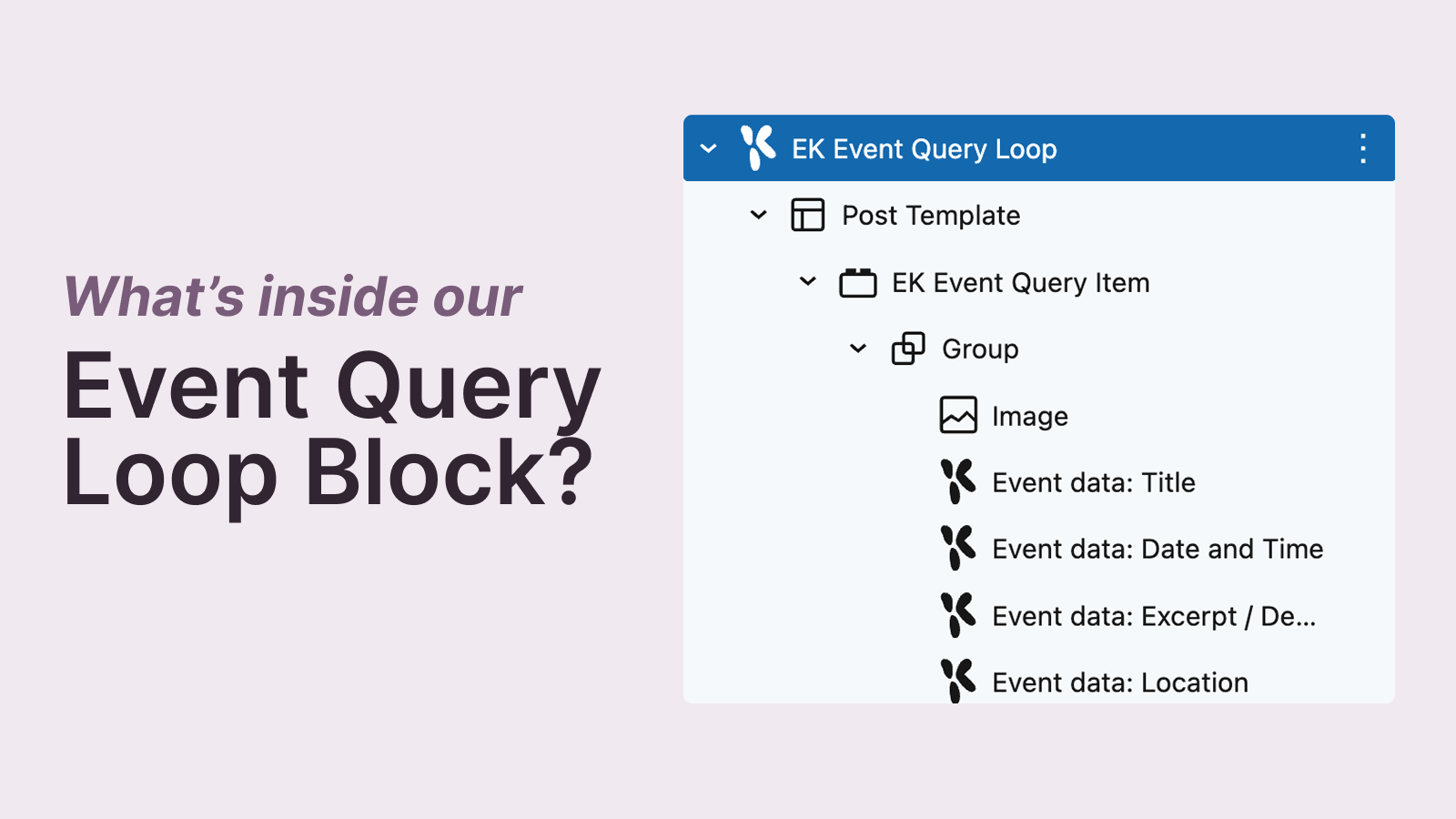
At its most basic, the Event Query Loop block is made out of:
1. Post template
This is a core block that determines the layout of the events.
1.1 EK Event Query Item
This is a wrapper that allows our Query Loop block variation to display our events instead.
1.1.1 Group
This is a core block that lets you display and layout the events.
1.1.1.1 Image
This is the core image block that lets you display images. It is bound to the event query so it will display the featured image of the relevant event.
1.1.1.2 Event data
This is an important custom block. Aside from images, this is the way to add all other pieces of data into the Event Query Loop block. You can add event title, description, location and more – all using this block. (Learn more about this block below)
2. Pagination
This is a core block which lets site visitors navigate through pages of events.
3. No results
This is a core block that lets you set your message when the query produces no results.
Exploring the Event Data block
As you recall, our Event Query Loop block is a block variation of the core Query Loop block.
Despite all its power and flexibility, we had a problem with the Query Loop block. Because you could add anything to it, it could feel a bit overwhelming. And it wasn’t always clear which blocks were dynamic (Title) versus static (Heading). So it would be easy for users to add something like a Heading block and wonder why their blog post titles weren’t showing up correctly.
We fixed this by building the Event Data block. This block allows you to display any piece of event data. This way, instead of adding a variety of blocks into your Query Loop block, you only need to add the Event Data block, then pick which piece of data you want to display.
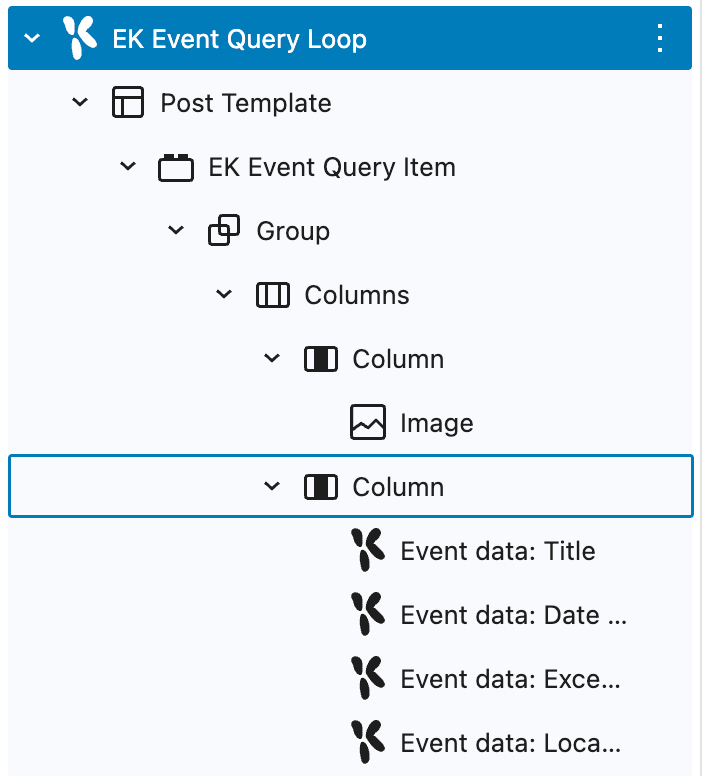
Here’s an example of an event listing using the Event Query Loop block with multiple Event Data blocks nested inside block:
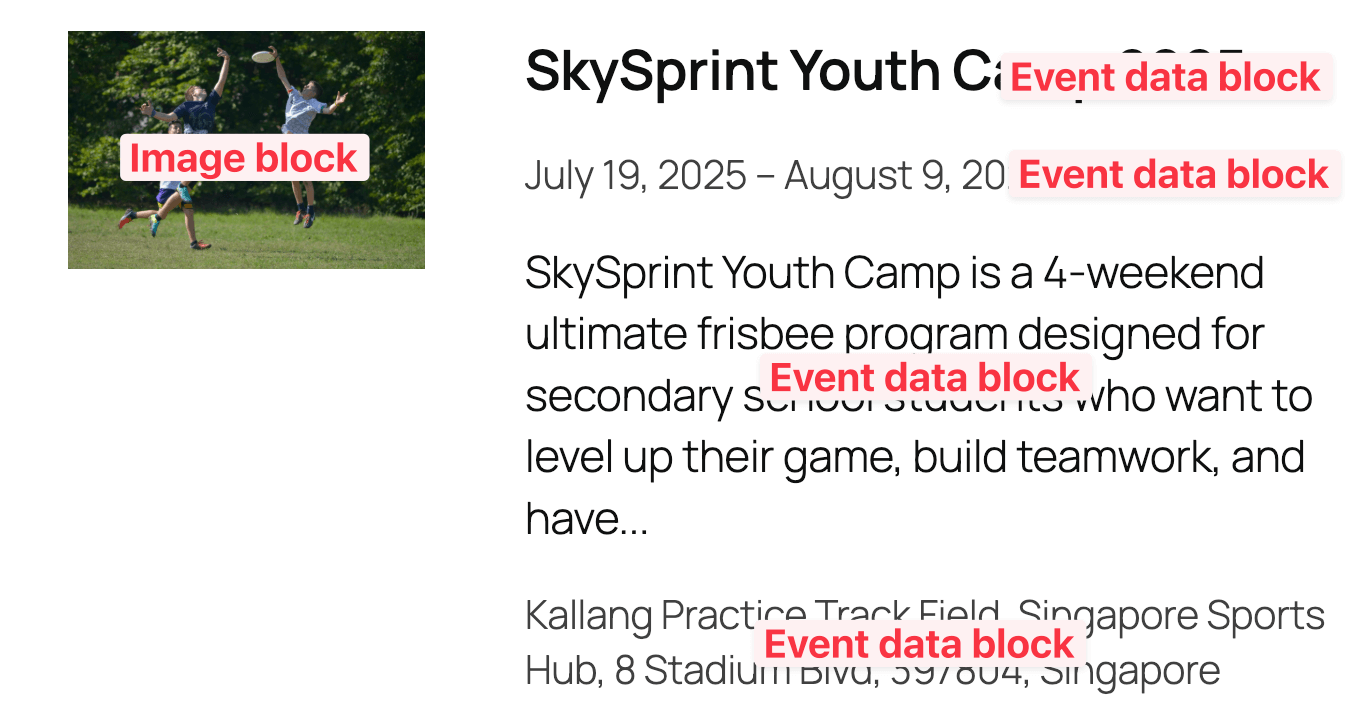
It contains 5 pieces of information: Featured image, title, date, details, location.
Here’s how it looks listed out in the List View:
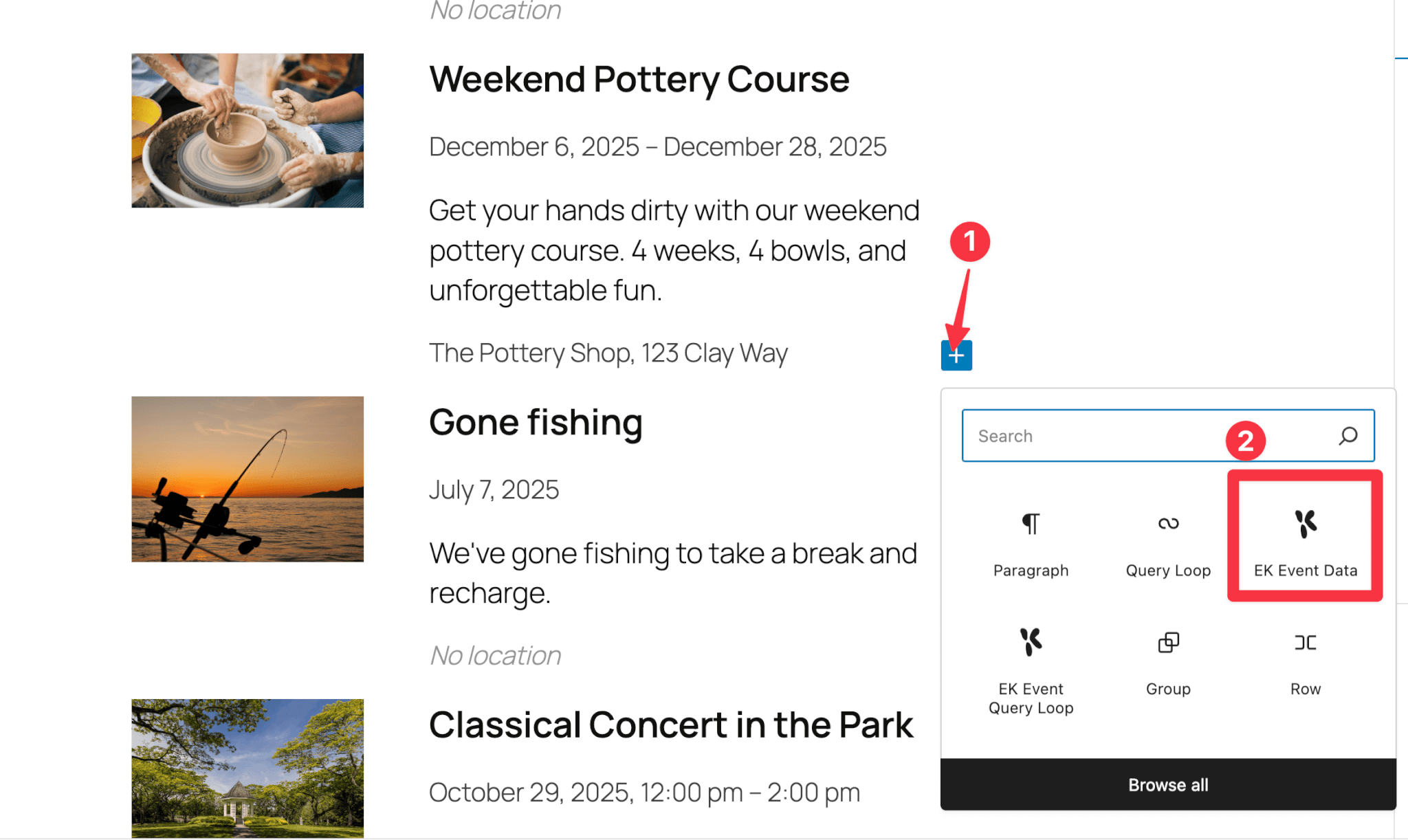
If you want to add an additional piece of information, you can click the blue plus icon inside the editor and add an additional Event Data block.
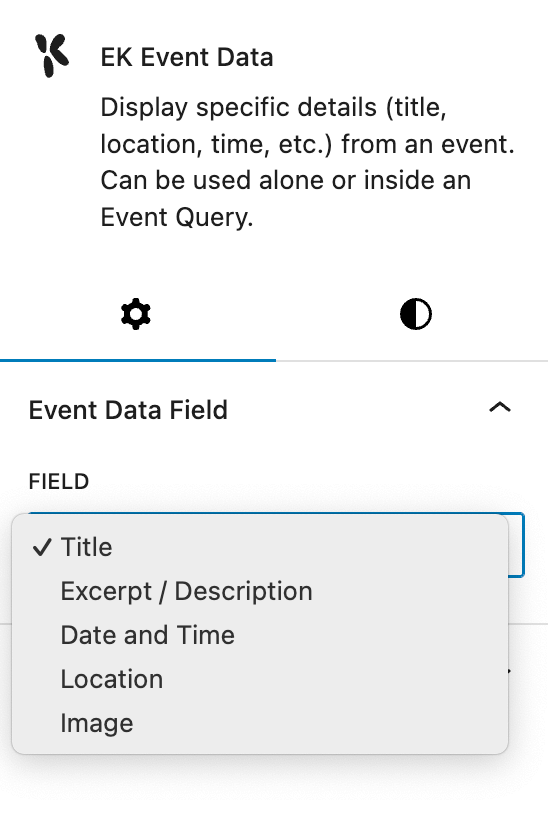
Then, in the settings panel, you can select which field you want to add – whether that’s title, location, time, etc.
In addition, the Event Data block allows you to style the data however you like. For example, you can change the colour, font and text size of your event title.

Adding an image
At an atomic level, the Event Query Loop block is made out of lots of Event Data blocks and an Image block.
Why? If we used the Event Data block to display an image, you wouldn’t have much image styling options.
Instead, by using the Image block, you benefit from the admin controls of the regular image block, which let you add alt text, aspect ratio, and more.
We have bound the image to the event’s featured image, so it will always show the event image.
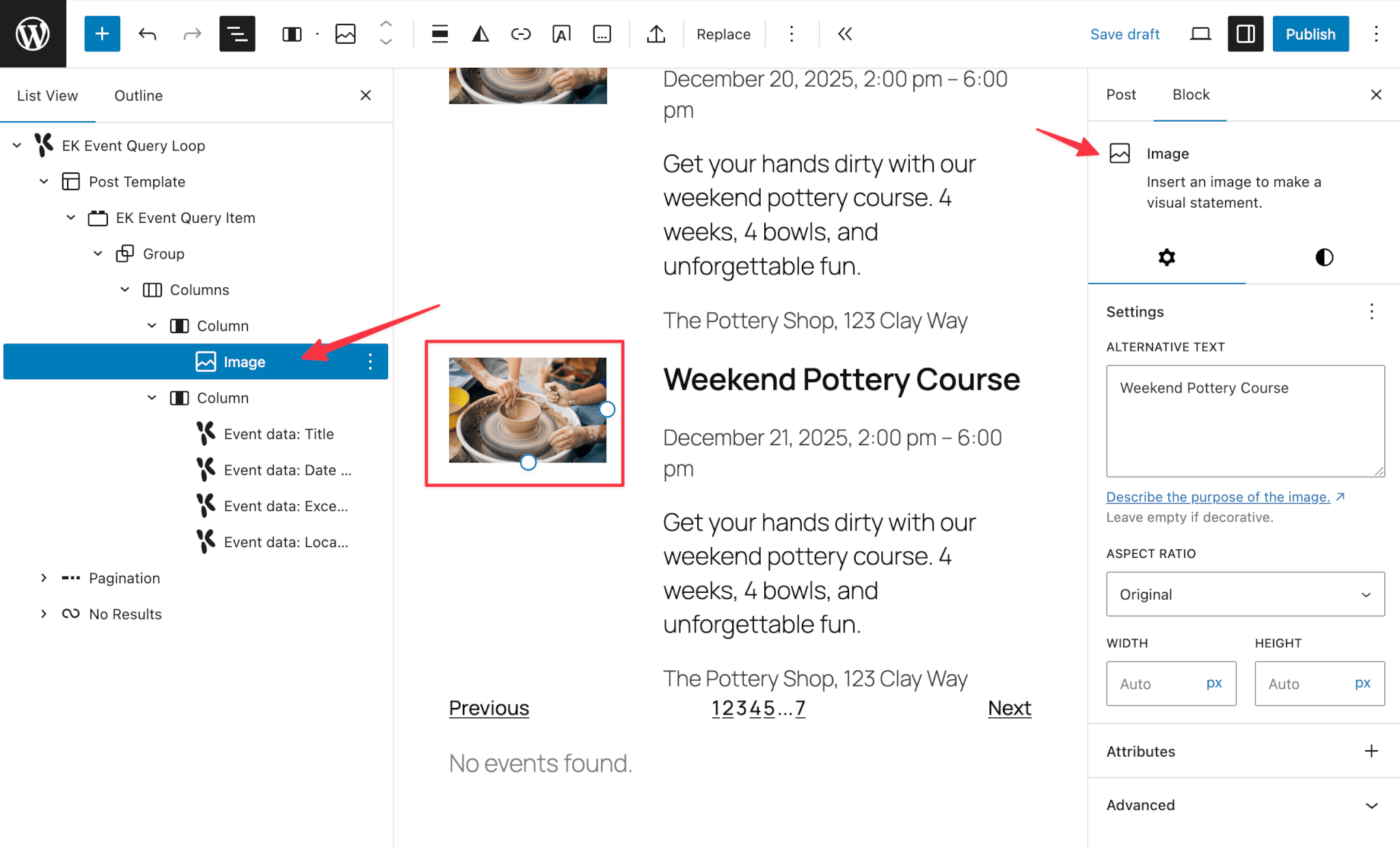
That’s it! That’s everything you need to know about the EK Event Query Loop block
To sum up, this block is for when you want to show a list or grid of events with specific queries based on dates and more. It is a variation of the core Query Loop block which means you have access to every single design and styling customisation that the block editor currently has on offer.
If you got this far, thanks for reading. This block took us several weeks to build (including going down many dead ends) and we hope that you enjoy using it.
If you have any questions about the block or want us to cover something that we haven’t, please contact us. After all, this blog post can’t be titled “everything you need to know”, if we haven’t indeed covered everything you need to know! 😜