Shortcodes let you display EventKoi calendars and event lists anywhere on your site; including places where blocks aren’t available like classic editor posts, widgets, page builder sections, or legacy templates.
This page gives you a quick reference of every supported shortcode, what each one does, and how to customise its output.
Jump straight to the shortcode you need and copy the example into your post, widget, or template.
Calendar shortcodes
[eventkoi_calendar id=0 display=calendar]
[eventkoi_calendar id=0 display=list]
Multiple calendar shortcodes
In EventKoi Pro, you can create multiple calendars and use them in a similar way to post categories in WordPress.
Lets say you run a community centre and wanted a calendar for sports events and a calendar for kids events. You can create separate calendars and assign events to each of them. One event can also be assigned to multiple calendars (like a kids sports event).
Then, lets say you want to create an overarching community centre calendar that displays both your sports events calendar and kids events calendar.
You can use the following shortcode to do so. This shortcode displays multiple calendars in one calendar display by adding multiple ids into one shortcode.
[eventkoi_calendar id=1,2 display=calendar]
Learn how to find a calendar id in the section below.
Calendar list view
Here’s the code to display the events calendar in a list view:
[eventkoi_calendar id=0 display=list]
With the list view, there are many available attributes you can use to filter and sort your list. For example, you can filter the list to only show events happening between a certain timeframe. You can also choose to order the events by start date, title, and more.
As the list of attributes is extensive, we have created a separate doc to go through them. Learn about the available attributes here:
Event data shortcodes
Here is a list of available event data:
Primary
- Title: event_title
- Excerpt/description: event_details
- Location: event_location
- Image: event_image
- Image URL: event_image_url
Date & Time
- Datetime: event_datetime
- Datetime with summary: event_datetime_with_summary
- Date only: event_date
- Time only: event_time
- Timezone: event_timezone
- Date type: event_date_type
- Recurring event rule summary: event_rulesummary
- Year: event_date_year
- Month: event_date_month
- Month (short): event_date_month_short
- Day (number): event_date_day
- Day name: event_date_day_name
- ISO date: event_date_iso
Calendar & Location
- Calendar name: event_calendar
- Calendar link (html): event_calendar_link
- Calendar URL: event_calendar_url
- Nth Location: location_1, location_2
- Google map: event_gmap
Tickets
- Capacity (total): event_capacity
- Capacity remaining: event_capacity_remaining
- Capacity sold: event_capacity_sold
- Sold out message: event_sold_out
- Low stock message: event_low_stock
- Ticket count (types): event_ticket_count
- Ticket summary: event_ticket_summary
- Price (from): event_ticket_price_from
- Price (to): event_ticket_price_to
- Price range: event_ticket_price_range
- Sales start: event_sales_start
- Sales end: event_sales_end
- RSVP or tickets frontend display: event_ticket_rsvp
RSVP
- RSVP capacity: event_rsvp_capacity
- RSVP remaining: event_rsvp_remaining
- RSVP going: event_rsvp_going
- RSVP full: event_rsvp_full
Formatting and using event data shortcodes:
Here’s how you can format your event data shortcode:
[eventkoi id=insert_correct_event_id data=insert_correct_event_data]
For example, if you would like to add an event title, you would use this shortcode:
[eventkoi id=10 data=event_title]
To add the event details, you would use:
[eventkoi id=10 data=event_details]
Using event shortcodes in an event template
If you want to add an event shortcode to an event template, you can add the shortcode without the id. For example:
[eventkoi data=event_details]
The shortcode will automatically pull the correct data depending on which event the template is being used for.
Custom fields
To display all available custom fields: [eventkoi data=event_custom_fields_with_name] or [eventkoi data=event_custom_fields]
For individual custom fields or groups, head to Settings > Custom fields and copy for the field ID. Then, create the shortcode like this: [eventkoi data=add_field_id_here]
You can add with_name to the end of any custom field ID to also display the name of the custom field.
What is an id, how to use it, and where to find the correct one?
What is a calendar id?
Ad id allows you to display a specific calendar.
For example, let’s say you run a gym. And you want to display your yoga classes calendar on one page, weightlifting classes on another page, and pilates classes on a third page.
To do that, you need the ids of each calendar so that you can display each class’s calendar separately.
Like this:
[ek_calendar id=1 display=calendar]
[ek_calendar id=2 display=calendar]
[ek_calendar id=3 display=calendar]
However, lets say you want to display your yoga, weightlifting and pilates classes together on one calendar. In that situation, you can remove the id, so that all your classes will show up on one calendar.
Like this:
[ek_calendar display=calendar]
Where to find a calendar’s id
For calendars, you can find the id in two ways:
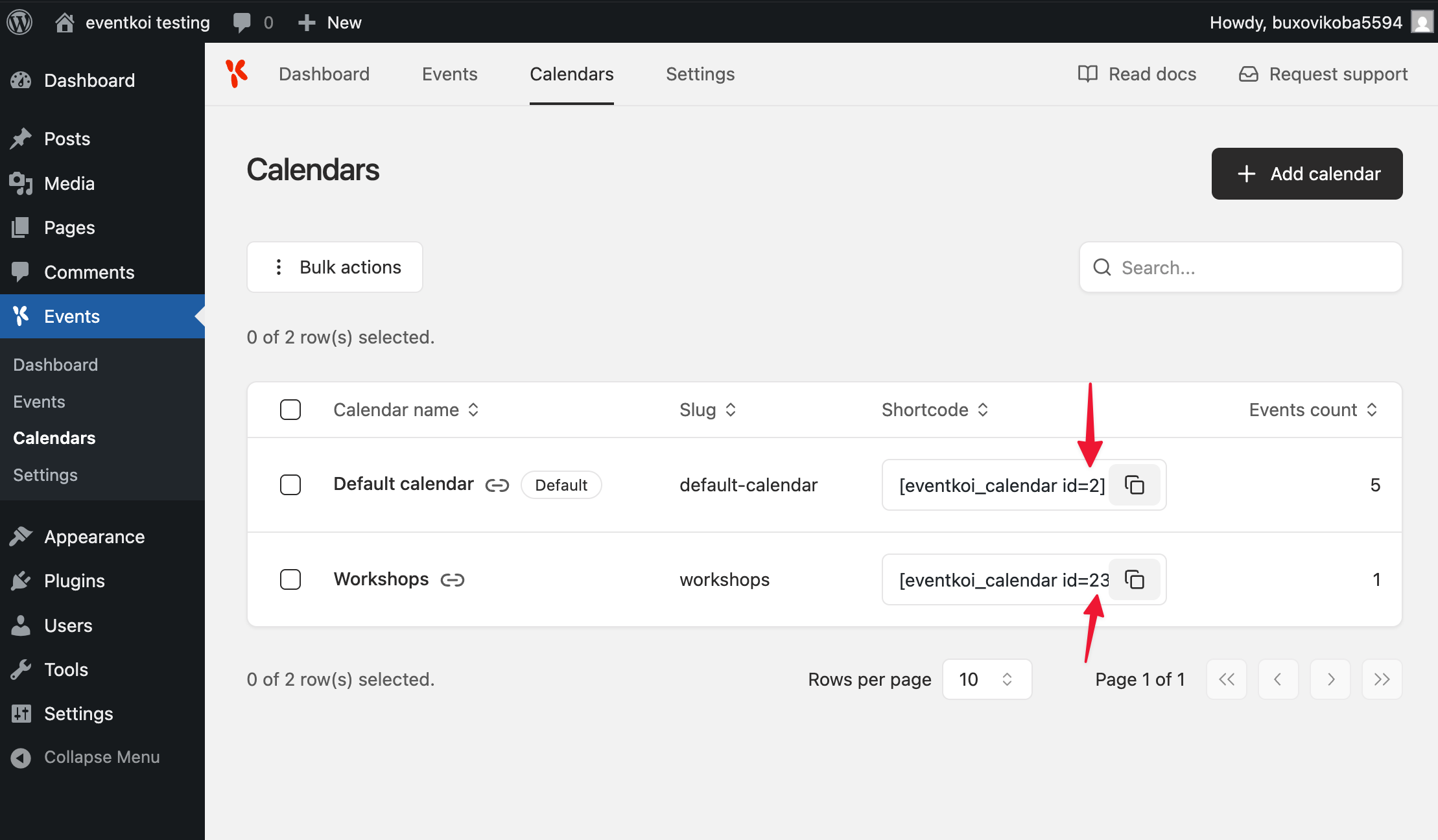
- In the calendar list table, you’ll see an option to copy the shortcode. You can copy the shortcode with the ID already included for you.

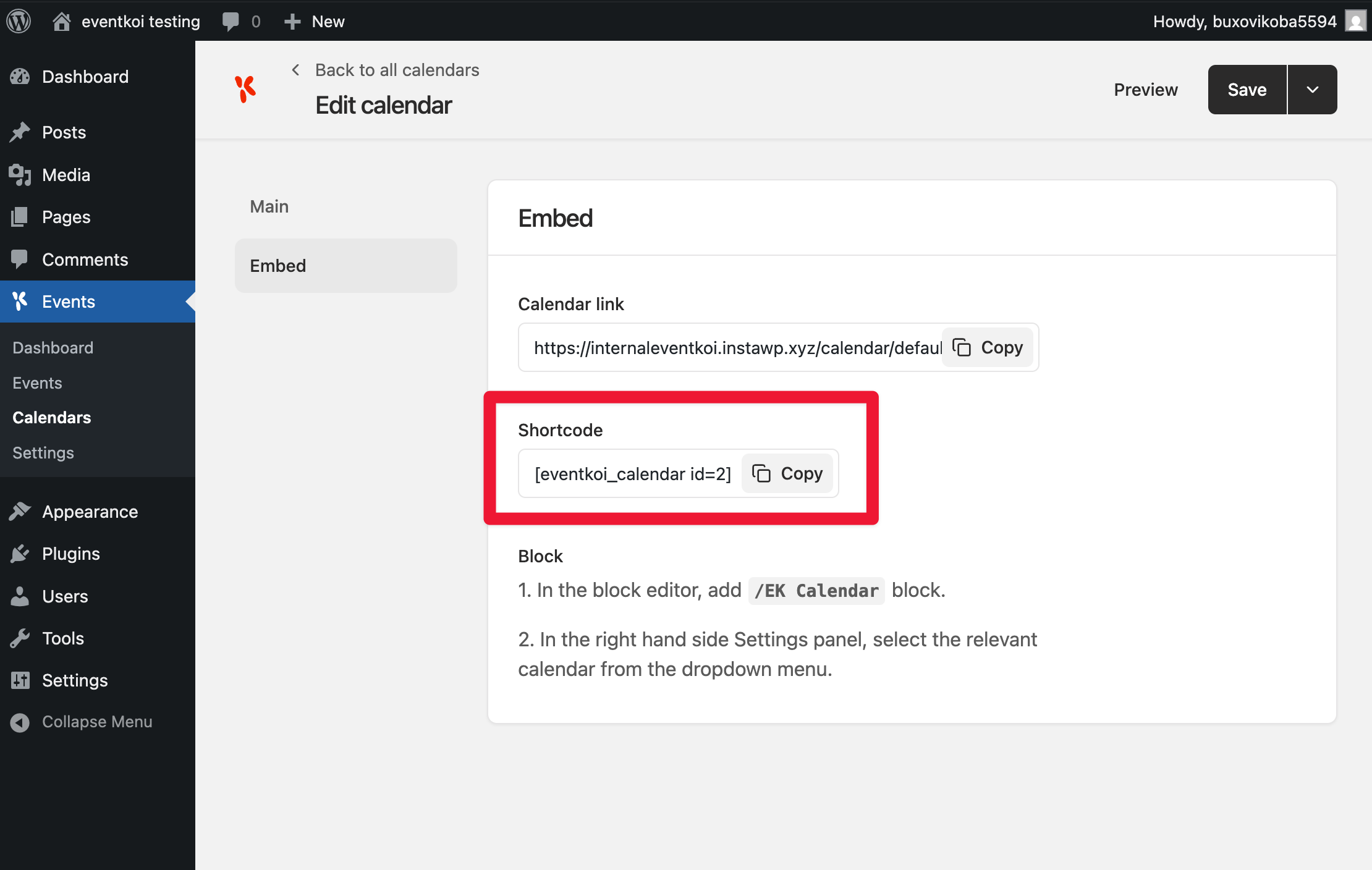
2. If you select the calendar you want to use, then go to the Embed tab. There you’ll see a shortcode you can copy.

What is an event id?
An event id tells the shortcode which event to retrieve your data from.
For example, you have 10 events, but you want to create a special page for your Winter Wonderland Show which has the event id 2.
To add the event title to your page, you can use the shortcode: [eventkoi id=2 data=event_title]
Where to find an event’s id
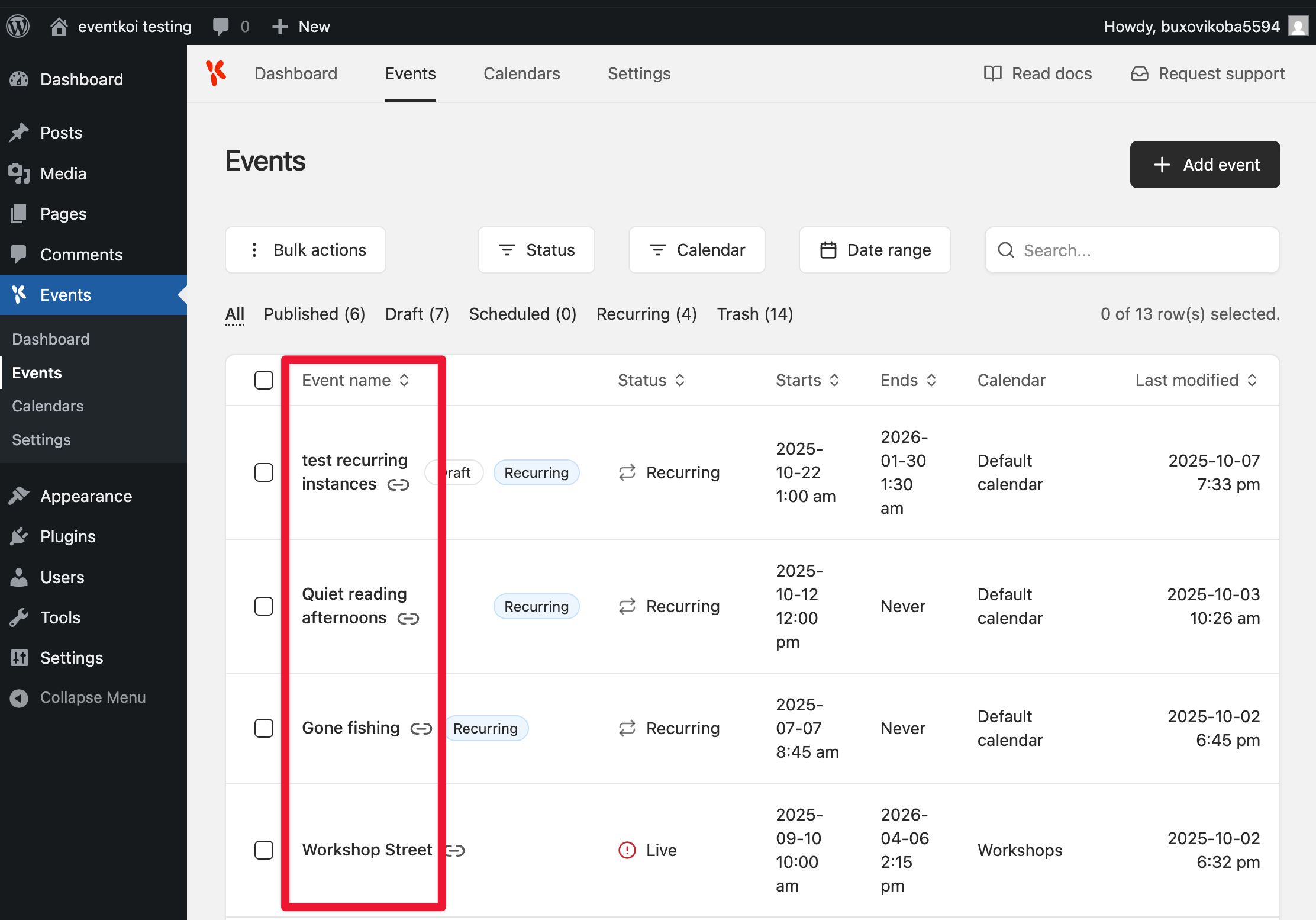
To find the id of an event, first go to the settings page of the event that you want. You can do that by selecting the event from the events list table.

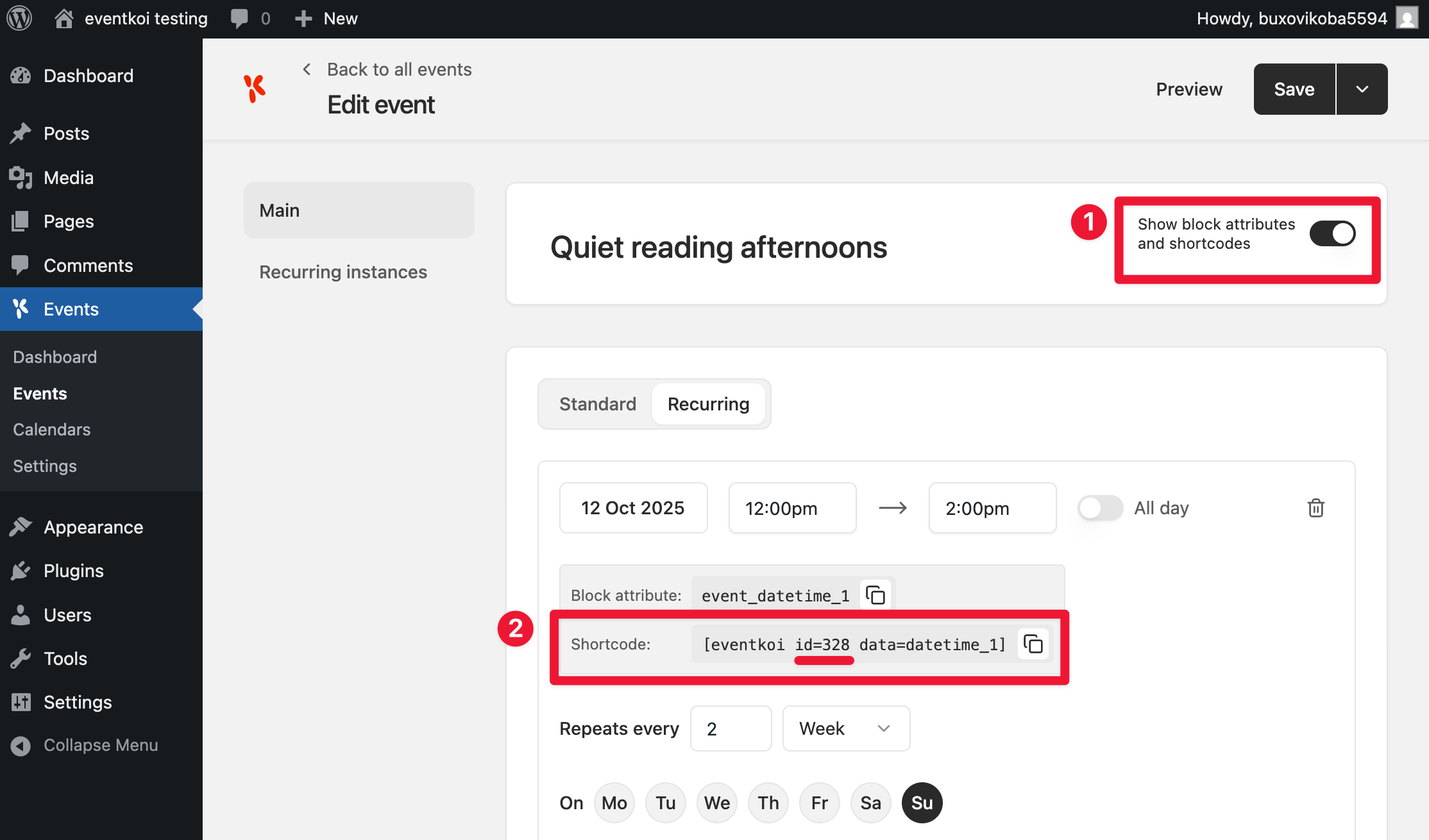
Then, inside the event’s settings, toggle on Show block attributes and shortcodes.
You will now see shortcodes for each event setting (for example, event date and time, event location, event image, and more).
If you just want the event id, you can find it in the first shortcode that you see.
Or, you can navigate to the event setting that you want, and copy the entire shortcode.