
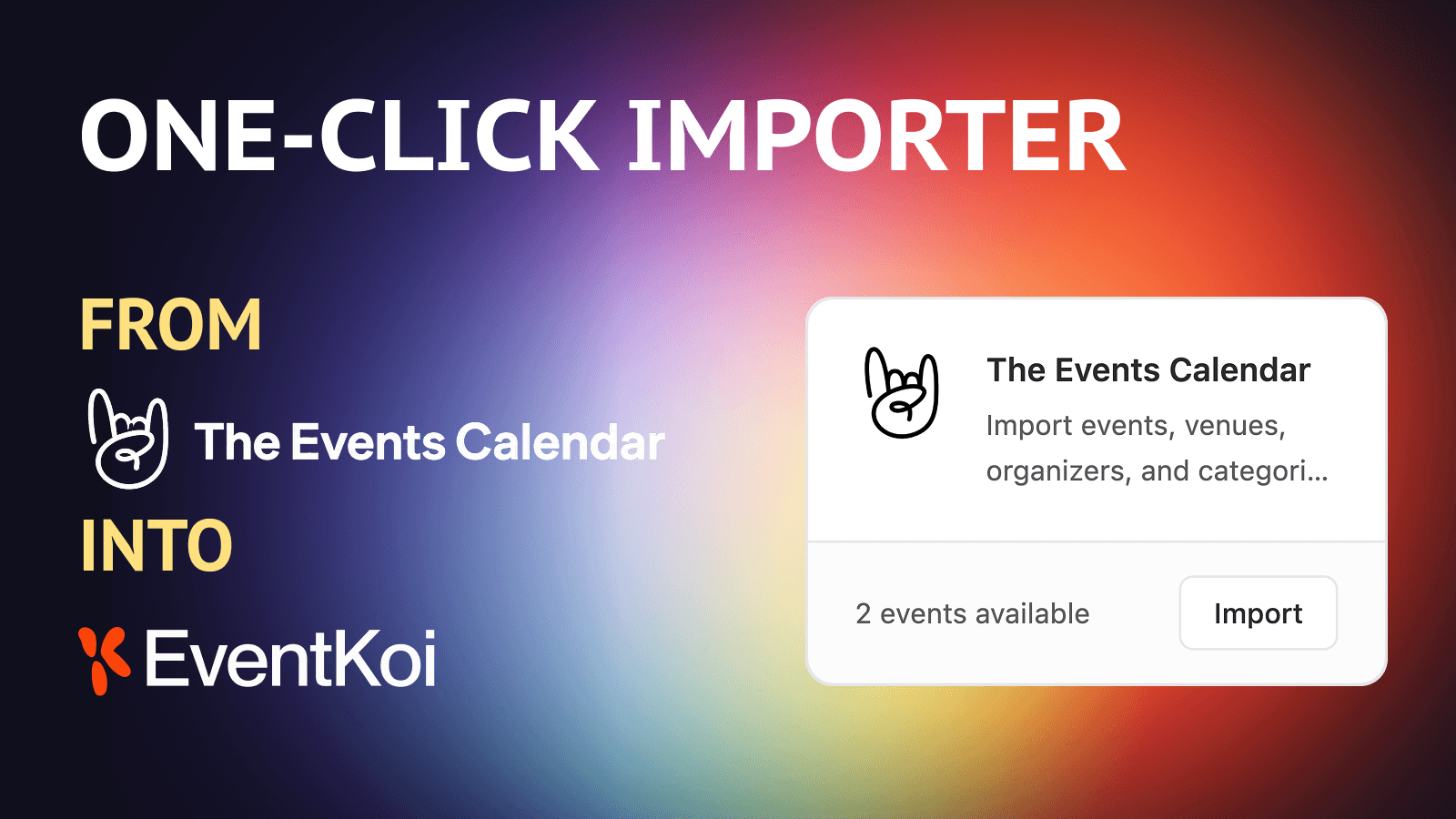
If you’re using The Events Calendar and thinking about switching to EventKoi, you probably have one burning question: can I keep my existing events?
Well, the answer is Yes. EventKoi has a built-in, one-click importer that brings all your events across in one pass, so you’re not stuck rebuilding your calendar from scratch.
In this guide, you’ll learn how EventKoi’s importer works, what gets imported, and, most importantly, what doesn’t.
How the importer works
You’ll need EventKoi (Lite or Pro) and The Events Calendar (free or Pro) active on your site at the same time.
From there, go to Events → Settings → Import. Any events available to bring across will show up automatically. Click import, and they get imported automatically. Once imported, your events become native EventKoi events, immediately usable with page builder integrations, ticketing, RSVPs, and all other EventKoi features.
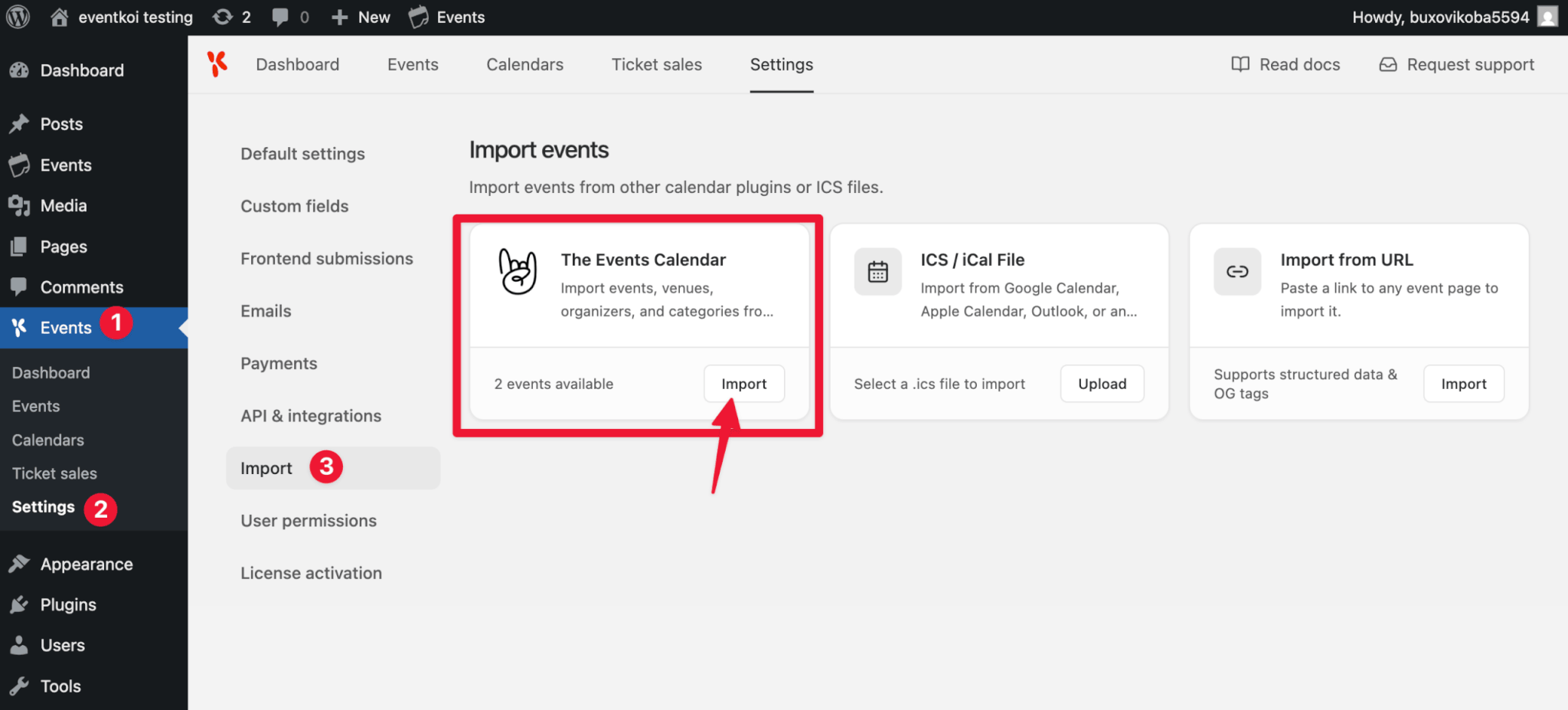
The importer in action
To show you the importer in action, here’s a YouTube video where I walk you through how I import two sample events created in The Events Calendar:
The two sample events
In the video, I import two sample events from an imaginary yoga studio.
Event 1: Vinyasa yoga class
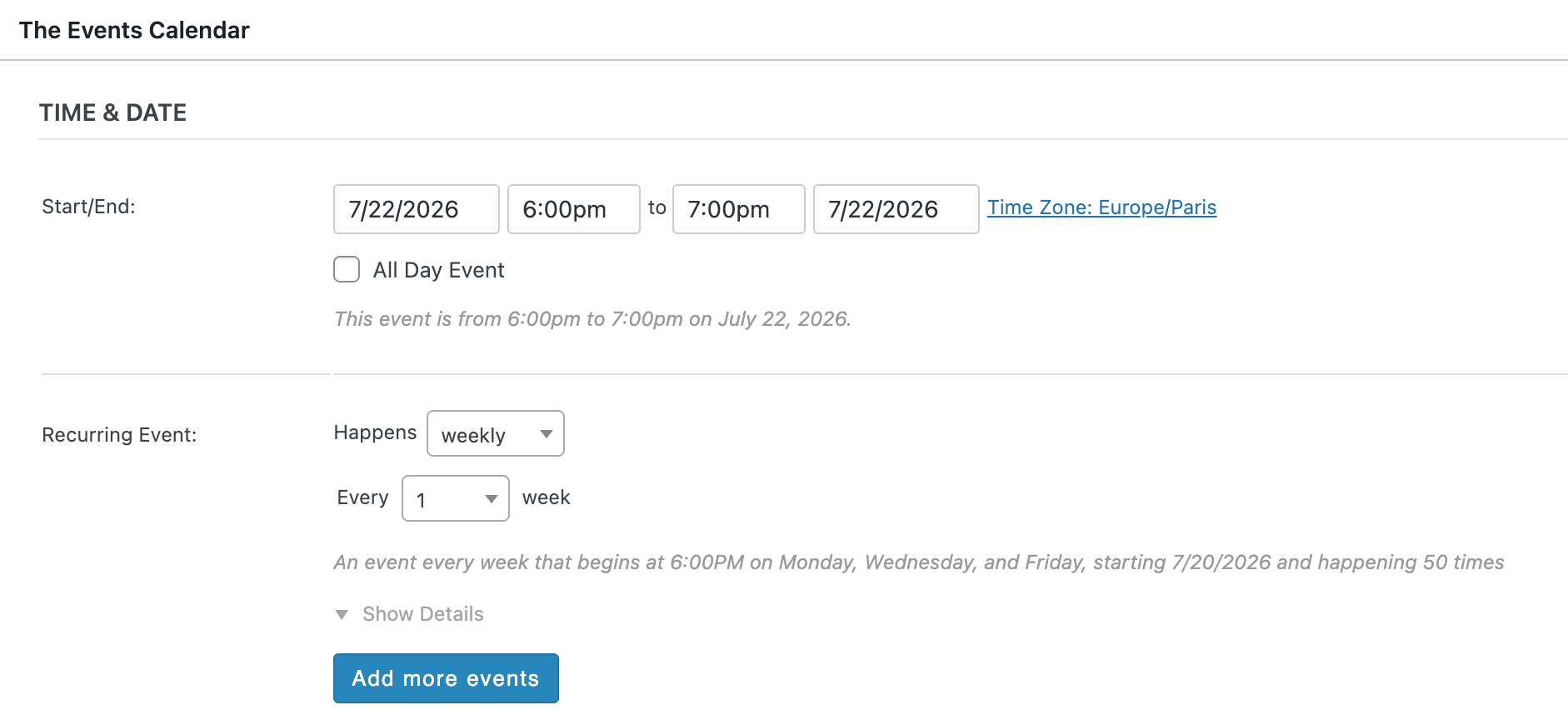
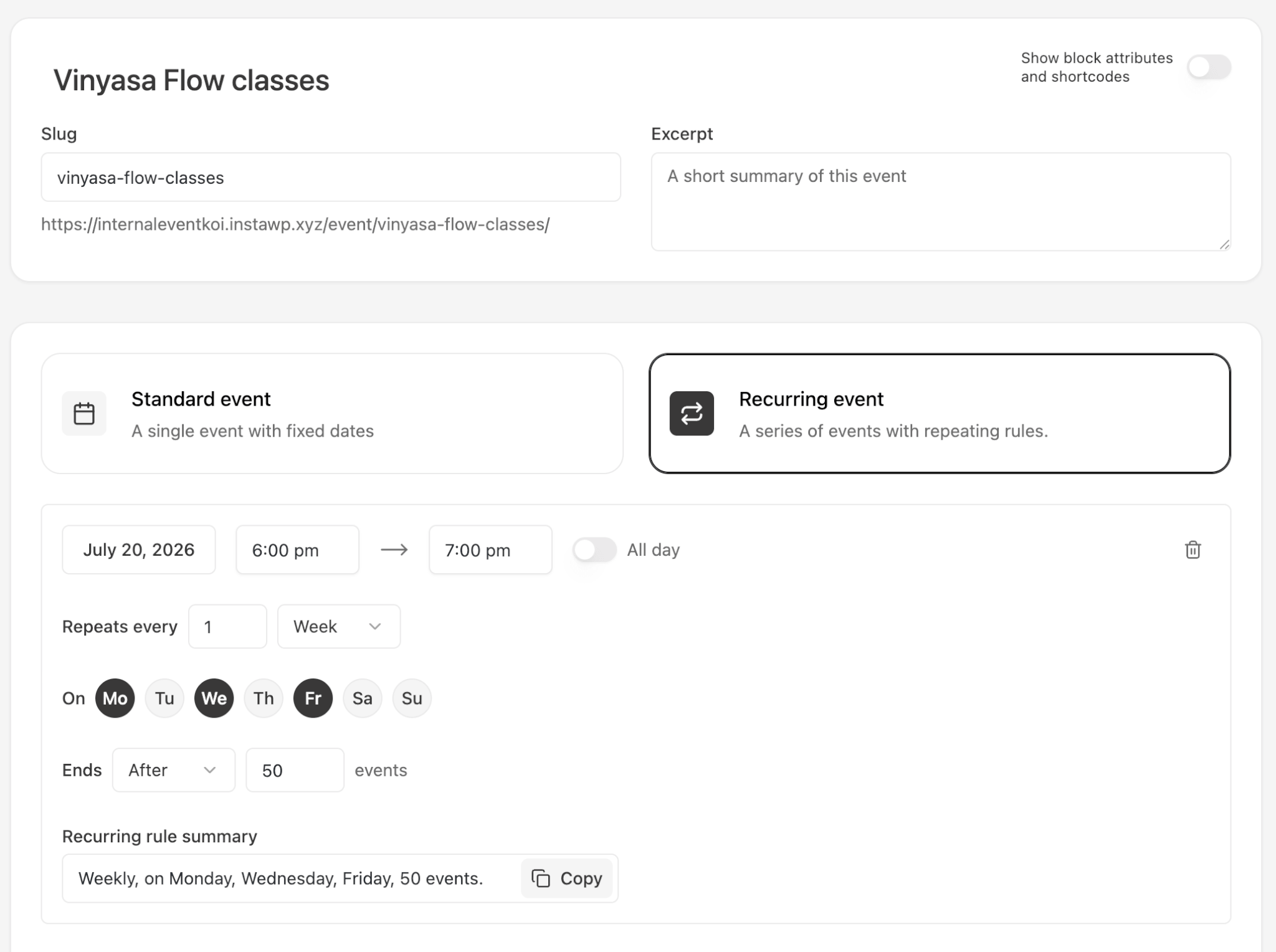
The first event is a vinyasa flow class that takes place weekly every Monday, Wednesday, and Friday.
In The Events Calendar, it is set up as a recurring event (this is only available in TEC Pro). It has a name, a description, a location (the yoga studio), an event category of “Yoga Classes,” and a featured image. On the front end, it shows up as a full weekly schedule, every class instance appearing on the calendar.
Event 2: Three-day yoga conference
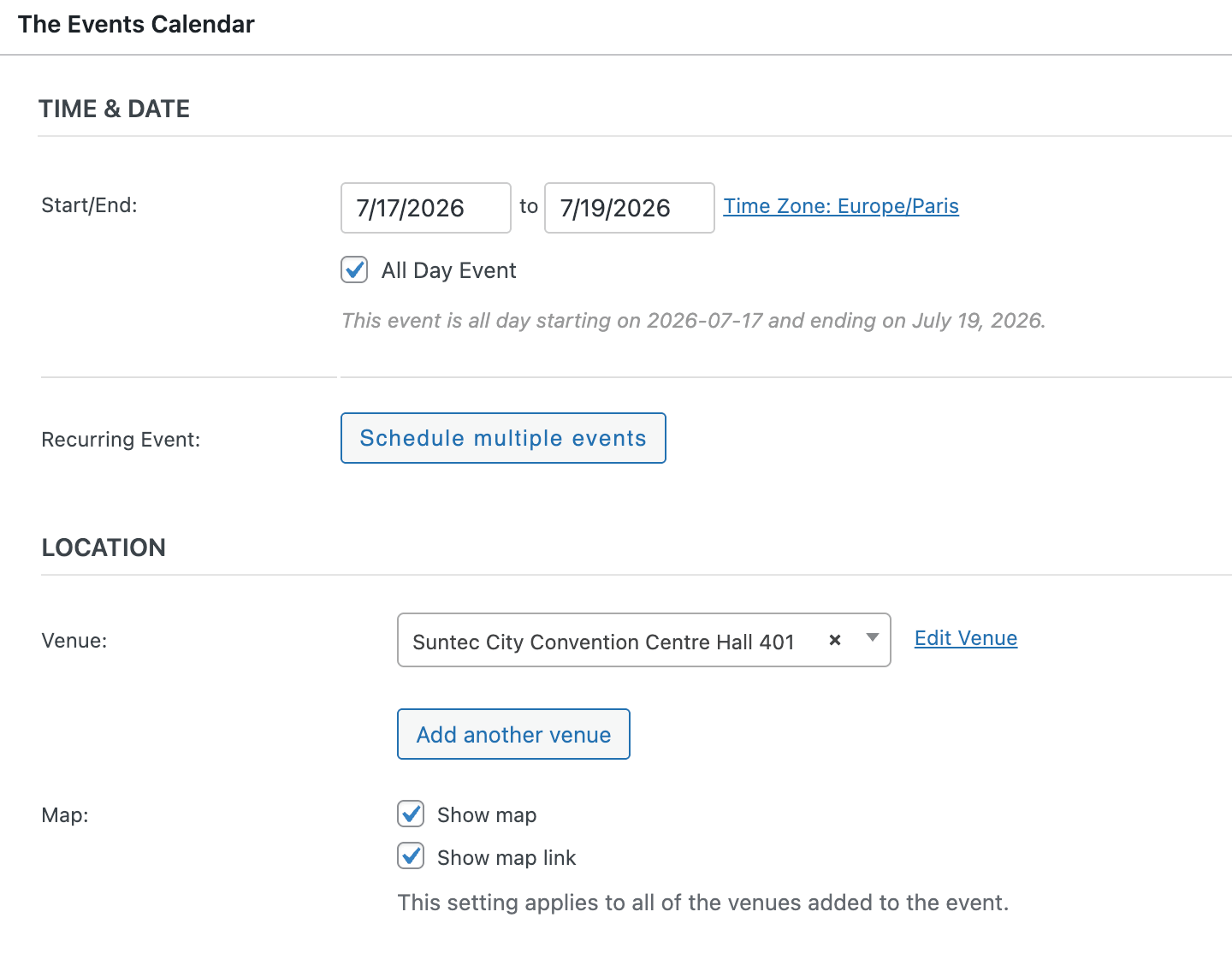
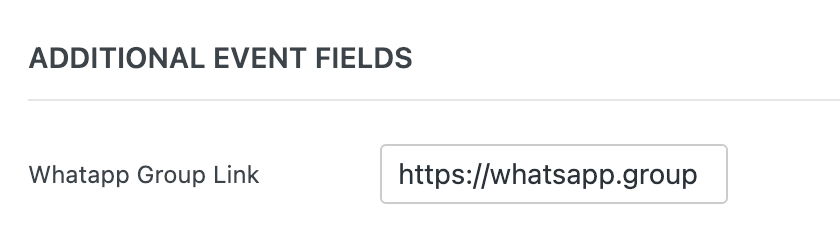
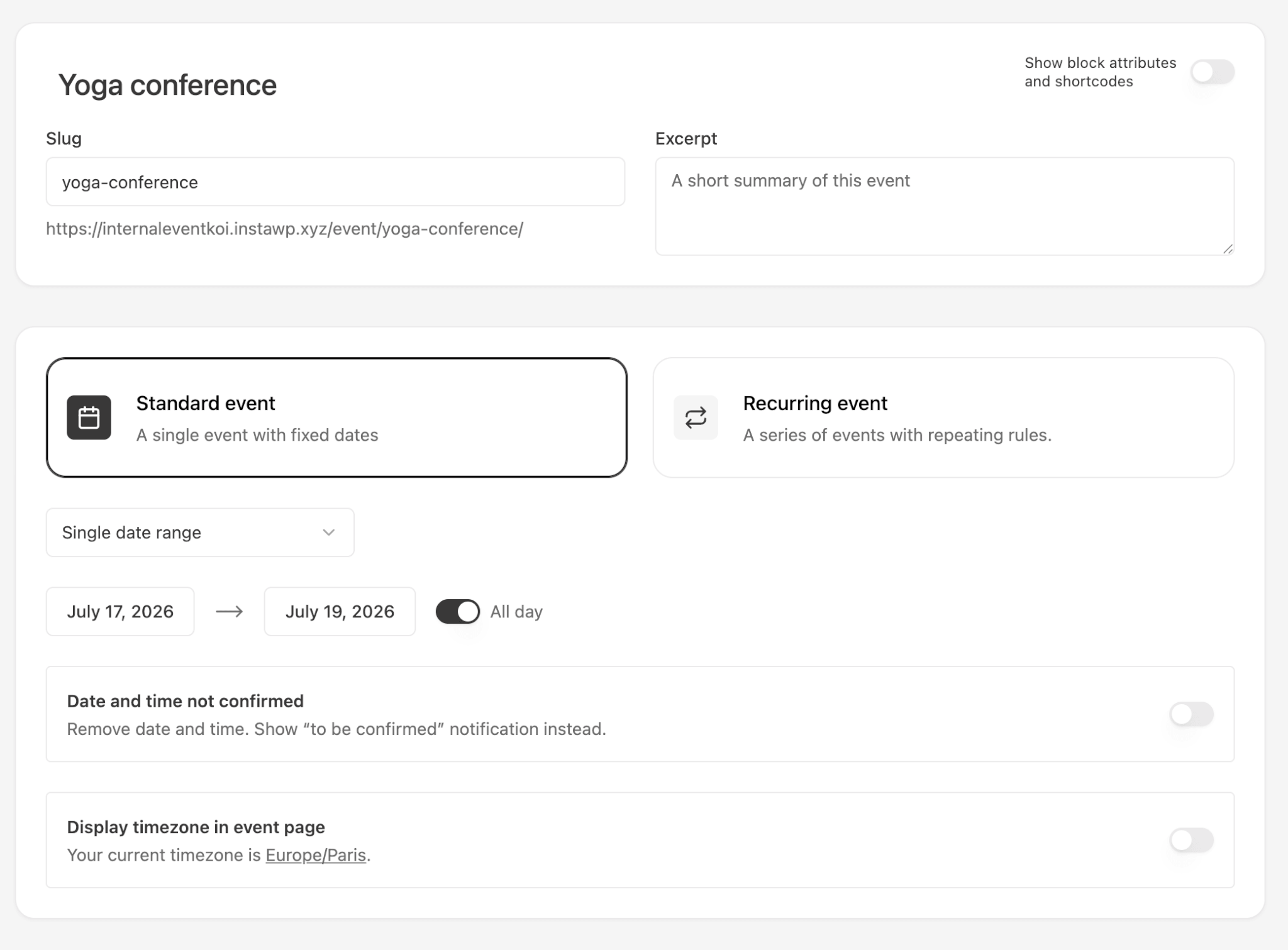
The second event is a three-day yoga conference. It is set up as 3 consecutive full days. It has its own location, its own event category of “Conferences,” a featured image, and one extra detail the vinyasa class doesn’t have: a custom “WhatsApp group” field linking attendees to a coordination chat.
Running the import
Importing both takes one pass through Events → Settings → Import. Once it’s done, both events get imported into EventKoi with the correct date and time set ups. And even the additional field gets imported as an EventKoi custom field.
What gets imported
- Event schedules (time and date), including full recurrence rules
- Title and URL slug
- Post status is preserved (draft events in TEC will be imported as draft events in EventKoi)
- Location details, maps, descriptions, and featured images.
- Additional fields or custom fields
- Organizer details and any “event website” link you had set, both carried into the event description.
- Ticket and RSVP data: RSVP capacity, Event Tickets add-on including price, capacity, sold count, and sale window.
- A simple cost field, if you were just using TEC’s free-text price instead of real ticket types. If it’s a plain number, it becomes a “General admission” ticket automatically, otherwise it’s kept as text in the description.
- Categories. TEC organises events with categories, while EventKoi organises events with calendars. So your imported categories become calendars in side EventKoi.
A few things worth knowing before you import
- Recurring events, on EventKoi Lite: Lite doesn’t support recurring events. A recurring TEC event still imports, but only as a single standard event using its first occurrence. If you need the full recurring series to come across, that requires EventKoi Pro.
- Calendar visibility, on EventKoi Lite: Lite’s front end only shows your default calendar. If an imported event is categorised differently, it won’t show up on your site until you move it into the default calendar. When you use the importer, there’s a one-click bulk action to allow you to switch all your categories to “Default” so that your events will show up. Alternatively, if you need multiple categories, you can use EventKoi Pro.
- Attendee and RSVP records: the ticket types themselves import, but the actual list of people who registered doesn’t. You’ll start fresh on attendee data going forward.
- Already-imported events stay untouched: if you edit an event back in The Events Calendar after importing, re-running the import won’t pick up the change. Delete the EventKoi copy first, then re-import it.
If your setup is more complex
Straightforward events like the ones above import cleanly with no extra steps. If you’ve built up a lot of customization over the years and hit anything unexpected during import, reach out and we’ll help you sort it out.
If you’d like to learn more about the differences between EventKoi and The Events Calendar, you can check out this post: