
When people organize events, they don’t usually plan a central resource library for pre-event information, handouts and other resources. Instead, files get emailed and attendees have to search old messages or ask you to send the same files again.
An event resource library fixes that by giving each event one searchable page on your own website. Instead of relying on a Google Drive or Dropbox link, attendees can find the latest files before and after the event.
We’ll show you how to build that page for a fictional event: The Northern Practitioners Conference, a two-day professional association conference. In this example, we’ll cover public information, attendee-only materials and an archive for next year. Once we’re finished, you’ll know how to do the same for your own events.
What event resources attendees need at each stage
The resources and documents you share with event attendees change over the life of the event. Attendees need specific documents at booking, different details immediately before the event and learning and reflection resources afterwards.
At booking
At booking, attendees need the files that confirm what they have booked and explain what happens next. For the Northern Practitioners Conference, that starts with practical documents they may need weeks before the first session.
- Booking confirmation and terms
- The program
- Dietary and accessibility forms
- Exhibitor and sponsor packs
In the days before the event
In the days before the event, attendees want to know where to go, what to bring and whether anything has changed. This is where the resource library saves you from answering the same email again and again.
- Joining instructions
- Directions and parking
- The final program
- Pre-reading
- Risk assessments for community events
After the event
After the event, attendees come back for the materials they missed or want to revisit. The same page can hold the conference presentation slides, recordings and follow-up documents without sending everyone a new link.
- Slides
- Event recordings
- Handouts and worksheets
- Certificates of attendance
- Photos
- The feedback summary
Attendees only need one link for the event resources. The link keeps working at every stage.
What you need to build a WordPress event resource library
The document library handles the searchable file area, while the event page gives attendees a familiar place to find it.
- A WordPress site
- EventKoi for your event pages
- A document library plugin for the searchable file area
This walkthrough uses Document Library Pro because it lets you create a searchable WordPress document library with categories, tags, filters and restricted access. You can use it for public files, attendee-only materials and an archive of older event resources.
Use WP Document Revisions if version history matters more than search and attendee browsing. Use FileBird if you only want to tidy files in the WordPress Media Library. Use MemberPress if file access is tied to paid membership.
How to create an event resource library in WordPress
The Northern Practitioners Conference needs a public event page and a separate library page for documents. We’ll add the files, organize them, make the library searchable, protect the right materials and then link the library from the EventKoi event page.
Step 1. Add the event documents
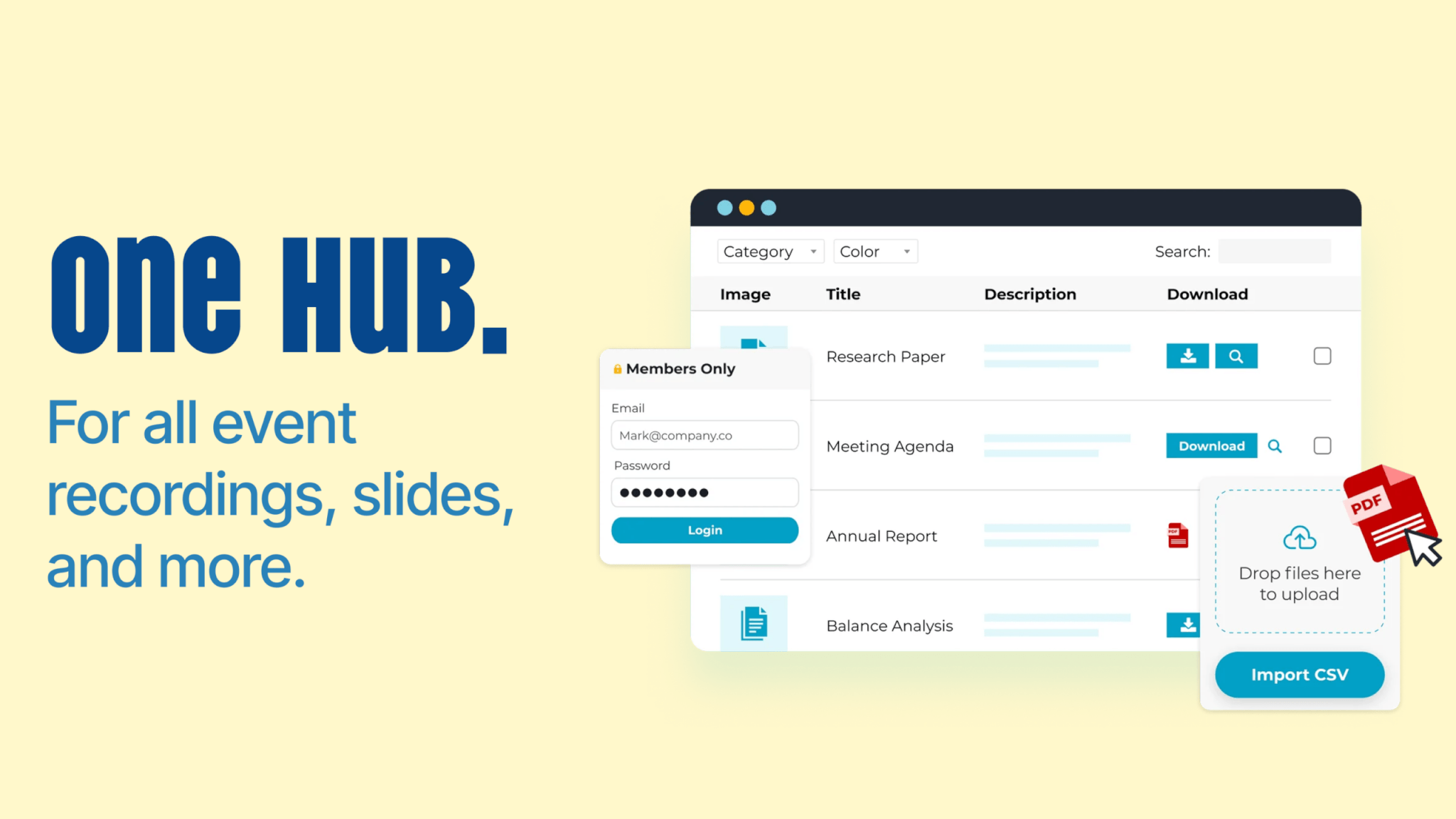
Start in Documents > Import. The import screen gives you a drag and drop upload area and a CSV upload button, which is useful when you already have a folder full of files.
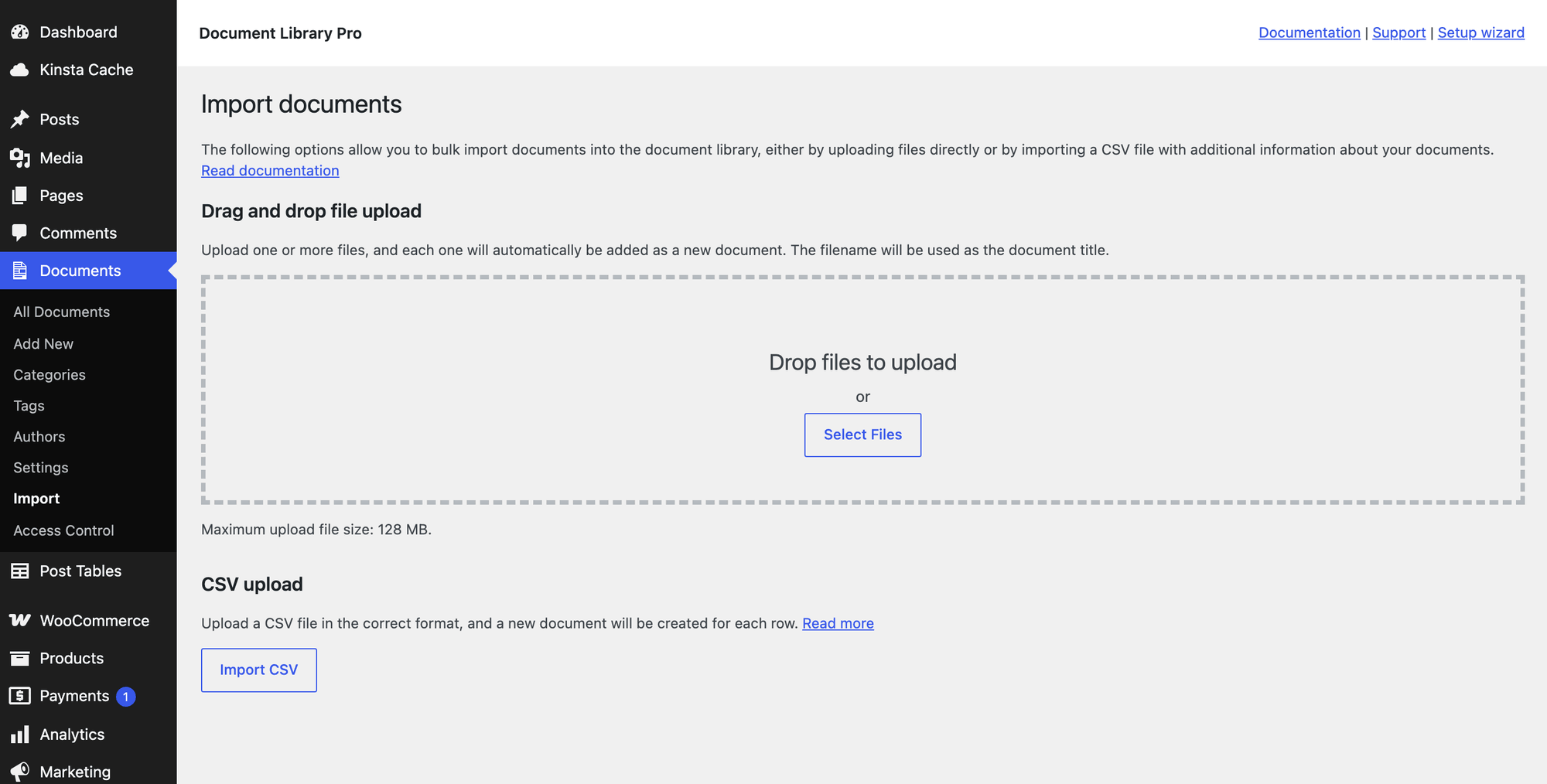
For the Northern Practitioners Conference, upload the program, directions, workshop pre-reading, exhibitor pack, sponsor pack and dietary form. You can drag and drop several files at once. Each file becomes a document.
You can also import documents from a folder on the server. If you have a spreadsheet ready, the CSV import can create new documents and update existing ones.
Give each document a real title and a short description. Both fields are searchable. A title such as “Day one workshop workbook” helps attendees much more than “NPC_WORKBOOK_FINAL_v3.pdf”.
Step 2. Organize by day, session or type
Next, decide how attendees will look for the files. For the Northern Practitioners Conference, day-based categories make sense because the event runs over two days.
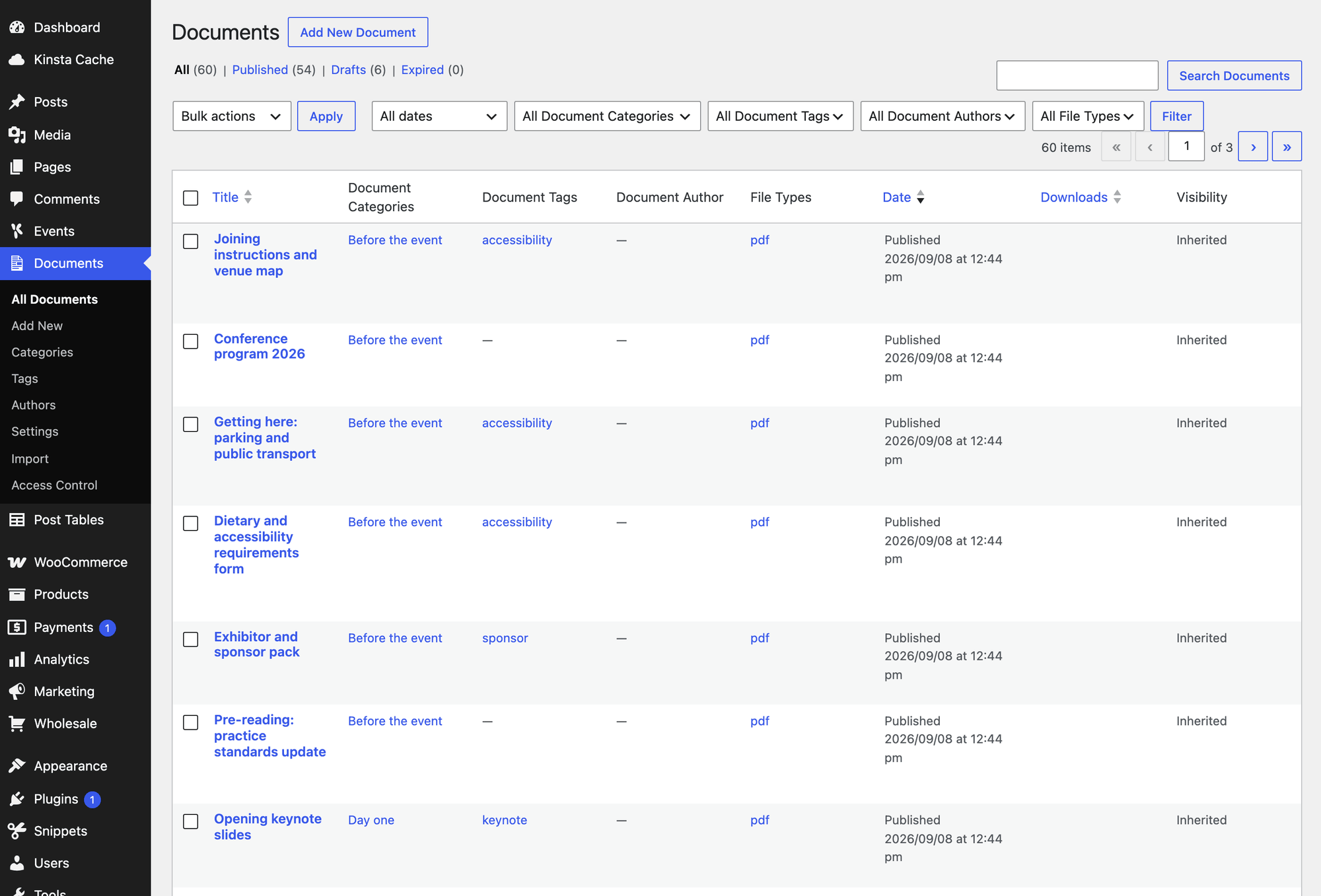
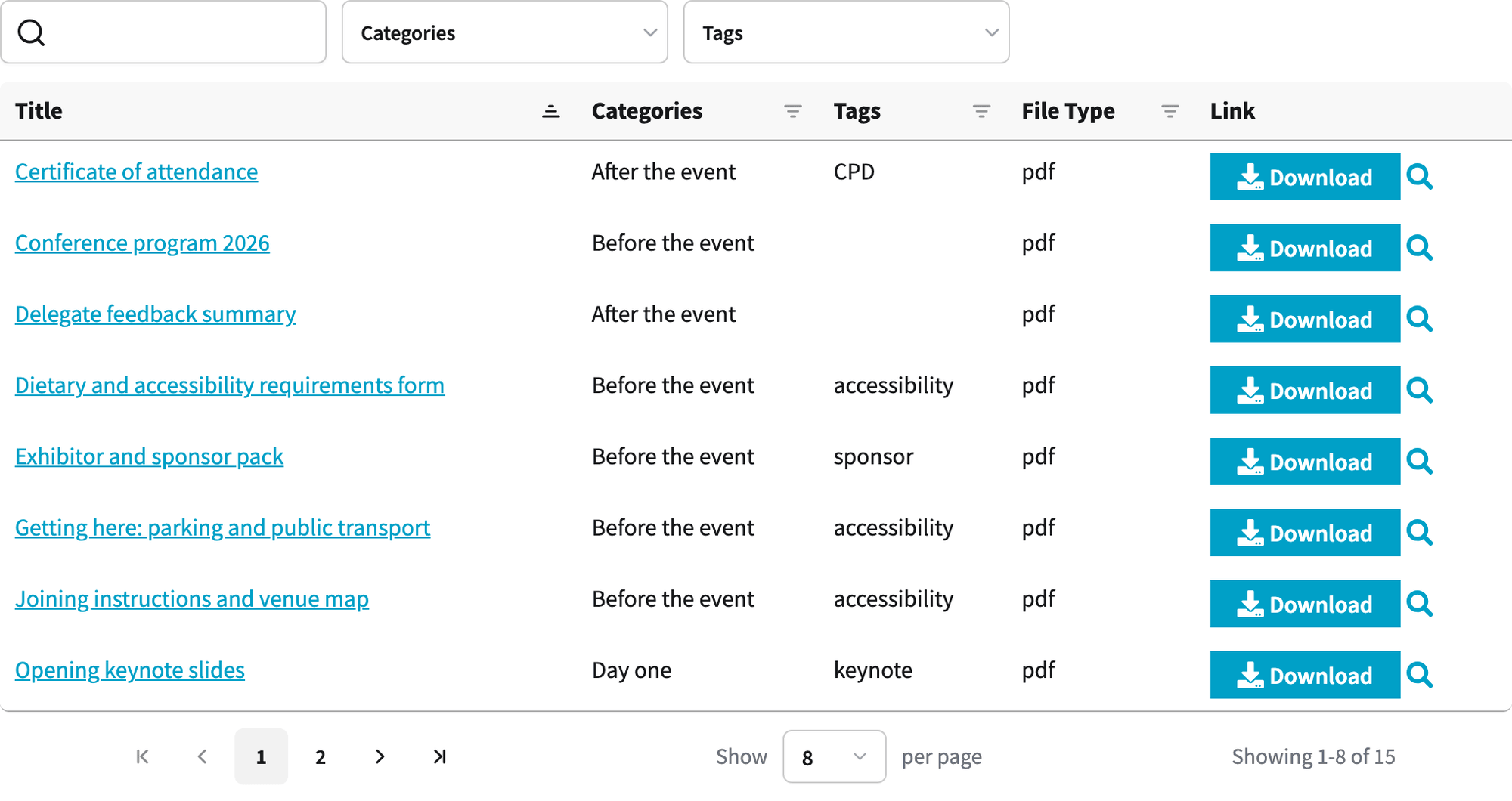
Use categories for the main structure people browse. In this example, the main document categories are “Before the event”, “Day one” and “Day two”.
Use tags for labels that apply in more than one category. Tags such as “accessibility”, “sponsor”, “keynote” and “worksheet” help attendees narrow the list without changing where a document belongs.
Custom fields give you space for details such as speaker, session time and room. Those details can become columns or filters if attendees need to compare resources across the program.
Step 3. Make the library searchable and filterable
Document Library Pro can show your documents in a table or grid layout. A table works well for event resources because attendees can scan the title, type, session, speaker and download link in one place.
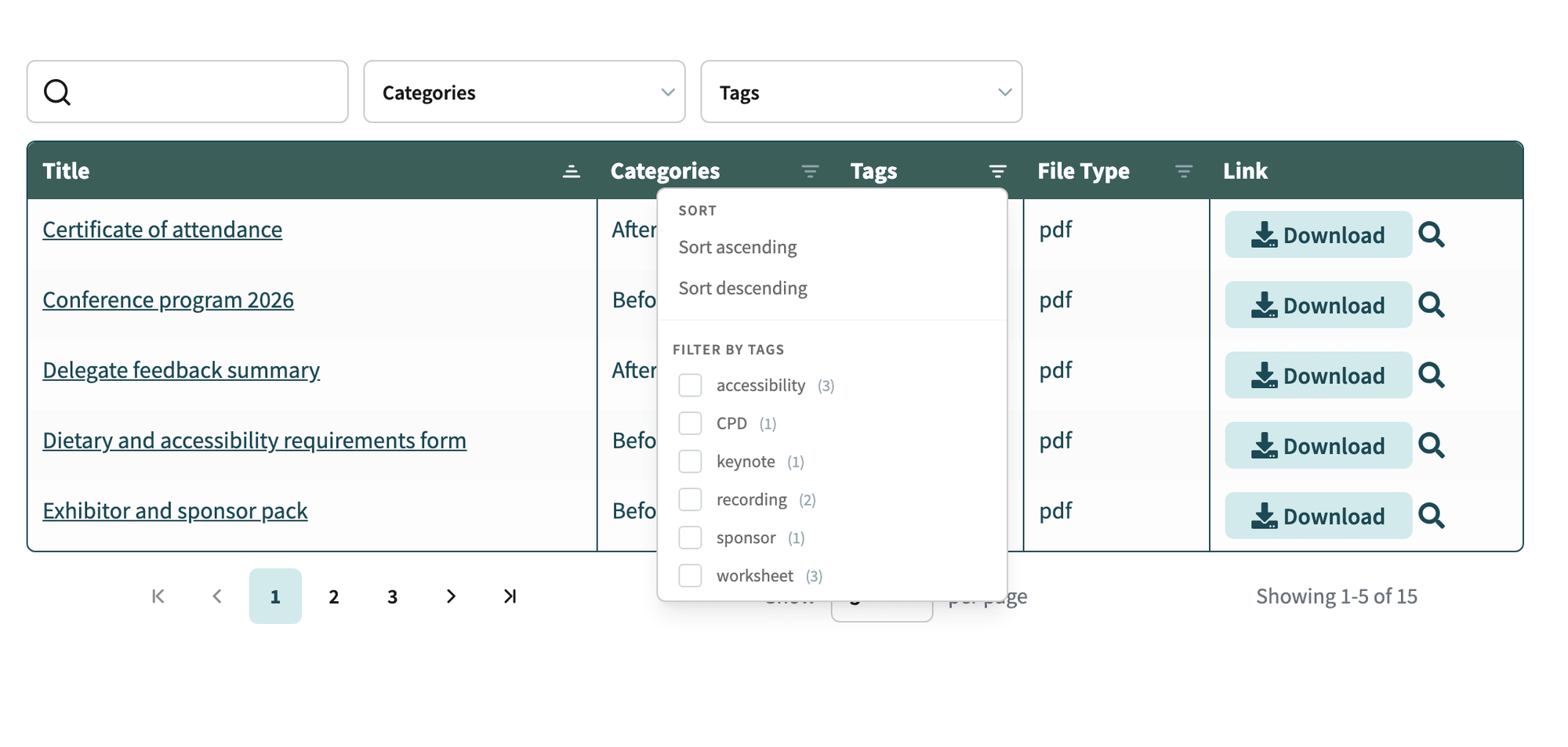
Search covers document titles, descriptions and the text inside PDF and Office files. If an attendee remembers a phrase from a session, they can search for it even when they cannot remember the file name.
Filters help attendees narrow the library without guessing search terms. You can show filters above the library or as dropdowns in the column headings.
Counts next to each filter option show attendees how many documents are in each part of the conference. Multi-select filters let attendees choose more than one option when they need files from several parts of the conference.
Step 4. Decide what’s public and what’s restricted
Some event documents should be open to everyone. Others should only be available to the people who booked.
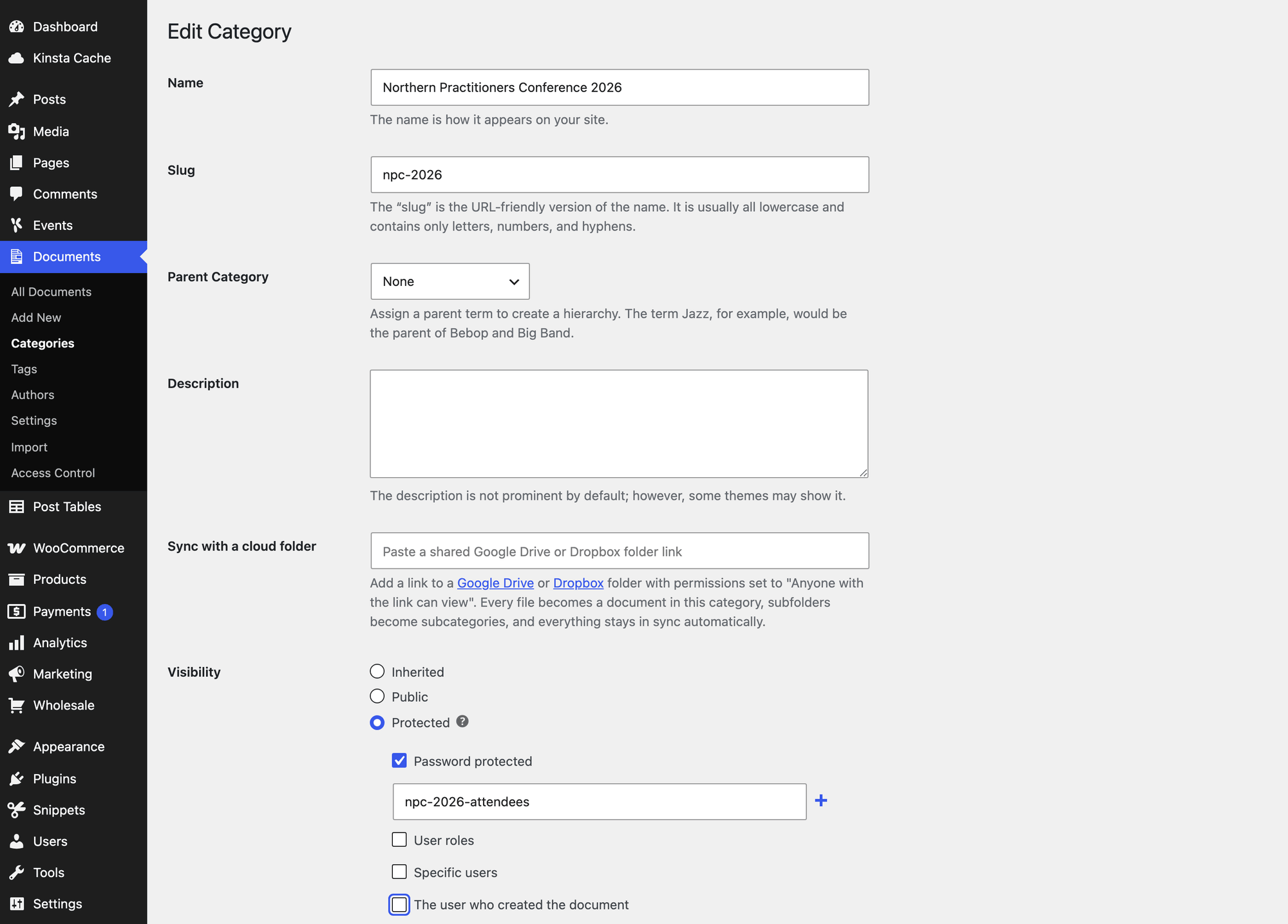
For the Northern Practitioners Conference, keep the program and directions public. Create one password protected document category for the event’s recordings and CPD certificates, then share that password with the people who booked. You can reserve older years for members.
Set the category’s visibility to “Protected” when a group of files needs restricted access. For most events, password protection works better than user accounts because attendees do not usually have a website login. User roles and specific users are useful when attendees already have accounts, for example on a membership site.
Child categories and documents inherit protection from their parent category. This lets you protect a whole group of files at once.
Documents can be downloads, previews in a lightbox or links to an external URL. External links suit event recordings hosted on Vimeo or YouTube, because the library still gives attendees one place to find the video.
Step 5. Link the resource library from the event page
Create the library as its own WordPress page. Then link to it from the EventKoi event description.
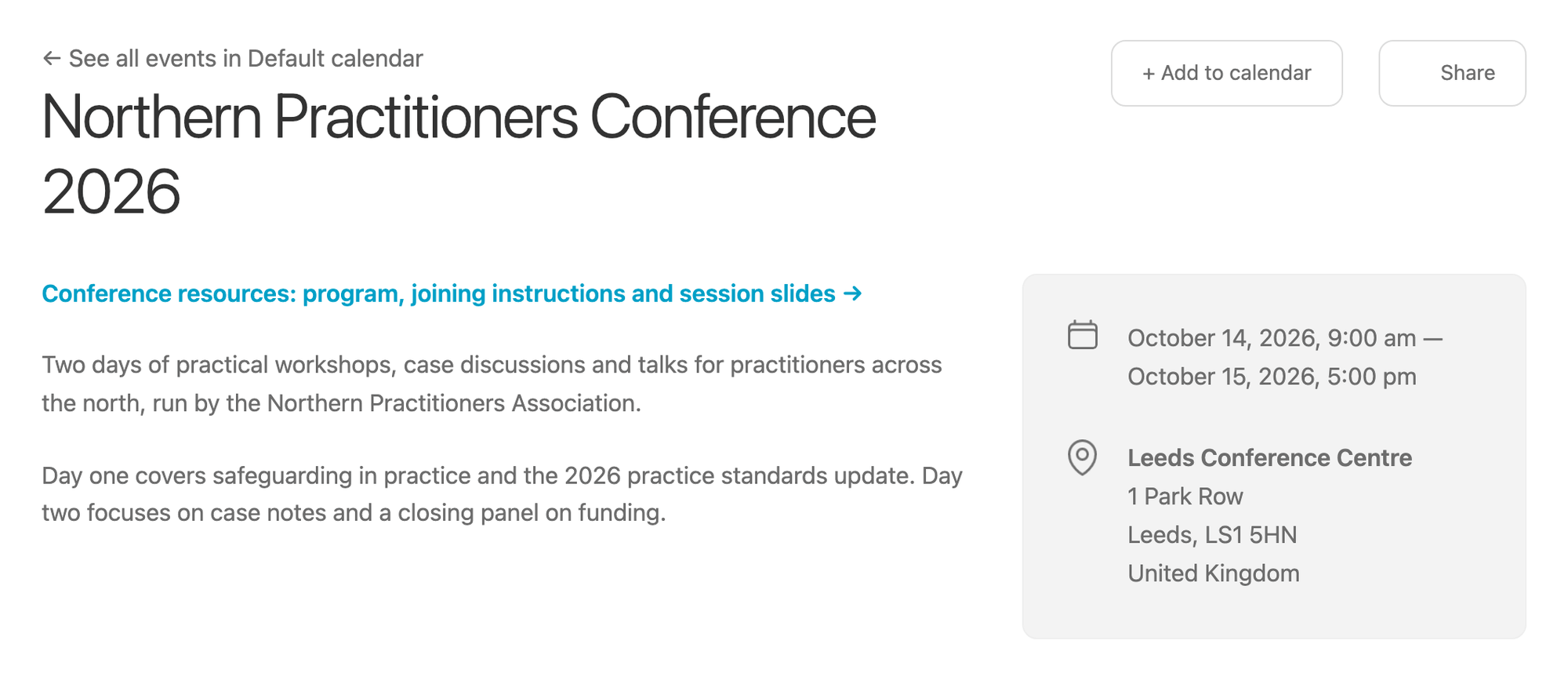
For the Northern Practitioners Conference, add a “Conference resources” link near the top of the event description, next to the date and venue. Before the event, that link takes attendees to the program, joining instructions and pre-reading.
Add the same link to the booking confirmation and reminder emails. The link never changes. You can keep adding slides, recordings and certificates without sending a fresh location each time.
If speakers or volunteers need to upload documents, use a front-end submission form. They can add files without a WordPress admin login.
Resource library examples for different organizations
Different organizations need different access rules. However, the same resource library setup can work for a conference, public meeting or AGM if you choose the right categories.
Professional association
A professional association can use Document Library Pro for an annual conference where the program and joining instructions stay public. You can restrict CPD certificates and recordings to members or attendees, which works well when event resources form part of the member offer.
Council
A council can use Document Library Pro for a public meeting where residents need agendas, minutes and supporting papers before and after the meeting. Accessible file names, tagged PDFs and clear categories make the page easier to use for residents who arrive from search or a shared link.
Charity
A charity can use Document Library Pro for an AGM where the annual report, impact summary and public agenda should be easy to find. Trustee papers can sit in a restricted category, which keeps board documents away from the public page.
Keep your event resource library useful as next year’s archive
After the event, the library becomes the archive. Attendees can return for slides, certificates and handouts, while people considering next year’s event can see the kind of materials they would receive.
For the Northern Practitioners Conference, you might keep the current year open and put older years behind a member login. That gives prospective attendees a useful sample and gives members access to the full back catalog.
Use year categories as the archive grows. Next year, reuse the same category setup instead of starting again, then add the new EventKoi event page link before registration opens.
Event resource library FAQs
What should an event resource library include?
An event resource library should include the files attendees need before, during and after the event. Common event resources include booking confirmations, terms, programs, joining instructions, directions, parking details, pre-reading, slides, event recordings, worksheets, certificates, photos and a feedback summary. Exhibitor packs, sponsor packs and accessibility forms often belong there too.
Can I restrict some event files to attendees only?
Yes. You can keep public event files, such as the program and directions, visible to everyone. You can put recordings, certificates or private handouts in a protected category. Category protection can apply to a whole section, and child categories and documents inherit the same access rule.
Can attendees search inside PDFs?
Attendees can search inside PDFs when the PDF contains readable text rather than only a scanned image. A searchable document library can also search Office files, document titles and descriptions. This means attendees can search for a phrase from a talk and find the relevant slides.
Where should event recordings be hosted?
Event recordings usually work best on a video platform such as Vimeo or YouTube. Add each recording to the library as an external link. This keeps large video files out of the WordPress Media Library, while attendees still get one place for recordings, slides and worksheets.
How many documents can one library hold?
One event resource library can hold a large archive, but the organization matters more than the raw number of files. Use categories, tags, custom fields, search and filters so attendees do not face one long list. Split files by year, day or session as the archive grows.
Do attendees need an account to access event resources?
Usually, no. Password protection is the normal route for event resources because attendees do not usually have accounts on your website. Public files can stay open to everyone, and attendee-only files can sit in a protected category with a password for the people who booked. Accounts, roles or specific-user access only matter when attendees already have logins, for example on a membership site.
How long should an event resource library stay online?
Keep an event resource library online for as long as the materials remain useful and accurate. For annual events, the library often becomes part of the archive for future attendees. Review the library before the next event, remove outdated operational details and keep valuable materials organized by year.
Which WordPress plugin should I use for an event resource library?
Use Document Library Pro for a searchable, filterable event resource library with restricted categories. Use WP Document Revisions if version history matters most. Use a membership plugin such as MemberPress if access is tied to paid membership. FileBird suits media library tidying, rather than an attendee-facing library.
Build an event resource library for your attendees
A searchable event resource library built with Document Library Pro gives attendees one place to find the files they need. Instead of hunting through old emails, they can get the right document themselves.
You spend less time resending slides, handouts and certificates. The same library keeps working before, during and after the event, and it can become next year’s archive.
As a result, you spend less time emailing attendees, and your attendees have permanent access to everything they need.