
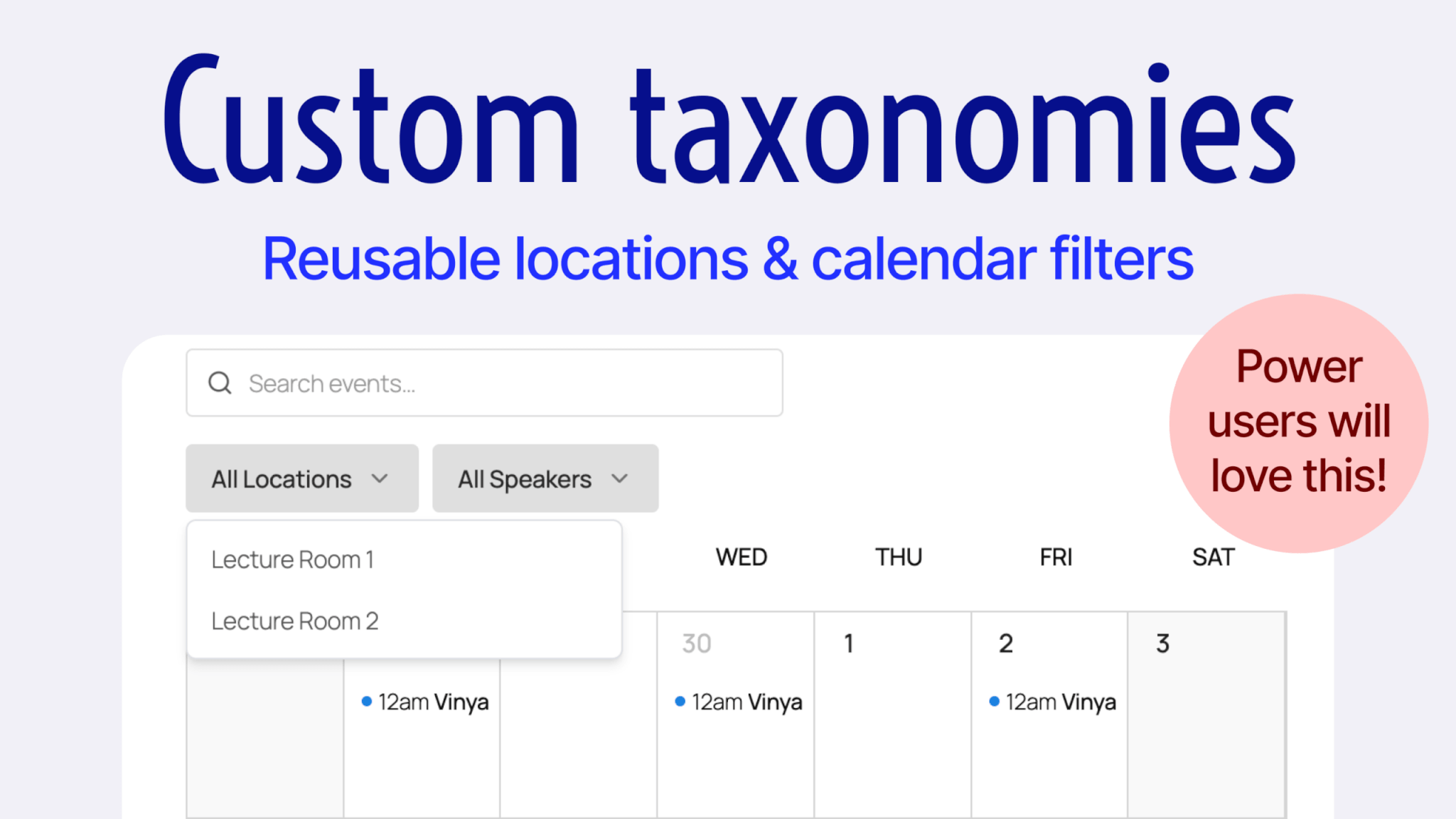
We’ve just launched one of our most powerful features to date: Custom taxonomies!
What is a taxonomy and a term?
“Custom taxonomies” sounds intimidatingly technical. But it’s just a feature that lets you build categories of event data.
By default, EventKoi lets you fill out basic event information like location and time. But what if you are a local movie theatre and want to categorise events by ratings? Or what if you have a multi-room venue and want to classify events based on which meeting room they are being held in?
That’s where you need custom taxonomies like “ratings”, “venues” and more.
A term is the data you create inside the taxonomy. So when you create a venue taxonomy, your terms might be something like: Meeting room 1, Meeting room 2, and so on.
Why we built this
Recently, we’ve had more customers moving from The Events Calendar to EventKoi. One of the key feature requests everyone had was “saved locations”.
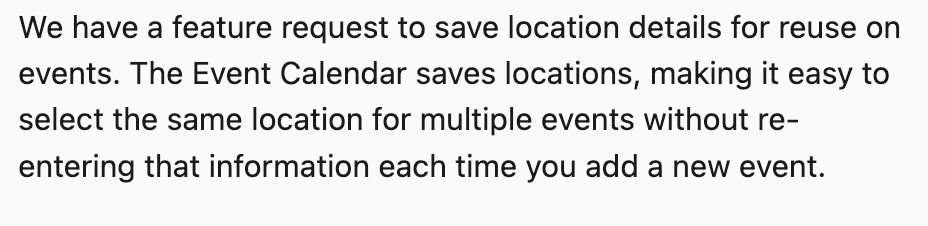

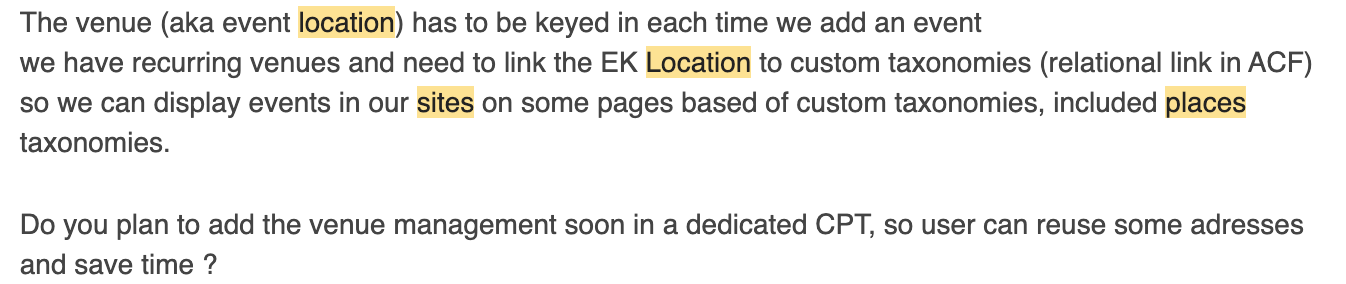
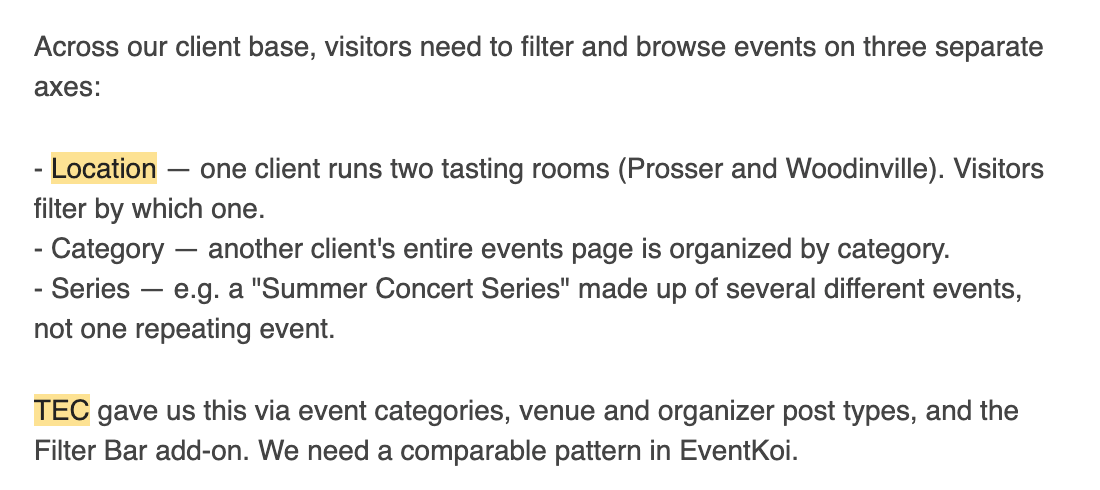
The Events Calendar has a feature called Venues that works as “saved locations”. It creates custom post types for all your venues, making them reusable so that you can pull up existing venues from a dropdown instead of having to type them up from scratch each time.
They have an identical feature for Organizers too.
I think this is a great feature idea. However, I hate the execution. And despite all the customer requests to build something similar, I refuse to build it the same way.
Why?
Because not every site needs additional Venue or Organizer information. And, please correct me if I’m wrong, but I couldn’t find a way to remove it from The Events Calendar Pro.
In addition, there isn’t any way to change the default fields, which are address, city, country, state/province, postal code, phone, website and map.
What happens if I want to mention the number of bathrooms in my venue? Or maybe I run a co-working space and I rent out the meeting rooms and need to specify the capacity of each room and whether a projector is available? What if I run a small chain of restaurants across town and I want to highlight which restaurants have parking? What if I don’t even want to call them “venues”, and instead call them “sites” or “meeting rooms” or “halls”?
None of these options are available because the Venues feature is rigid and hard coded. To add or change any of these options, you’d have to hire a developer or code it yourself.
This frustrates me because WordPress is used by millions of different people and businesses. And the reason it’s so widely used is because of its flexibility.
If people want hard coded events software, they would use Eventbrite or one of its many competitors. People use WordPress because they have specific needs and their sites are custom built for those needs.
How EventKoi’s custom taxonomies are different
We developed custom taxonomies to do 2 things:
- Fulfil a common feature request we received to build reusable locations
- Build it in a way that gives our customers power and flexibility
Here’s a snapshot of how our custom taxonomies is different from The Events Calendar’s “Venues” custom post type:
| TEC’s Venues & Organizers custom post type | EventKoi’s Custom taxonomies |
|---|---|
| Limited to venues & organizers | Unlimited taxonomies (venues, organisers, movie genres, sports) |
| Fixed fields (address, post code) | Unlimited fields (create whatever fields you like) |
| Displays fixed data | Shortcodes, dynamic tags and meta keys are generated for any taxonomy, field and term you create. So that you can design and display your data however you wish. |
Simple for beginners, flexible for power users
We apply the same basic principle to building any feature in EventKoi: Simple for beginners, flexible for power users.
In the rest of this post, I’ll explain how we applied this principle when building custom taxonomies.
Discoverability – Where to find custom taxonomies
When conceiving this feature, we knew it would be for technical power users. The kind of user who would go hunting for the feature in the plugin and docs.
In contrast, the average small business owner is unlikely to know what a custom taxonomy even is, and therefore won’t need it.
Understanding this about our users allows us to make decisions on where this feature should live and how it should work.
Specifically, it means that this feature shouldn’t be given a prominent location in our plugin. If we want to keep the plugin feeling clean and simple for beginners, it means making tough decisions to limit what is seen at the top level of our plugin, like in our plugin menu.
As an example, here’s what our plugin menu looks like out of the box, in comparison to The Events Calendar’s:
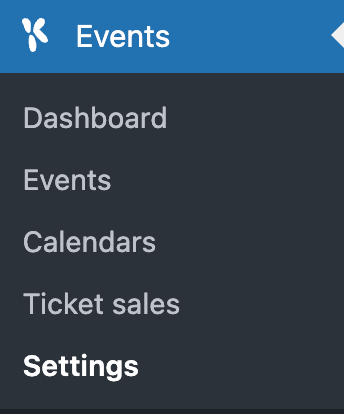
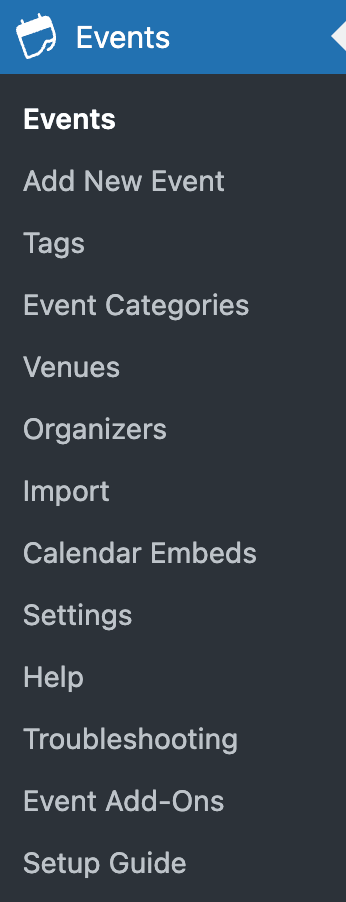
With TEC, you can see that they have Venues and Organizers as a menu item, regardless of whether a user will ever use it. This adds to the feeling of bloat, no matter how clean their code actually is.
To be fair, one of the reasons ours is cleaner is simply because we’re newer. It’s inevitable that our UI will have more items over time, but we hope to stay disciplined about only adding the bare minimum in order to avoid overwhelming new users.
So where can you actually find the custom taxonomies feature?
You can find it in Events > Settings > Custom data > Taxonomies
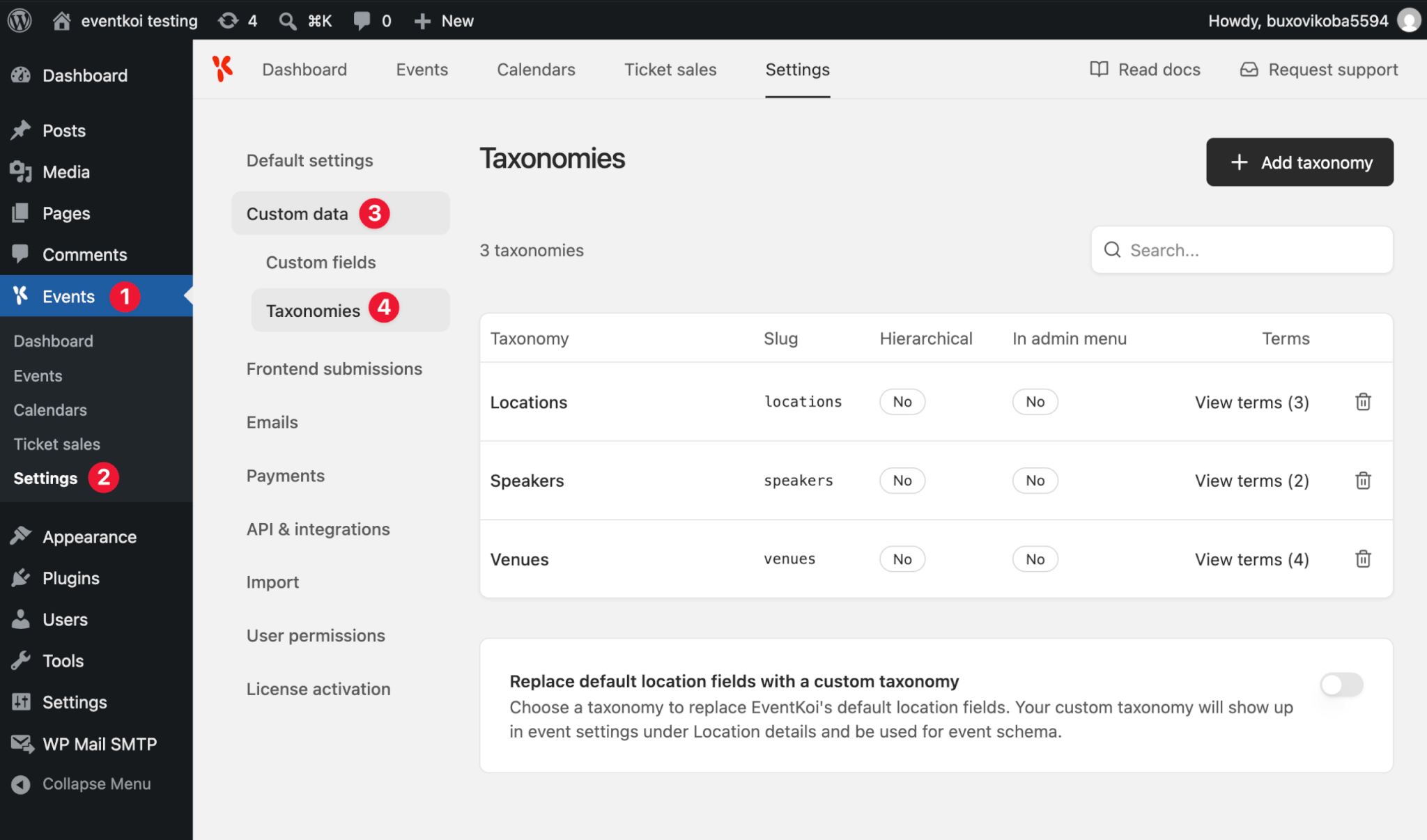
How to give your team a shortcut to manage locations
This is a good example of our power and flexibility. Rather than exposing every single user to Venues and Organizers, we let the admin decide what they want their non-technical users to see.
When creating a new taxonomy, you have an option to show it in the admin menu:
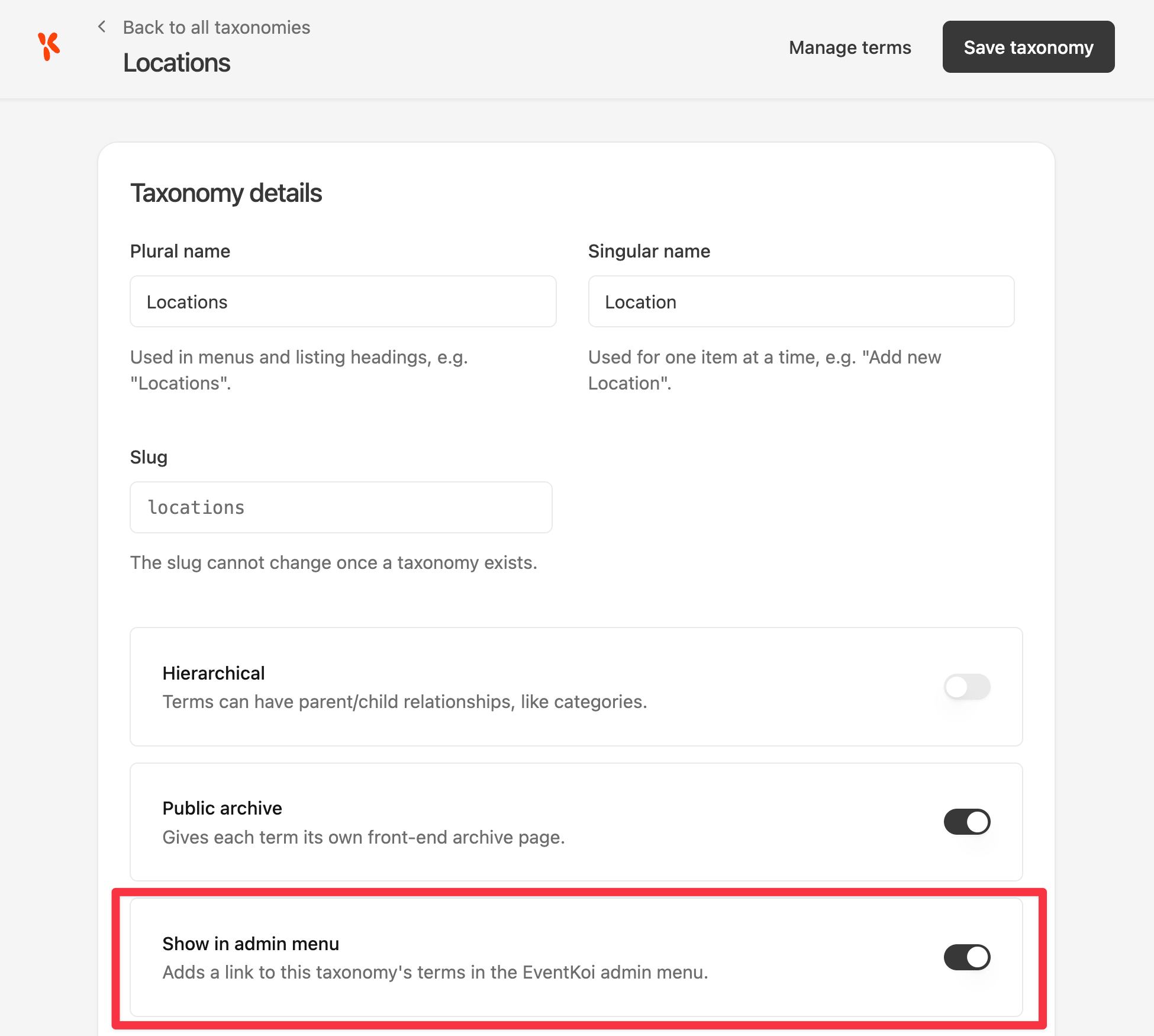
When toggled on, that taxonomy will now be available in the menu for anyone to easily find and use. This is useful for non-technical users to find, but also great as a shortcut for site admins to manage Locations.
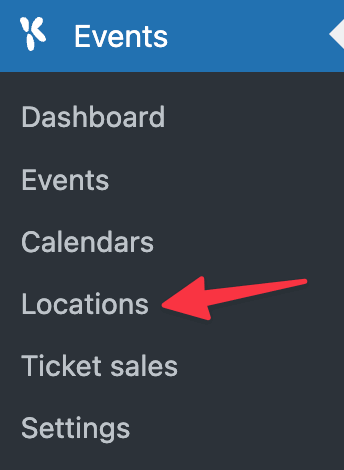
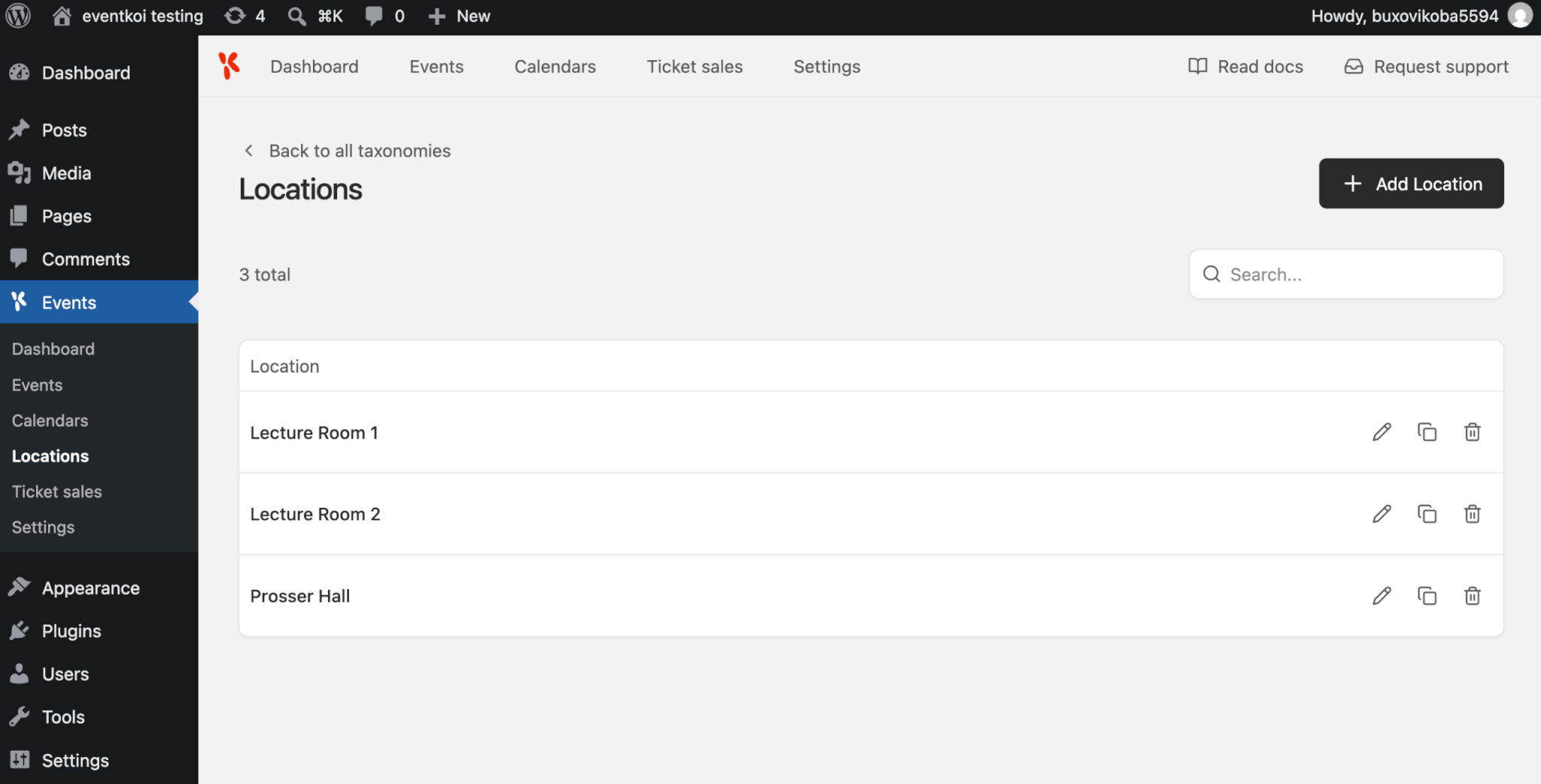
Clicking on Locations, brings you to a list of locations. You can edit existing locations or add new ones.
This works hand-in-hand with our user permissions feature. Let’s say you have a user role, Event manager, who is in charge of all events on the site. As the site admin, you might not want the event manager to be playing around with EventKoi’s plugin settings, but you want to give them the ability to manage locations.
So in this case, you turn off their access to all of EventKoi’s settings, but give them access to everything else.
Again, this is a good example of keeping things simple for non-technical users, while giving lots of power and flexibility to our power users.
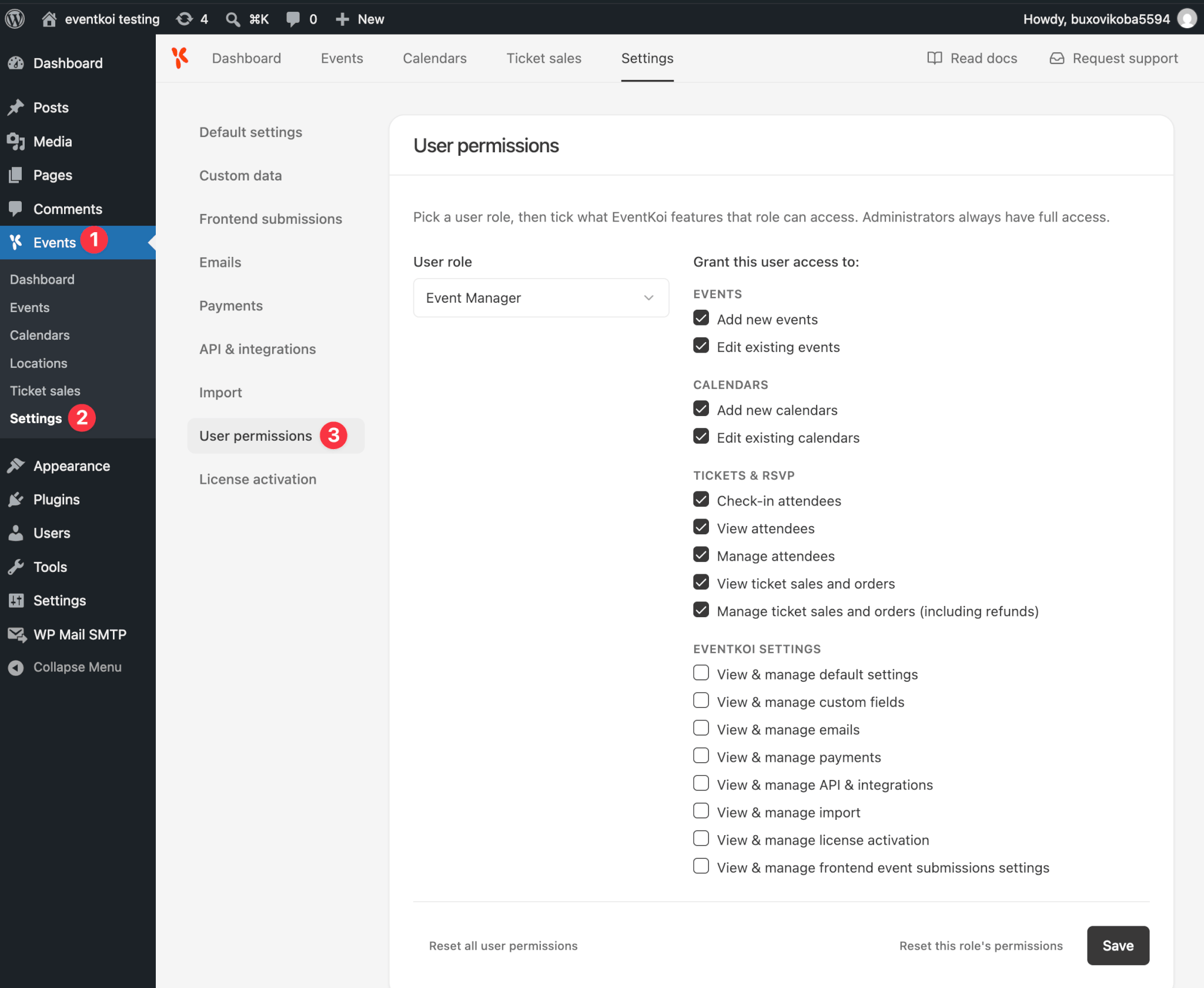
Building taxonomies and terms
I don’t want to go into too much detail here. To get a step-by-step guide on setting up custom taxonomies, head to our docs:
What I do want to say is that we built custom taxonomies the same way we built custom fields. And we built custom fields by looking at generic custom fields plugins like ACF (Advanced Custom Fields).
Plugins like ACF and Pods are not trying to dictate what kind of custom fields you’re going to build. Rather than guessing, they give you the tools to build any type of field you like.
That’s the same approach we took to custom fields and custom taxonomies. Rather than trying to guess if you want a venue, organizer, or speaker taxonomy, we simply give you the power and flexibility to create any taxonomy you like.
Creating a taxonomy
You can build your own taxonomy by going to: Events > Settings > Custom data > Taxonomies > Add taxonomy
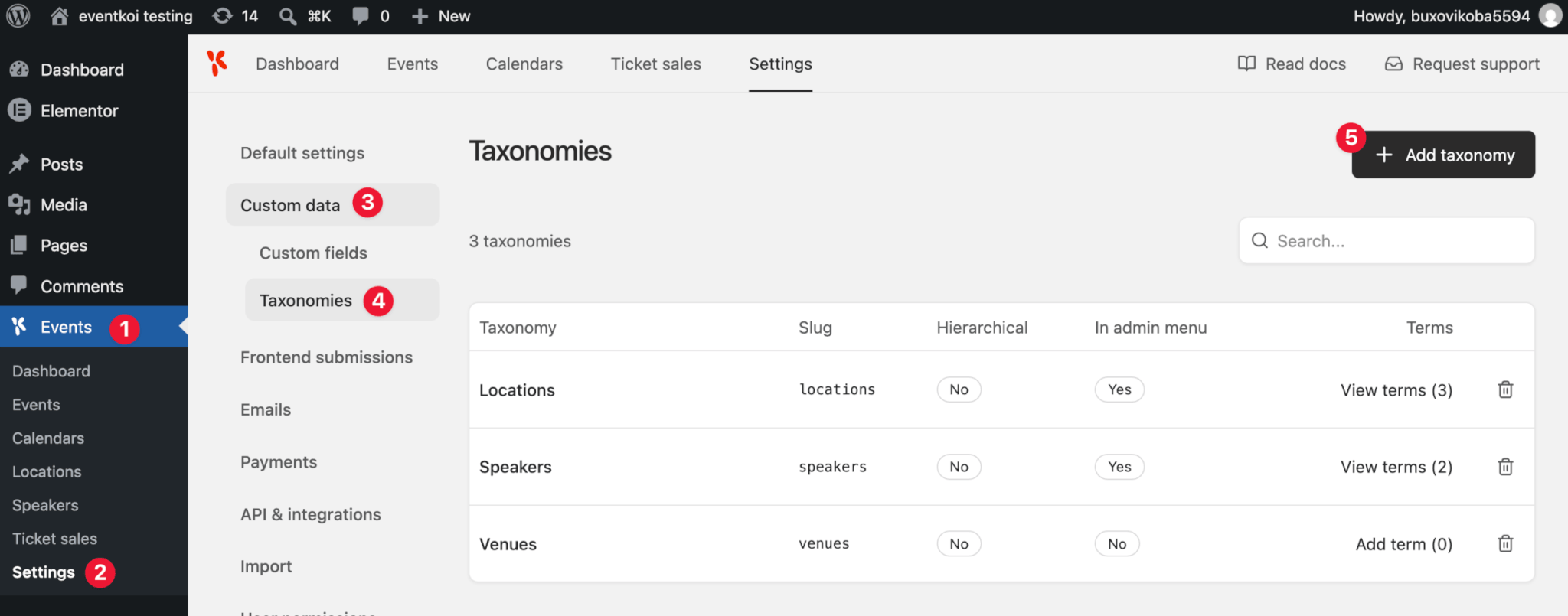
There, you’ll see the following settings:
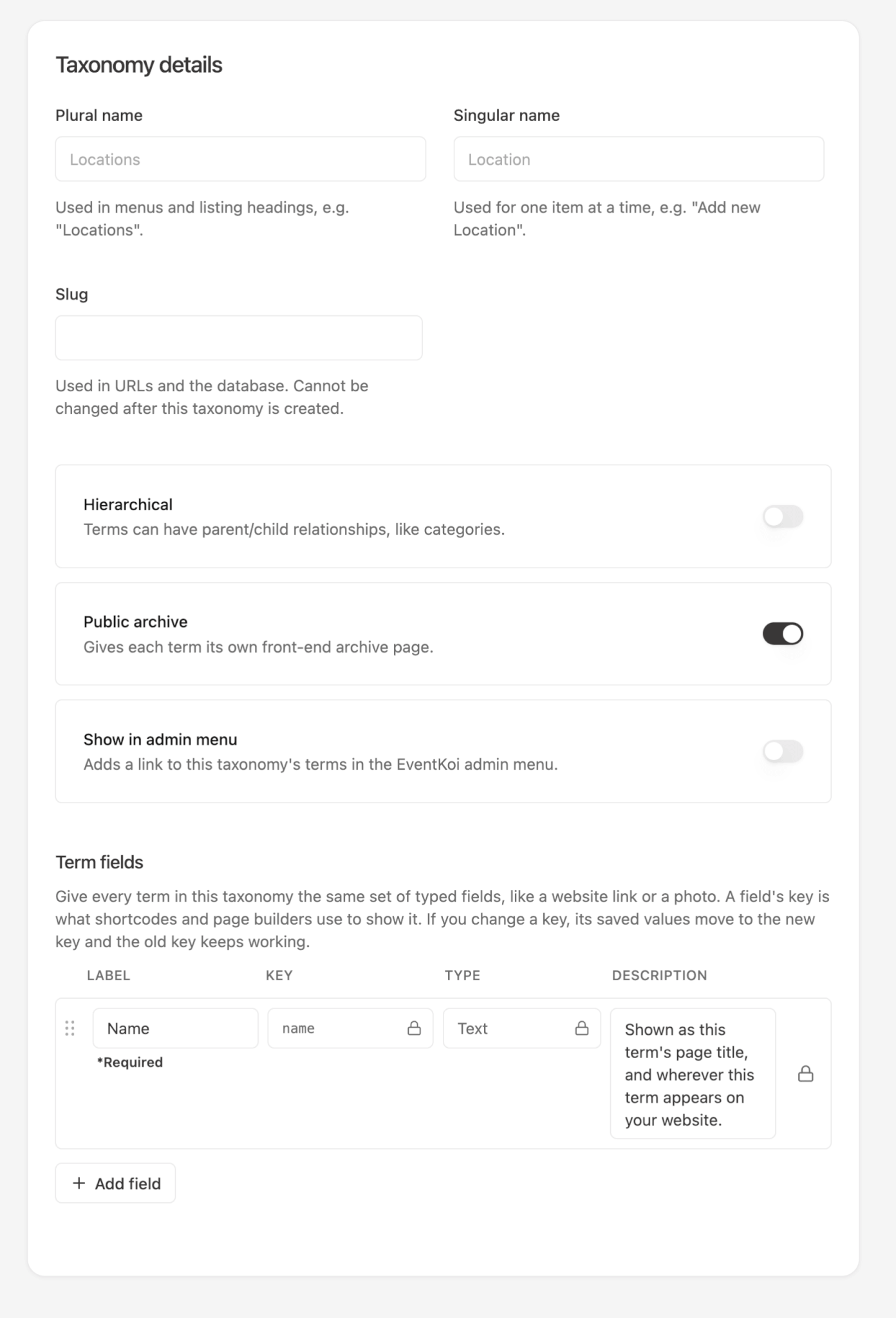
Whatever term fields you add when creating your taxonomy, will show up later when adding a new term. What is a term? In the earlier example using locations, each new location is a new term.
Turning a custom taxonomy into a reusable location
After everything we built so far, we still didn’t actually have the same feature that The Events Calendar had – reusable locations. At this point, if a user created a custom locations taxonomy, it would sit in parallel with our location details inside our event settings.
Having two location settings in one event obviously doesn’t make any sense.
So that’s why we developed a way to replace the default location fields with a custom taxonomy.
This was our solution to avoid hard coding a Locations taxonomy. Rather than forcing it on users, we hide it away in a neat toggle at the bottom of the taxonomies list. Power users can set it up quickly if they want to, and non-technical users can ignore it forever.
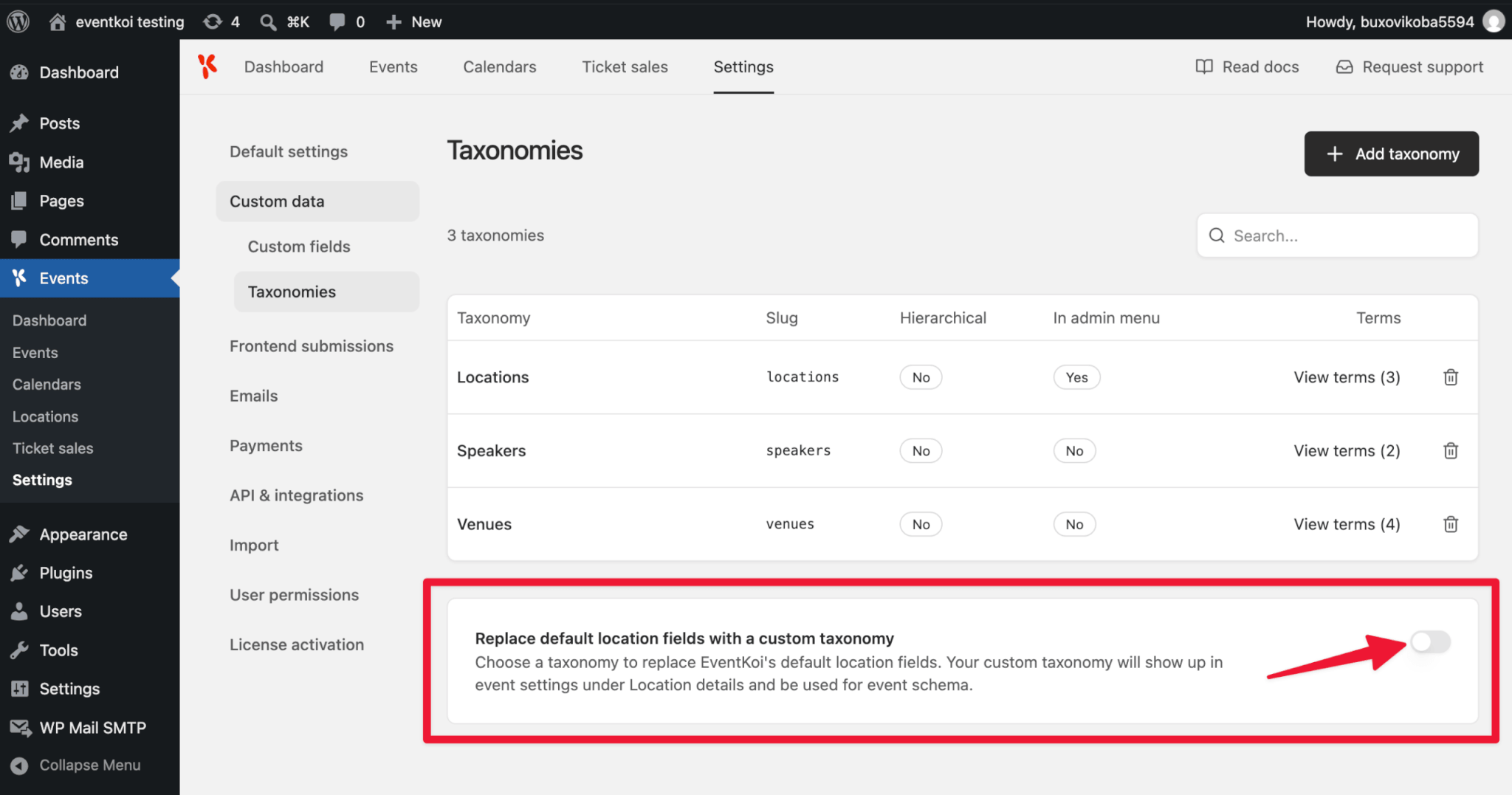
Here’s a step-by-step on how to set this up:
Displaying taxonomies: How to show your locations to site visitors
If we had built a hard coded Venues custom post type, displaying that data would be easy. It would be something like this: [eventkoi_venue].
But in our case, we allow you to display data in 4 ways: shortcodes, dynamic tags in page builders, meta keys and blocks in the block editor.
This allows you maximum flexibility for displaying data regardless of how your site is built.
In this example, we have created the term fields, “venue name”, “address” and “website” with their corresponding keys:
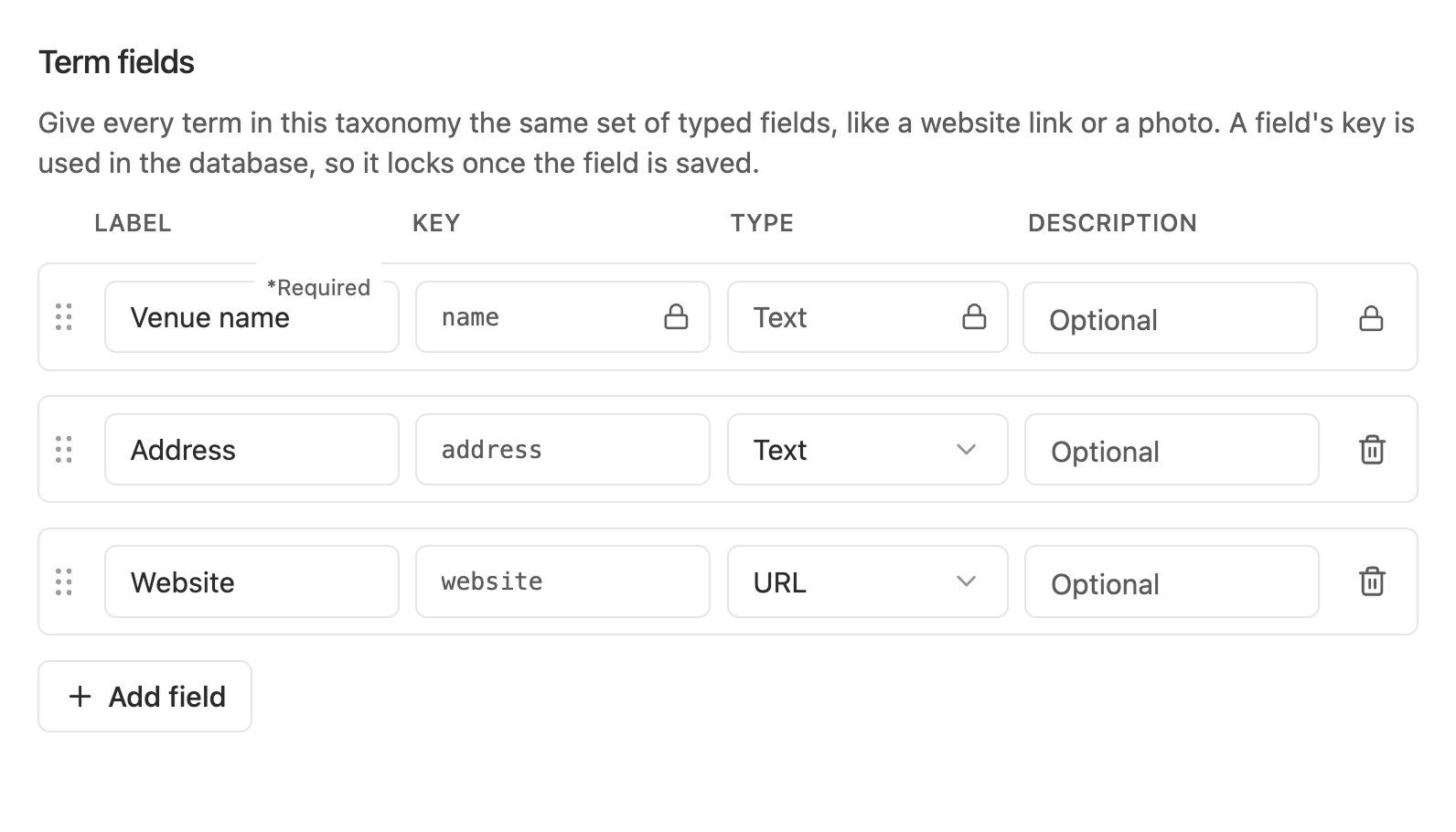
With these field keys, you’re able to create shortcodes or find the correct dynamic tag or meta key inside the block editor or page builders. Allowing you to display your data however you wish.
Shortcodes: An example shortcode looks like this: [eventkoi data="event_tax_location"]. This could be added to an event template and would show the location taxonomy for any event.
To learn how to display taxonomies using shortcodes, read Custom taxonomies & terms shortcode reference.
Dynamic tags: This works for Elementor, Divi, Bricks and Beaver Builder. Add a widget, then click on the Dynamic tag icon, and select from over 40 default dynamic tags as well as the taxonomy term fields you created.
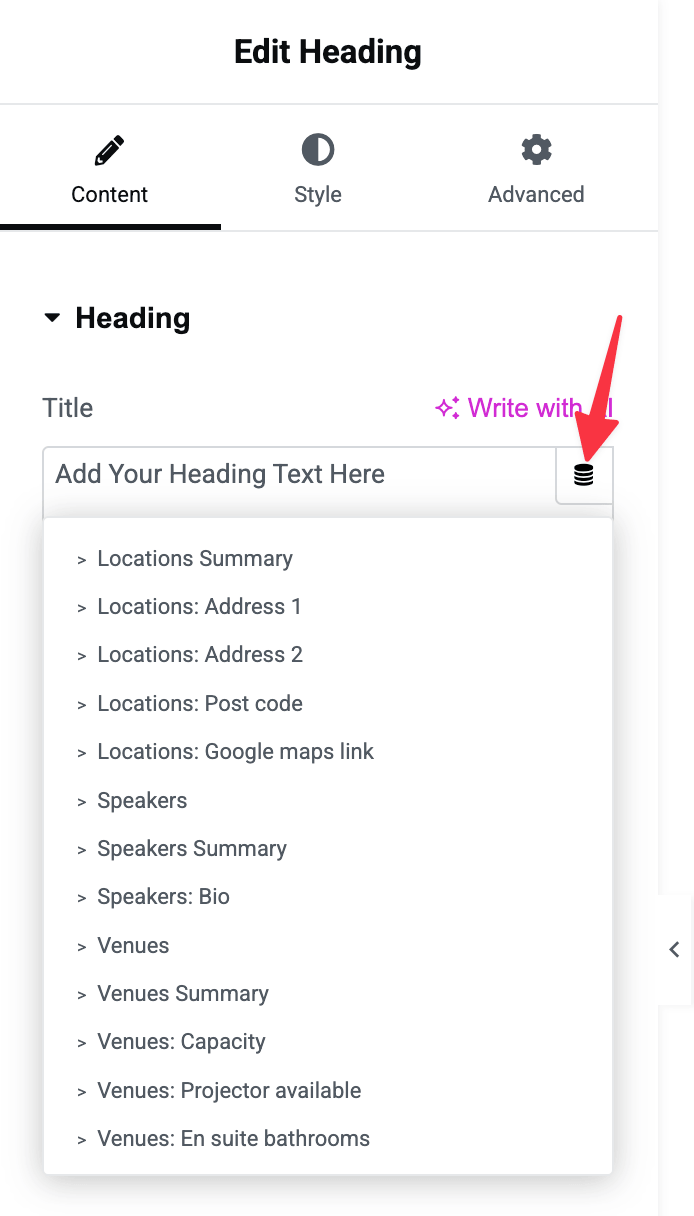
Meta keys: You can even add your custom taxonomy data as meta keys directly in the block editor.
Event data block: Add the EK Event Data block to your post, and in the Event data field dropdown, select the taxonomy data you want.
Finally… Filters!
Taxonomies are a kind of category, and the big thing everyone wants to do with categories is filter them. Imagine a yoga studio, where you can filter classes based on the type of yoga, or the instructor. Or a wine tasting tour where you can filter tours based on the type of wines.
There are two ways to filter taxonomies with EventKoi:
The first is on the backend. You could filter so that a calendar only shows classes by a certain yoga instructor. This could come in handy if you have a page for each individual instructor, and on that page, you want to show the classes that they are running.
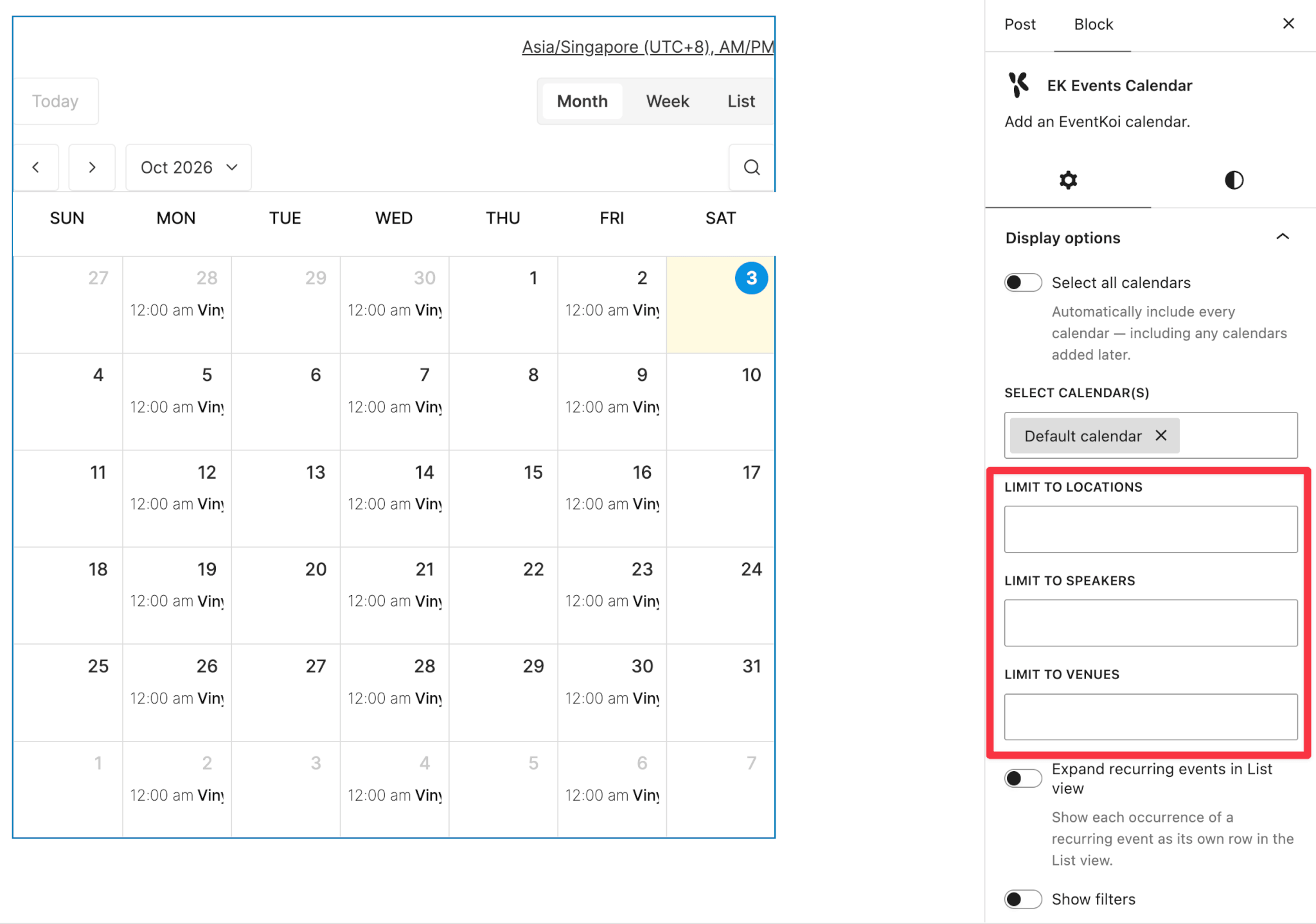
The second is on the frontend. You can give site visitors the ability to filter a calendar of events. For example, you might have an events calendar of all your wine tours on the front page of your vineyard homepage. And site visitors can decide for themselves and filter which types of tours they are interested in.
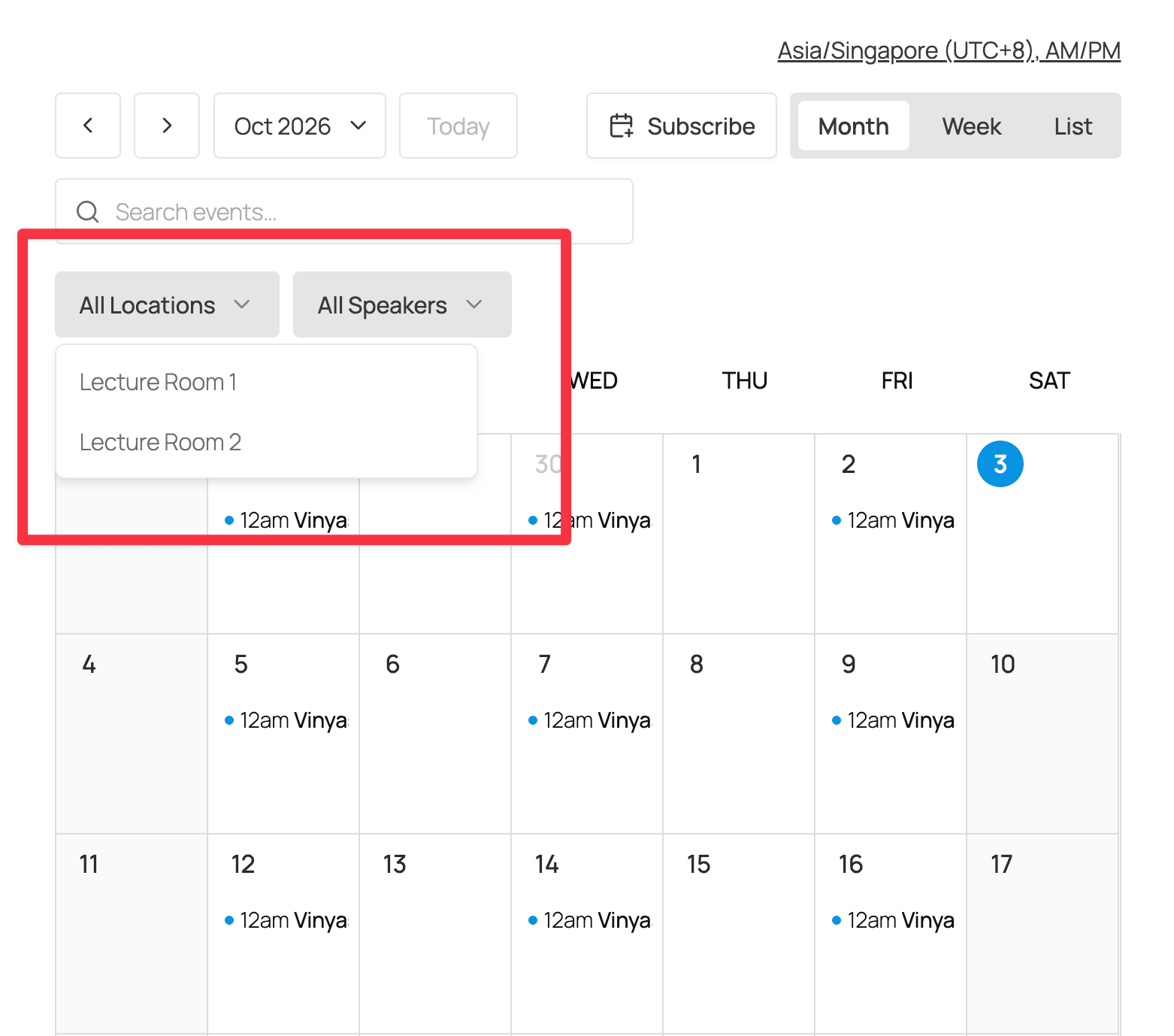
By the way, continuing with the flexibility theme, all of the calendar filters work as shortcodes and in page builders too!
Wrapping up
Thank you for reading till the end. This is one loooong post, and it still didn’t even go into the details of what our custom taxonomies can do!
If you read this far, I hope you came away with an appreciation for how we keep our features simple for non-technical users, while giving power users all the flexibility they want.
If you’d like to read our extensive docs on custom taxonomies, head here:
https://eventkoi.com/docs/article-categories/taxonomies
Or you could watch a youtube video on how to set up and use custom taxonomies:
And if you’d like to purchase EventKoi, head to our Pricing page.