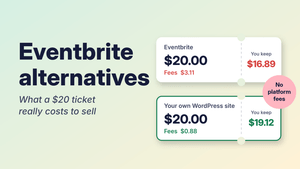


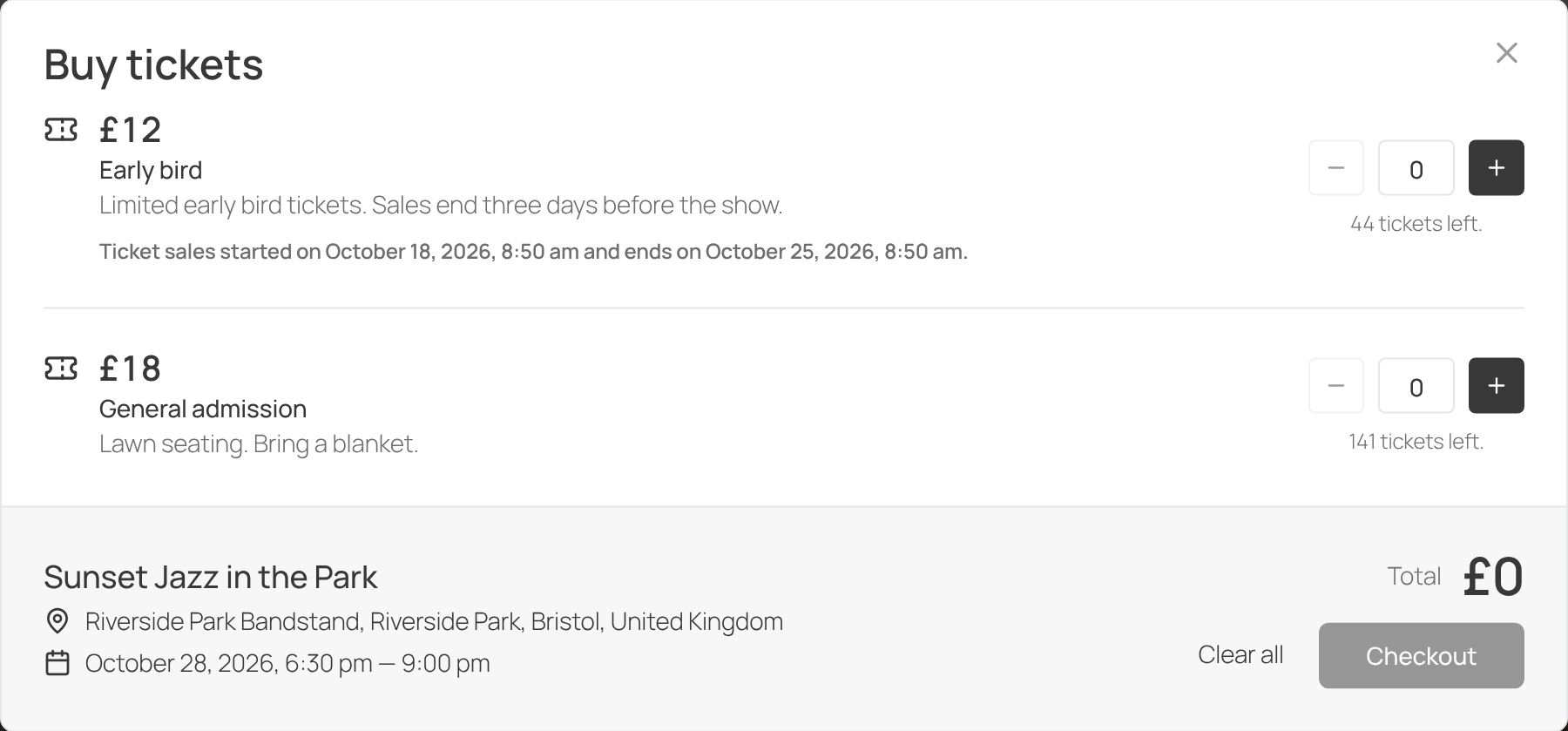
If your events already live on your WordPress site, you can sell the tickets there too. Buyers find and book your event on your own site, you keep the customer list, and no ticketing platform takes a cut of each sale.
This guide walks through it in five steps with EventKoi, from choosing how people pay to checking them in at the door. The first step matters most, because it decides where your orders live and which payment methods buyers see, so we cover the options properly before moving on.
What you need
- A WordPress site.
- EventKoi. The free EventKoi Lite sells tickets through WooCommerce. EventKoi Pro adds Stripe and SureCart checkout, and QR code check-in.
- A way to take payments: WooCommerce with a payment gateway, a Stripe account, or SureCart.
EventKoi does not charge a fee per ticket. Your payment processor charges its usual fee on each payment, the same as it would for any other sale on your site.
Step 1: Choose how people pay
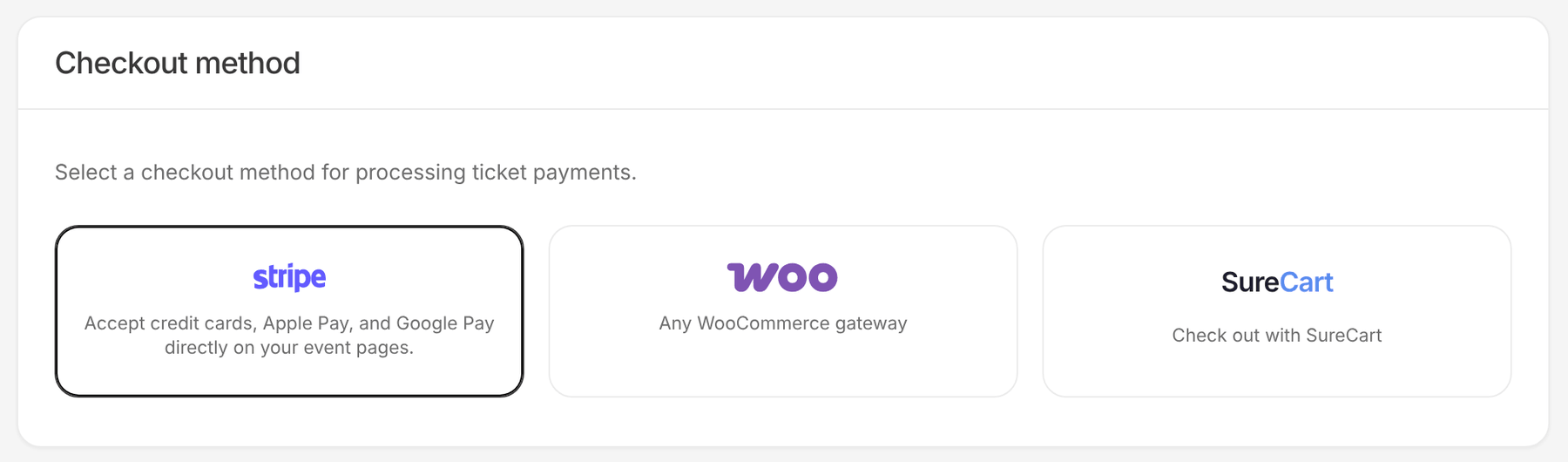
Go to Events > Settings > Payments and pick a Checkout method.
| Checkout method | EventKoi version | Where buyers pay | Where orders live |
|---|---|---|---|
| WooCommerce | Lite and Pro | Your WooCommerce checkout, with any payment gateway you have set up there | WooCommerce orders |
| Stripe | Pro | Stripe’s secure checkout page, with cards and wallets such as Apple Pay and Google Pay | EventKoi |
| SureCart | Pro | Your SureCart checkout | EventKoi, synced from SureCart, with tickets emailed to the buyer |
Pick WooCommerce if you already run a WooCommerce store, or you want a payment method Stripe doesn’t cover, such as PayPal or bank transfer. The WooCommerce plugin needs to be active. Ticket orders become normal WooCommerce orders, so you handle refunds, notes and status changes inside WooCommerce.
Pick Stripe if you don’t use WooCommerce and want the simplest setup. Buyers click to buy on your event page, pay on Stripe’s checkout page, then come back to your site.
Pick SureCart if your site already uses SureCart. The SureCart plugin needs to be active. You set your payment processor and currency in SureCart, and EventKoi passes the ticket total to it at checkout.
Step 2: Create your event
- Go to Events > Events and click Add event.
- Enter the Event name, date and time, and location.
- Add the event details and an image.
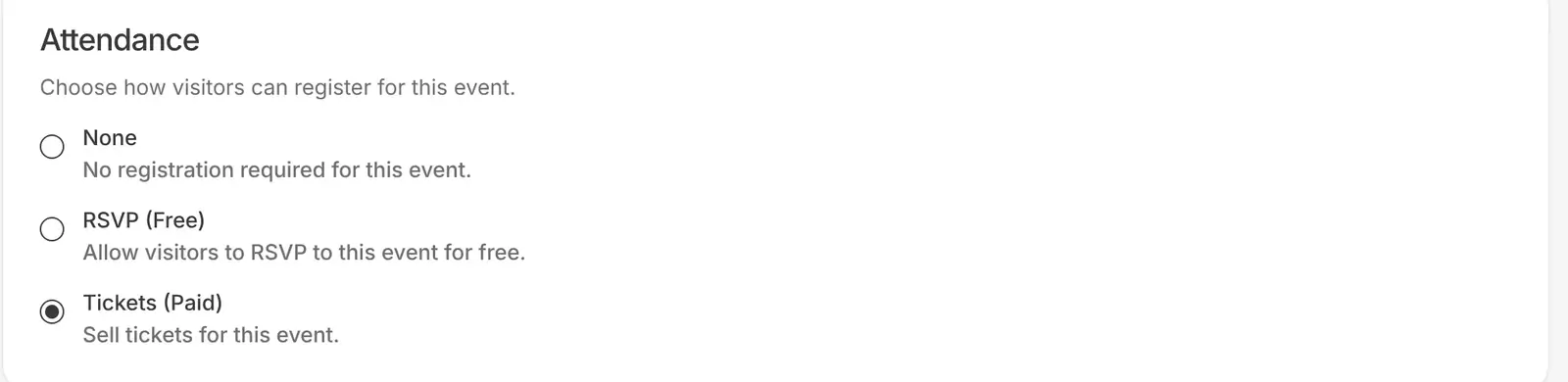
- Under Attendance, choose Tickets (Paid). This adds a Tickets section to the event’s left-hand menu.
If you use Elementor, our guide to building an Elementor event template shows how to design the event page.
Step 3: Add your tickets
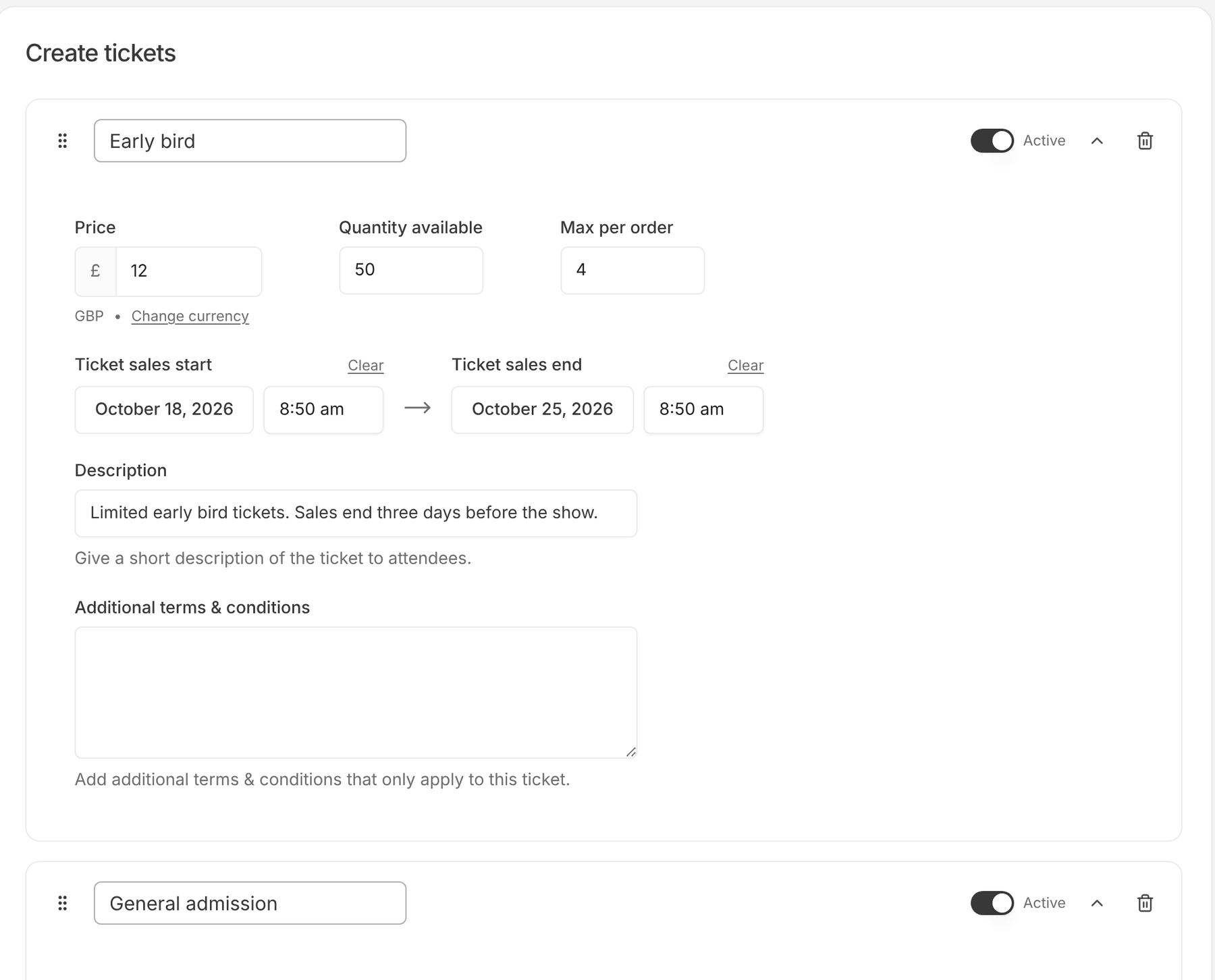
In the event’s left-hand menu, open Tickets > Add tickets and click Add ticket. For each ticket, set:
- Ticket name, for example “General admission” or “Early bird”.
- Price. Set it to 0 for a free ticket alongside paid ones.
- Quantity available, or leave it unlimited.
- Ticket sales start and Ticket sales end, so an early bird ticket can stop selling on a set date.
- Max per order, to stop one buyer taking every seat.
- A description, shown to buyers.
EventKoi has many other helpful features for you to customise your event. Including:
- Total ticket quantity per event caps sales across all ticket types.
- Terms and conditions holds the terms buyers see at checkout. Click Add agreement to add checkboxes buyers must tick before they can pay, such as a refund policy or a photo consent.
Step 4: Publish and test a purchase
Publish the event, then buy a ticket yourself to check the whole flow, including the confirmation email.
With Stripe, the Stripe payments panel has a Test mode and Live mode switch. When you are setting up your tickets, leave it on Test mode so no real transactions occur. When everything works, switch to Live mode.
With WooCommerce and Surecart, use your gateway’s test or sandbox mode.
Step 5: Manage orders and check people in
Tickets > Sales history lists every order with its status, the tickets sold and your totals. With Stripe, net earnings are shown after Stripe’s processing fees.
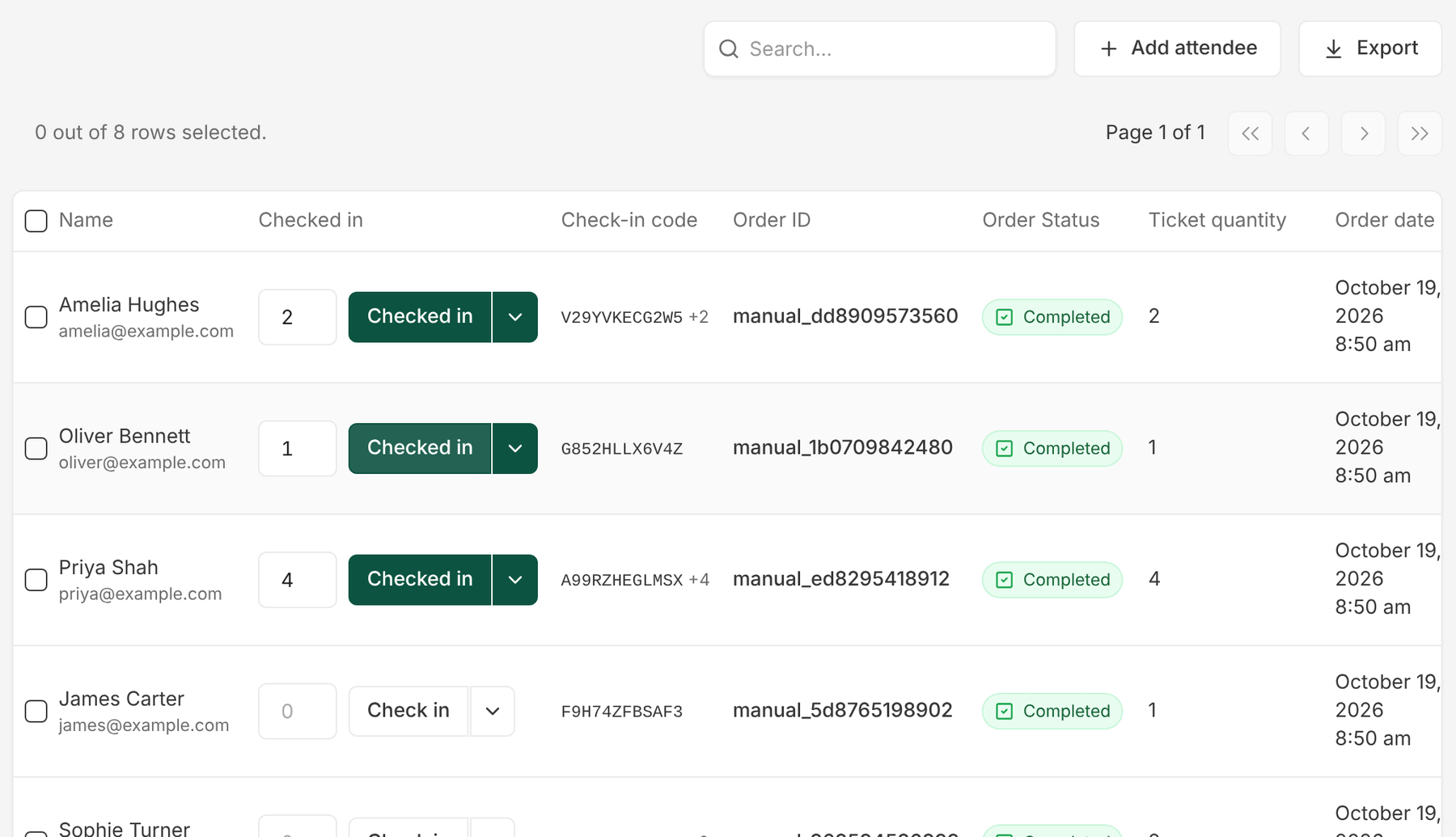
Tickets > Attendees lists everyone with a ticket. From here you can:
- Add an attendee by hand, for example someone who paid in cash.
- Resend a confirmation email.
- Export the list as a CSV.
- Mark people as checked in.
At the door, every ticket has a check-in code. In both Lite and Pro you can check people in from the attendee list, and group check-in handles a booking for several people at once. The list shows how many people have arrived so far.
With EventKoi Pro, the confirmation email also carries a QR code, so you can scan tickets with your phone’s camera instead of looking people up.
Free and repeating events
Free event? Use RSVP instead of tickets. On the event’s Main tab, set Attendance to RSVP (Free) to collect names and see who is going.
Running the same event every week? Our guide to selling tickets for recurring events uses a weekly cooking class to show how each date gets its own price, details and sale window from one setup.
How this compares with a ticketing platform
Platforms like Eventbrite host the checkout for you and add their own fee to every paid ticket. Selling on your own site means you pay only your payment processor’s fee, and your event pages stay on your brand. The trade-off is that you set up and manage the event site yourself. If you are weighing the two, our list of Eventbrite alternatives compares the main options and what a ticket actually costs on each.
FAQ
Can I sell tickets with the free version of EventKoi?
Yes. EventKoi Lite sells tickets through WooCommerce, using any payment gateway you have set up there. You also get multiple ticket types, capacity limits, sales dates, the attendee list, CSV export and check-in from the attendee list. Stripe and SureCart checkout, QR code check-in and editable emails need EventKoi Pro.
Does EventKoi take a fee from each ticket?
No. You pay your payment processor’s normal fee on each payment, and nothing on top from EventKoi.
Can buyers pay with PayPal?
Yes, through WooCommerce, if you have a PayPal gateway set up there.
Can I sell more than one type of ticket?
Yes. Add as many ticket types as you need, each with its own price, quantity and sales dates.
How do I issue a refund?
It depends on your checkout method:
- Stripe: open the order in EventKoi and click Refund. You can refund the whole order or only some of its tickets. EventKoi sends the refund to Stripe for you.
- WooCommerce: refund the order in WooCommerce as you would any other order.
- SureCart: refund the order in SureCart.
Can I change the ticket confirmation email?
In EventKoi Pro, yes. Edit it for all events under Events > Settings > Emails, or give a single event its own message. In Lite, the subject and body are fixed.
Can I check people in from my phone?
Yes, with EventKoi Pro. Each confirmation email includes a QR code. Scan it with your phone’s camera and it opens a check-in page on your site that marks the ticket as checked in, or tells you if it already was. A group booking’s QR code checks in every ticket in the order at once.
You need to be logged in to your site on that phone as someone allowed to check people in. Admins can by default. To let door staff do it without full admin access, give them the check-in permission under Events > Settings > User permissions.
In EventKoi Lite, open the attendee list in your phone’s browser and check people in from there.
Start selling tickets
To sell through WooCommerce, start with EventKoi Lite for free. To see Stripe checkout, QR check-in and the rest of Pro before you buy, try the EventKoi Pro demo. It is a live WordPress site with no signup. For more setup detail, see the EventKoi documentation.