
Every EventKoi calendar has a live iCal feed and a Subscribe button, so visitors can add your events to Apple Calendar, Google Calendar or Outlook, and new and changed events appear there automatically. This article shows what visitors see and how to share the feed link yourself.
What visitors see on your calendar
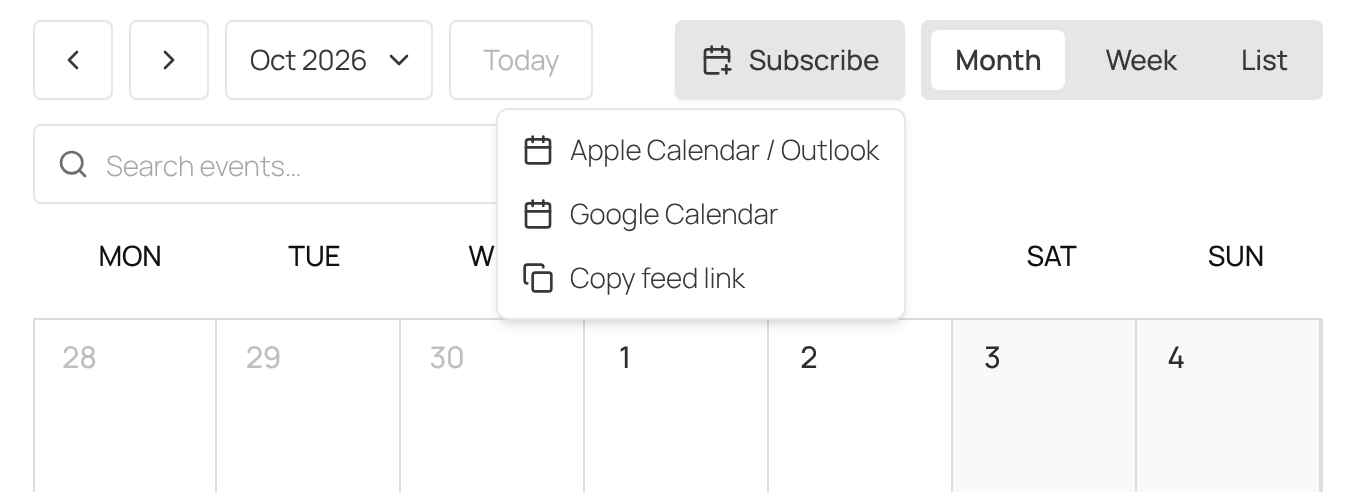
The Subscribe button sits in the calendar toolbar, next to the view switch. When a visitor clicks it, they get three options:
- Apple Calendar / Outlook opens a webcal:// link, which hands the feed to the calendar app set up on their device.
- Google Calendar opens Google Calendar in a new tab with your calendar ready to add.
- Copy feed link copies the feed address so they can paste it into any other calendar app that accepts iCal subscriptions.
The button appears wherever the calendar is displayed: the EK Calendar block, the [eventkoi_calendar] shortcode, the calendar’s own page and the page-builder calendar widgets.
Share the feed link from your dashboard
You can copy a calendar’s feed link to use in a newsletter, an email or a button of your own.
- Go to Events > Calendars and open the calendar.
- Click the Embed tab.
- Under Calendar subscription (iCal), click Copy to copy the feed link, or click Subscribe to add the calendar to your own calendar app.
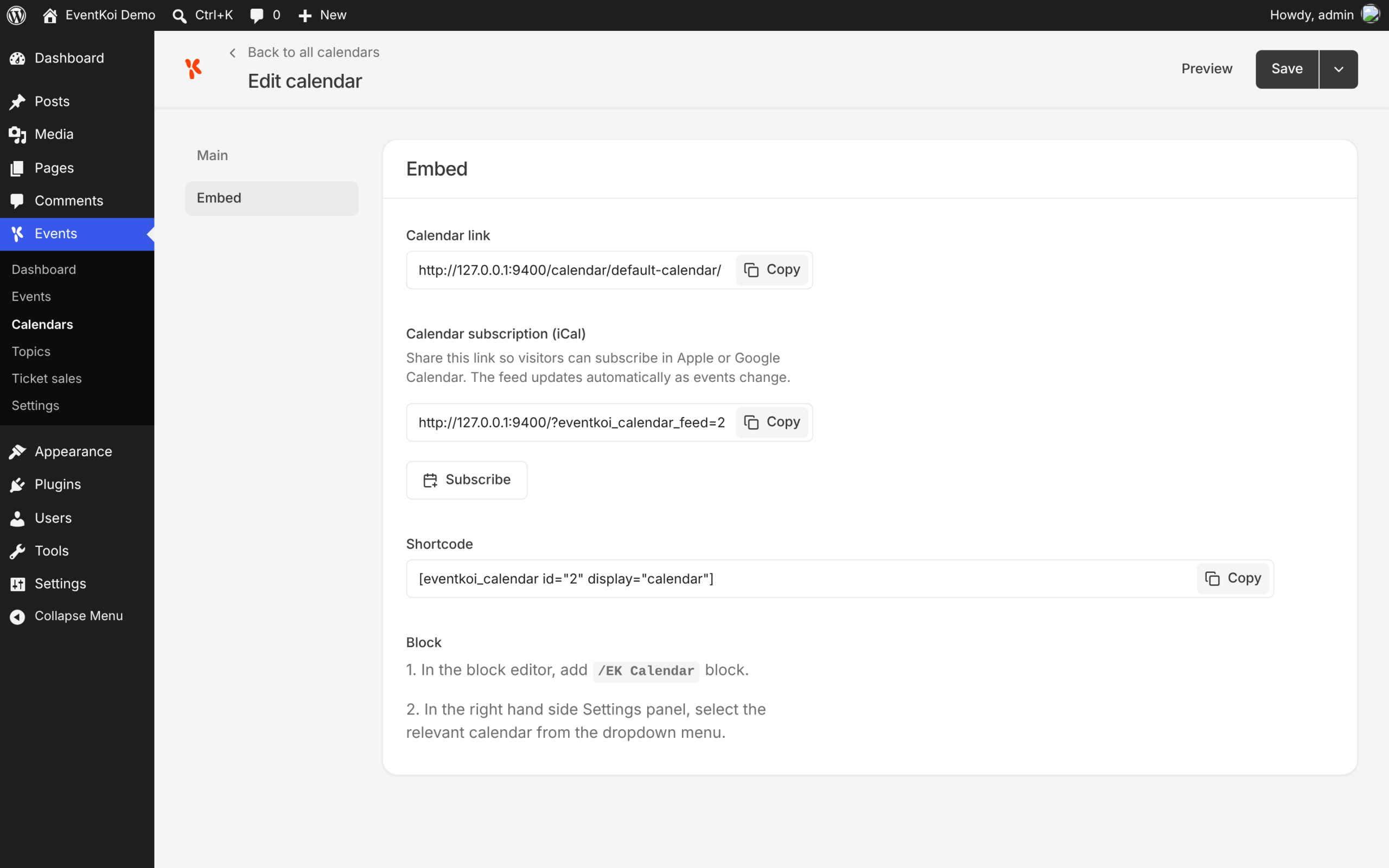
The feed link looks like https://yoursite.com/?eventkoi_calendar_feed=2, where 2 is the calendar ID. To share one feed for several calendars, put their IDs after the equals sign separated by commas, for example ?eventkoi_calendar_feed=2,5. To share every calendar, use ?eventkoi_calendar_feed=all.
How quickly changes reach subscribers
Changes you make to your events reach the feed within 10 minutes. Each visitor’s calendar app then refreshes the feed on its own schedule, so a change can take a while to appear in their calendar.
For developers: feed filters
Three filters change how the feed works. Add them in a code snippets plugin or your child theme.
eventkoi_calendar_feed_cache_ttlsets how long EventKoi caches each feed, in seconds. The default is 600 (10 minutes).eventkoi_calendar_feed_max_eventssets the maximum number of events in a feed. The default is 1000. It also receives the array of calendar IDs in the feed.eventkoi_calendar_feed_urlfilters the feed address EventKoi builds for the Subscribe button and the Embed tab. It receives the URL, the calendar IDs and the scheme (httpsorwebcal).
For more on the calendar shortcode and its attributes, see the EventKoi Shortcodes Reference Guide [START HERE]. To add a calendar to a page, see How to Add a Responsive, Accessible Calendar to Your Site.