
If you run a community site, a directory, or anywhere members and contributors should be able to add their own events, EventKoi Pro’s frontend submission form lets visitors create events without ever touching wp-admin. This guide covers turning it on, adding the form to a page, and reviewing what comes in.
Choose who can submit events
Go to EventKoi > Settings > Submissions. Under Who can submit, pick which WordPress roles are allowed to add events from the frontend. By default this is Subscriber, Contributor, Author and Editor. Administrators can always submit, regardless of whatever you choose here.
On the same screen, decide how submissions are handled:
- Auto-publish submissions: off by default, so new events land as Pending and wait for you to review them. Turn it on if you trust your submitters and want events to go live immediately.
- Allow recurring submissions: off by default. Turn it on if visitors should be able to mark their event as recurring (daily, weekly, monthly or yearly) from the form.

Add the submission form to a page
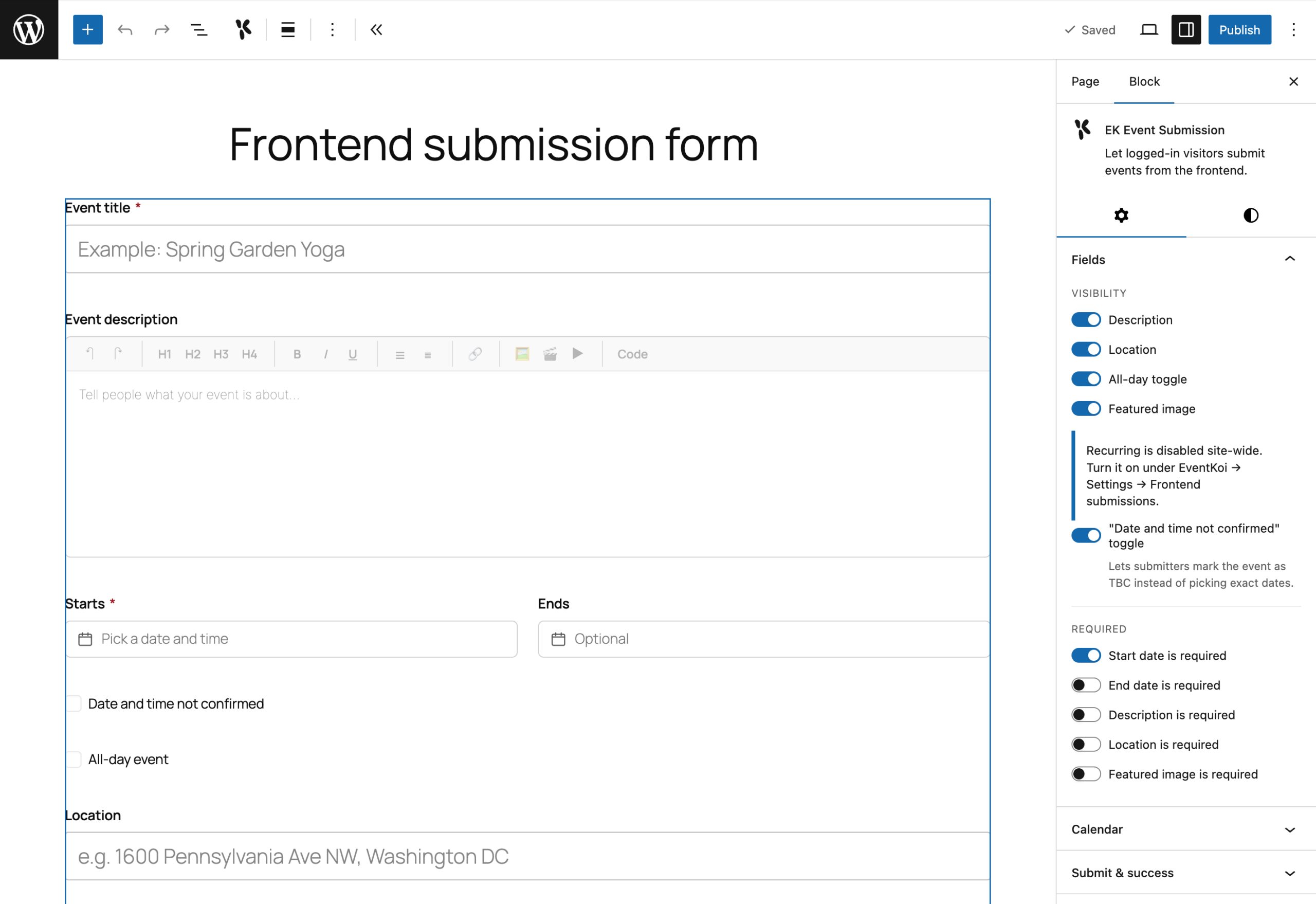
Create or edit the page where you want visitors to submit events, then add the EventKoi Event Submission block. If you’re working in a page builder or a classic editor area, you can use the shortcode instead:
[eventkoi_event_submission]
To learn more about using shortcodes to insert a frontend submission form:
Logged-out visitors see a prompt to log in first. Logged-in visitors whose role isn’t on your allowed list see a message letting them know their account can’t submit events.
Choose which fields appear
The form always asks for an event title. Everything else can be shown or hidden, and separately marked as required, using the block’s settings panel (or the matching shortcode attributes):
- Description (
show_description/require_description) – a rich text field, the same editor used in wp-admin. - Location (
show_location/require_location) - Featured image (
show_image/require_image) – JPG, PNG, WEBP or GIF, up to 5MB. - Calendar (
show_calendar) – lets the submitter pick which of your calendars the event belongs to. Setcalendarto a calendar ID to lock submissions to one calendar and hide the picker. - All-day toggle (
show_all_day) - “Date and time not confirmed” toggle (
show_tbc) – hides the date fields and shows a to-be-confirmed notice instead. - Recurring options (
show_recurring) – only appears if you’ve turned on “Allow recurring submissions” in Settings.
Start date is required by default (require_start); end date isn’t (require_end). You can also set a custom submit button label (button_label), and customise the success message shown after submitting (success_heading, success_message), or hide the form entirely after a successful submission (hide_after_success).

Get notified when someone submits an event
Go to EventKoi > Settings > Emails and turn on New frontend submission notification. You can edit the subject and message, using these placeholders:
[submitter_name]and[submitter_email][event_name]and[event_status](Published or Pending)[review_url]– a direct link to edit the event in wp-admin[site_name]

A note on spam
The form includes a hidden honeypot field that filters out basic automated spam submissions. It isn’t a replacement for reviewing submissions yourself if you leave auto-publish off.