
If you sell or list events on Eventbrite, the Eventbrite connector copies them into EventKoi so they appear in your calendars. You connect once with a private token, import your events from the card, and can add a webhook so changes on Eventbrite reach your site as they happen.
The sync runs one way, from Eventbrite to your site. Make changes to imported events on Eventbrite, because each sync replaces an event’s title, description, dates and location with the details from Eventbrite. Ticket types, prices and attendees stay on Eventbrite.
To take an imported event off your site, unpublish or cancel it on Eventbrite. With a webhook set up, EventKoi then changes its copy to a draft.
Connect your Eventbrite account
- In your WordPress dashboard, go to Events, then Settings, and open the API & integrations tab.
- Scroll down to the Eventbrite card.
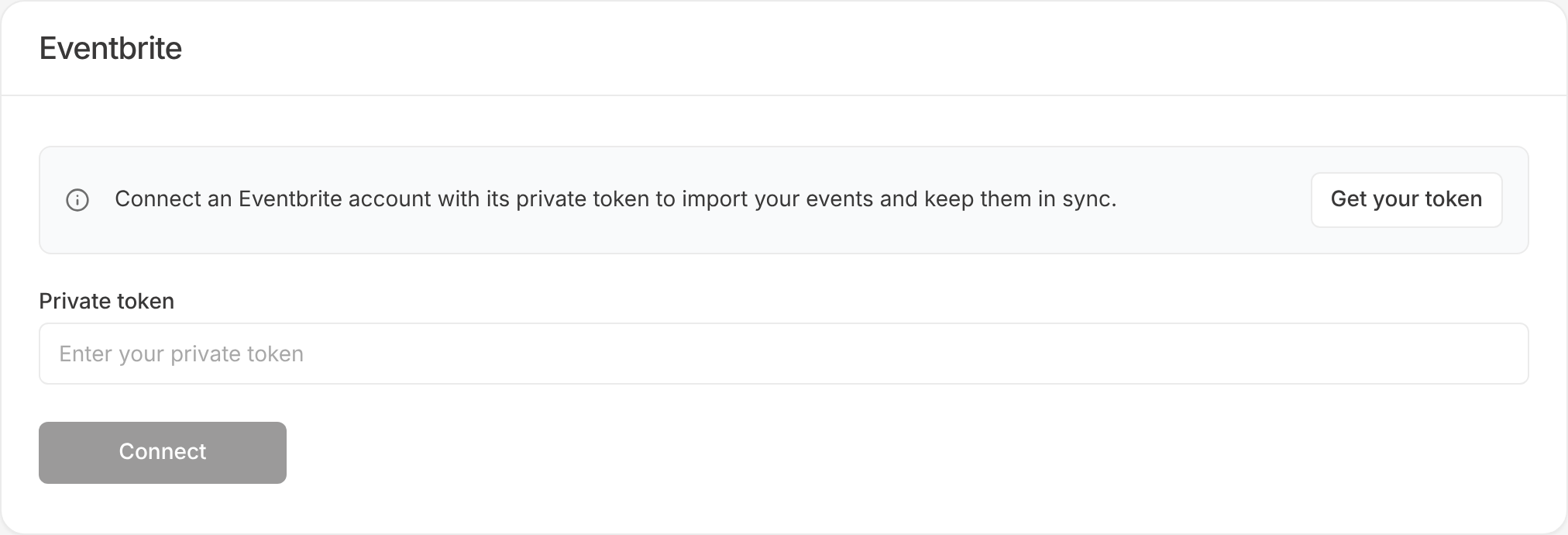
- Click Get your token. This opens the apps page of your Eventbrite account settings in a new tab, where you can find your private token.
- Copy the private token and paste it into Private token.
- Click Connect.
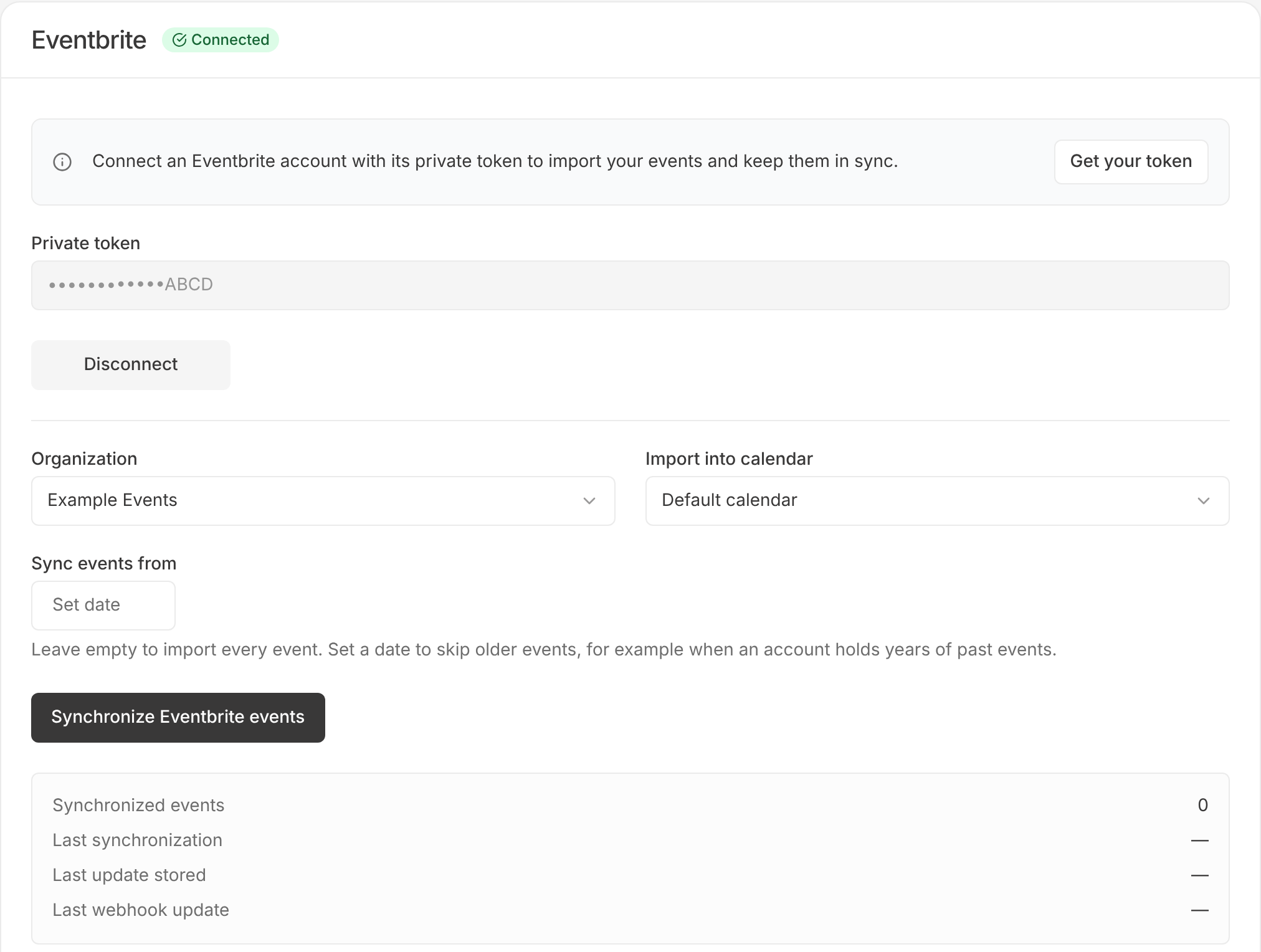
When the token works, you’ll see Eventbrite connected. and the card shows a Connected label.
Choose an organisation and calendar
- In Organization, choose the Eventbrite organisation whose events you want to import.
- In Import into calendar, choose the EventKoi calendar for these events.
Skip older events
If your Eventbrite account holds a lot of past events, you can import only recent ones.
- Under Sync events from, click the date field and pick a date.
- To import every event again, click Clear next to the label.
Only events starting on or after this date are imported.
Import your events
Click Synchronize Eventbrite events.
The sync imports events that are live, have started or have ended. For each event, EventKoi imports:
- the title and the event summary, which becomes the description
- the start and end date, time and timezone
- the venue name and address, or for an online event, the Eventbrite event page as the online link
- the event image, which becomes the featured image
Each Eventbrite event is imported as a single EventKoi event, not a recurring event.
If you move an imported event to the trash, the next sync imports it again as a new published event. If you have switched on Automatically delist expired events in EventKoi Pro, the same happens to past events that have been delisted. Set a recent Sync events from date to stop this for older events.
Keep events up to date with a webhook
Without a webhook, imported events change only when you click Synchronize Eventbrite events. A webhook lets Eventbrite tell your site each time an event changes. Eventbrite needs to reach your site over the internet, so webhooks work on live sites, not on a local site or a password-protected staging site.
- On the Eventbrite card, click Copy next to Webhook URL.
- In your Eventbrite account, go to Account settings, then Webhooks, and add a new webhook with the URL you copied.
- Select the event.created, event.published, event.updated and event.unpublished actions, then save the webhook.
When an event is unpublished, cancelled or returned to draft on Eventbrite, EventKoi changes its copy to a draft. When you delete an event on Eventbrite, delete or unpublish its copy in EventKoi yourself.
Delete imported events
To remove every event that came from Eventbrite:
- Click Delete imported events next to the sync button. The link appears once events have been imported.
- Click Delete to confirm.
This permanently deletes the imported events. Nothing changes on Eventbrite, and running the sync again imports them again.
Disconnect Eventbrite
Click Disconnect to remove the stored token and organisation. Events already imported stay on your site.