
If you’re moving from The Events Calendar to EventKoi, you can bring your existing events across in a couple of clicks instead of recreating them by hand. This guide covers what the importer can and cannot import into EventKoi Lite.
How to import
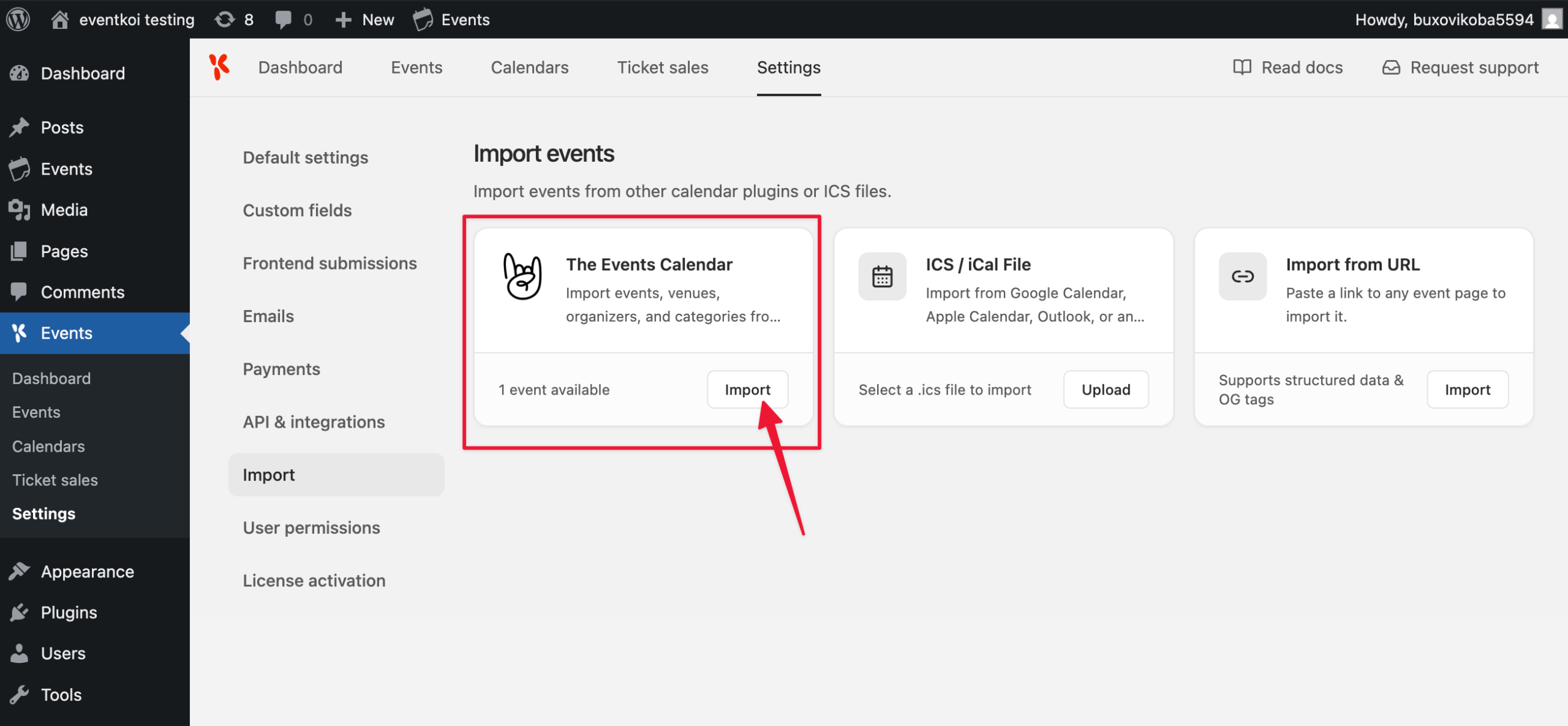
- Go to EventKoi → Settings → Import.
- Find the The Events Calendar card. EventKoi detects TEC automatically and shows how many events are available to import.
- Click Import.
- A confirmation dialog lists what will be brought in: events, venues, categories, and featured images. Click Import to confirm.
- Wait for the import to finish. You’ll see a confirmation with the number of events imported (and any that failed).
- Click View events to check the results.
Events you’ve already imported are skipped automatically on later runs, so it’s safe to re-run the import as you publish new events in TEC.
What gets imported
- Title, description, and status
- Start and end date/time, and the all-day flag
- Venue, saved as a native EventKoi location (address, city, state, postcode, country, phone, website, and coordinates where TEC has them)
- The event’s website link, added as an additional virtual location
- Organizer name, email, phone, and website
- Featured image
- ACF field data: if Advanced Custom Fields is active, carried over as-is so existing ACF shortcodes and
get_field()calls keep working - Categories: Categories are mapped to EventKoi calendars (which is EventKoi’s version of categories). EventKoi Lite only displays your default calendar, so if any imported events land in other calendars, you’ll see a notice after import with a “Move all events into default calendar” button, or you can upgrade to Pro to keep them separated
- Cost: if TEC’s Cost field on the event is a numeric value and the Tickets feature is enabled, EventKoi creates one “General admission” ticket at that price. Non-numeric values (“Free”, “Donation”, “TBD”) are added as text in the description instead. EventKoi Lite ticketing is WooCommerce-only, so make sure WooCommerce is installed and active before importing, otherwise the imported ticket will display and accept checkout details, but payment will fail until WooCommerce is set up.
What doesn’t carry over in Lite
- The Events Calendar’s Event Tickets plugin isn’t currently supported. If you sold tickets or collected RSVPs through Event Tickets (rather than just listing a price in TEC’s Cost field), it will not be imported. Any event that relied on Event Tickets for RSVP or paid ticketing will need its attendance setup rebuilt manually in EventKoi after import. If you would like us to build this, please get in touch. Your feature requests help us prioritise what to build.
- Reusable “record” style fields for venue and organizer, beyond the native location and the plain organizer details above.
- TEC category colours
- Recurring events. EventKoi Pro supports recurring events, but EventKoi Lite does not. When you import recurring events into EventKoi Lite, only the first occurrence of each recurring TEC event is imported, as a standard, one-off event. You’ll see a notice after import if any recurring events were affected, with a link to upgrade to Pro if you’d rather keep the full series
If you rely on TEC custom fields, ACF, or have a lot of multi-day/recurring events, EventKoi Pro imports those more completely, see the Pro version of this guide.