
If you already keep events somewhere else, such as Google Calendar, Apple Calendar, Outlook or another website, you can import them into EventKoi without retyping them. There are three ways to do it:
- Upload an .ics file for a one-time import. Available in EventKoi Lite and EventKoi Pro.
- Paste the link to an event page to import that one event. Available in EventKoi Lite and EventKoi Pro.
- Subscribe to an ICS feed so EventKoi keeps checking it for new and changed events. Available in EventKoi Pro only.
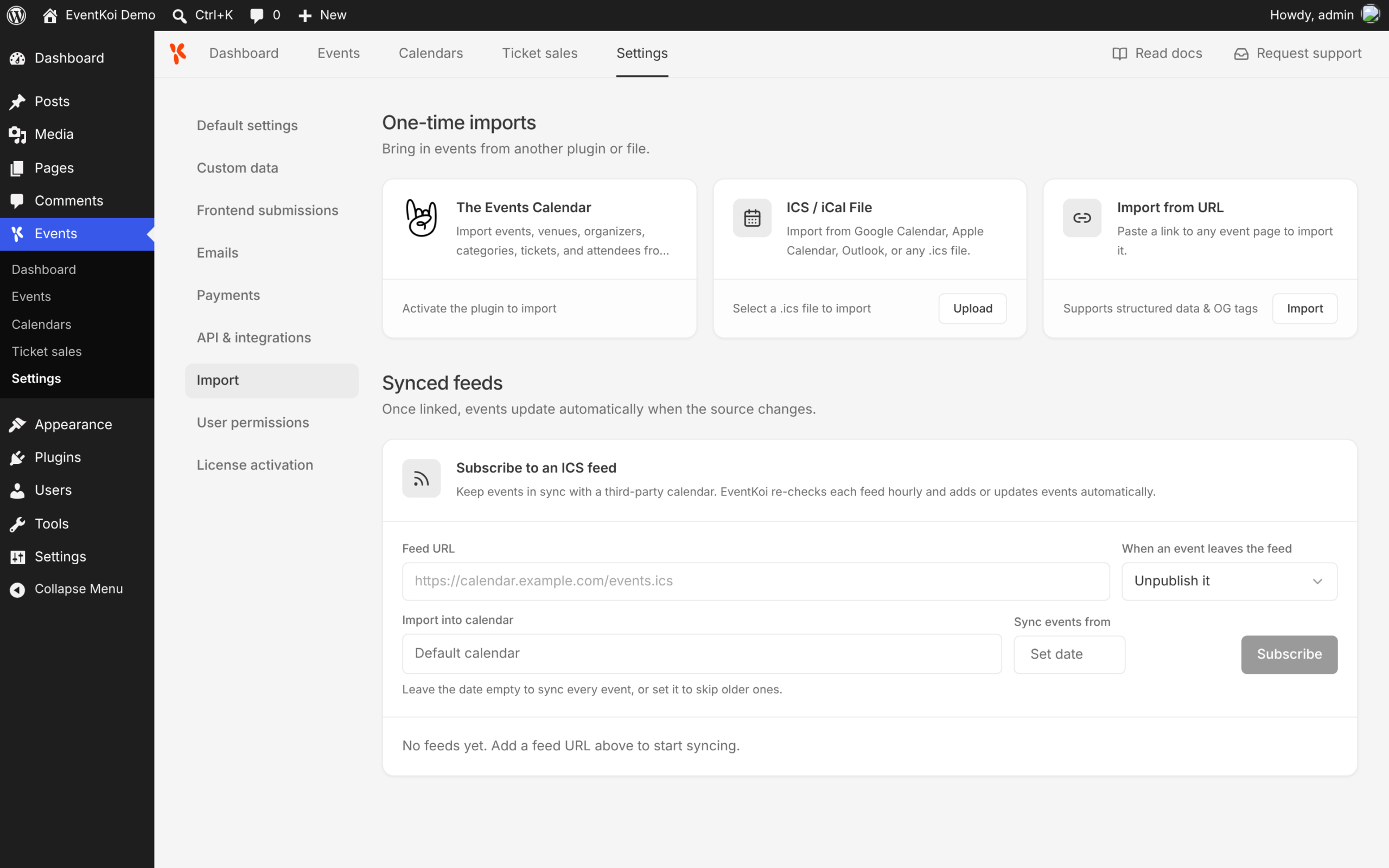
Open the Import screen
In your WordPress dashboard, go to Events, then Settings, and open the Import tab.
In EventKoi Pro the screen has two sections: One-time imports and Synced feeds. In EventKoi Lite it has the one-time import cards only.
To move events across from The Events Calendar, see How to Import Events from The Events Calendar (TEC) into EventKoi Lite or How to Import Events from The Events Calendar (TEC) into EventKoi Pro.
Import events from an .ics file
You can export an .ics file from most calendar apps, including Google Calendar, Apple Calendar and Outlook. EventKoi accepts files ending in .ics, .ical, .ifb or .icalendar.
- On the ICS / iCal File card, click Upload.
- Choose the file from your computer.
- When the import finishes, click View events to see them in your events list.
Imported events are published straight away and added to your default calendar, so check the events list afterwards.
EventKoi imports each event’s title, description, dates, times, timezone and location. If you upload the same file again, EventKoi skips the events it has already imported.
You can also start this import from the Events screen: click Import, then Import from ICS / iCal file.
Recurring events in EventKoi Pro
EventKoi Pro imports a recurring event’s repeat rule, so it arrives as an EventKoi recurring event. After importing, open each recurring event and check its dates. Dates excluded from the series in your calendar app are not carried across, and a rule such as “the second Tuesday of every month” may not convert exactly. For how recurring events work in EventKoi, see Create Recurring Events with EventKoi: Step-by-Step Guide.
Recurring events in EventKoi Lite
EventKoi Lite imports a recurring event as a standard event on the date of its first occurrence.
Import an event from a web page
This imports a single event from a page on another website, such as a listing on a ticketing site or another venue’s events page.
- On the Import from URL card, click Import.
- Paste the page address into Event page URL.
- Click Import.
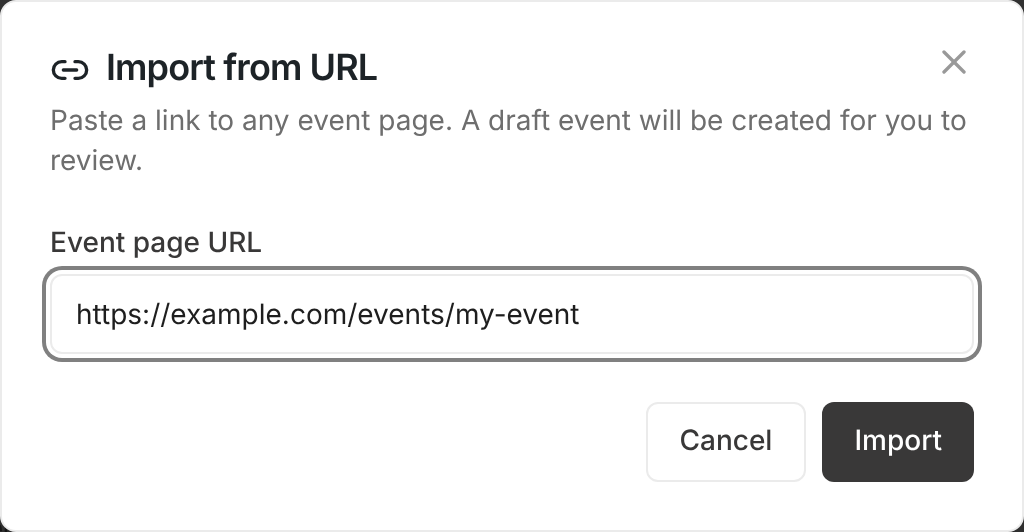
EventKoi creates the event as a draft and opens it in the event editor so you can review it before publishing. The event is added to your default calendar, and the page’s main image becomes the featured image. Some pages only share a title, description and image, so check the date and location and add them if they’re missing.
This import is also on the Events screen: click Import, then Import from URL.
Subscribe to an ICS feed (EventKoi Pro)
A feed is a calendar address, usually ending in .ics, that another calendar app or website keeps up to date. When you subscribe, EventKoi imports the feed’s events and then checks the feed every hour for new and changed events.
- Under Synced feeds, paste the feed address into Feed URL.
- Choose what happens under When an event leaves the feed:
- Unpublish it (the default) changes the event to a draft.
- Move it to trash moves the event to the trash.
- Leave it as-is keeps the event published.
- In Import into calendar, choose one or more calendars. Leave it empty to use your default calendar.
- To skip older events, pick a date in Sync events from. Leave it empty to sync every event in the feed.
- Click Subscribe.
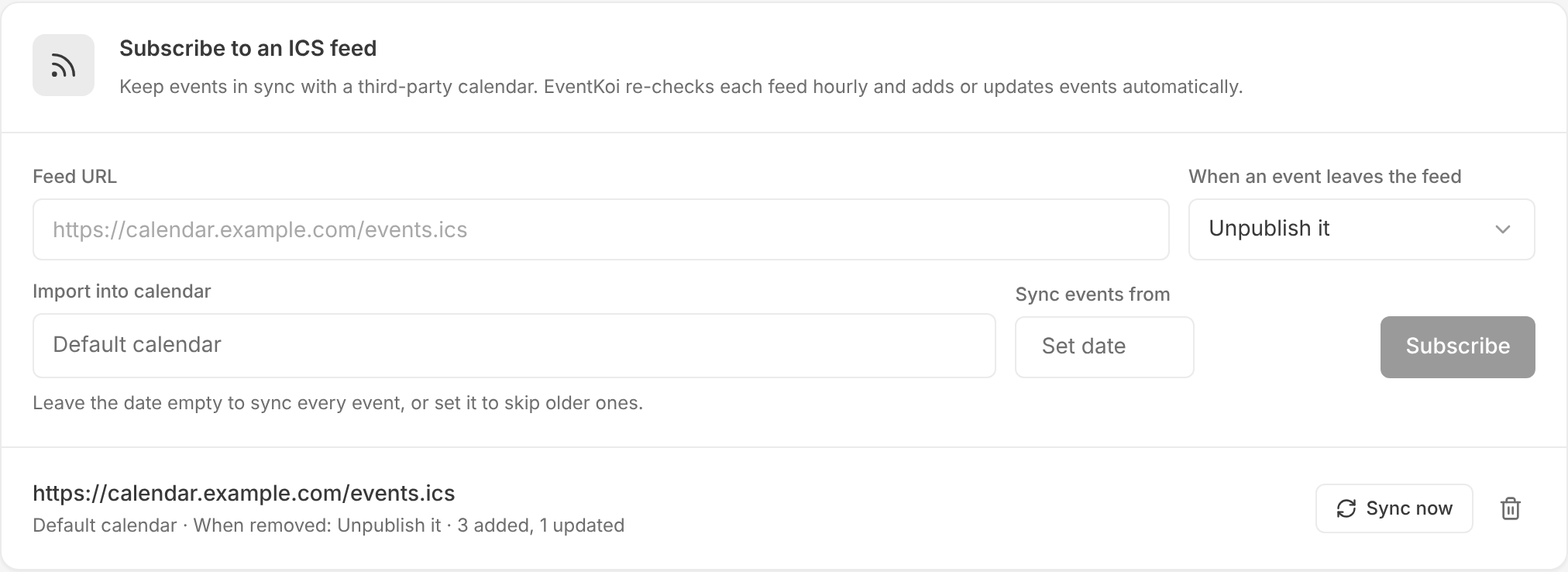
EventKoi runs the first sync straight away and adds the feed to the list below the form.
The Sync events from date applies to the first date of each event. A recurring series that began before your chosen date is skipped completely.
What happens on each sync
Each sync treats the feed as the source of truth. EventKoi updates the title, description, dates and location of every event it imported from the feed, so changes you make to those events in EventKoi are replaced at the next sync.
To take a feed event off your site, remove it from the source calendar and set the feed to Unpublish it or Move it to trash.
If you use automatic delisting and the feed still lists past events, set a recent Sync events from date, so that delisted events are not imported again as new copies.
Sync a feed now
To check a feed without waiting for the hourly sync, click Sync now next to it.
Change or remove a feed
To change a feed’s calendars, start date or removal setting, remove the feed and subscribe to the same address again with the new settings. EventKoi matches events by their unique ID, so it updates the events you already have instead of creating duplicates.
To remove a feed, click the Remove feed button (the bin icon) next to it. Events already imported from it stay on your site.