
This guide shows you how to create a custom EventKoi event template using Bricks Builder. You’ll learn how to build the template, link it to EventKoi events, and apply it on the frontend.
Begin by creating a template in Bricks
- In the WordPress admin, go to Bricks > Templates.
- Then click on Add New Template
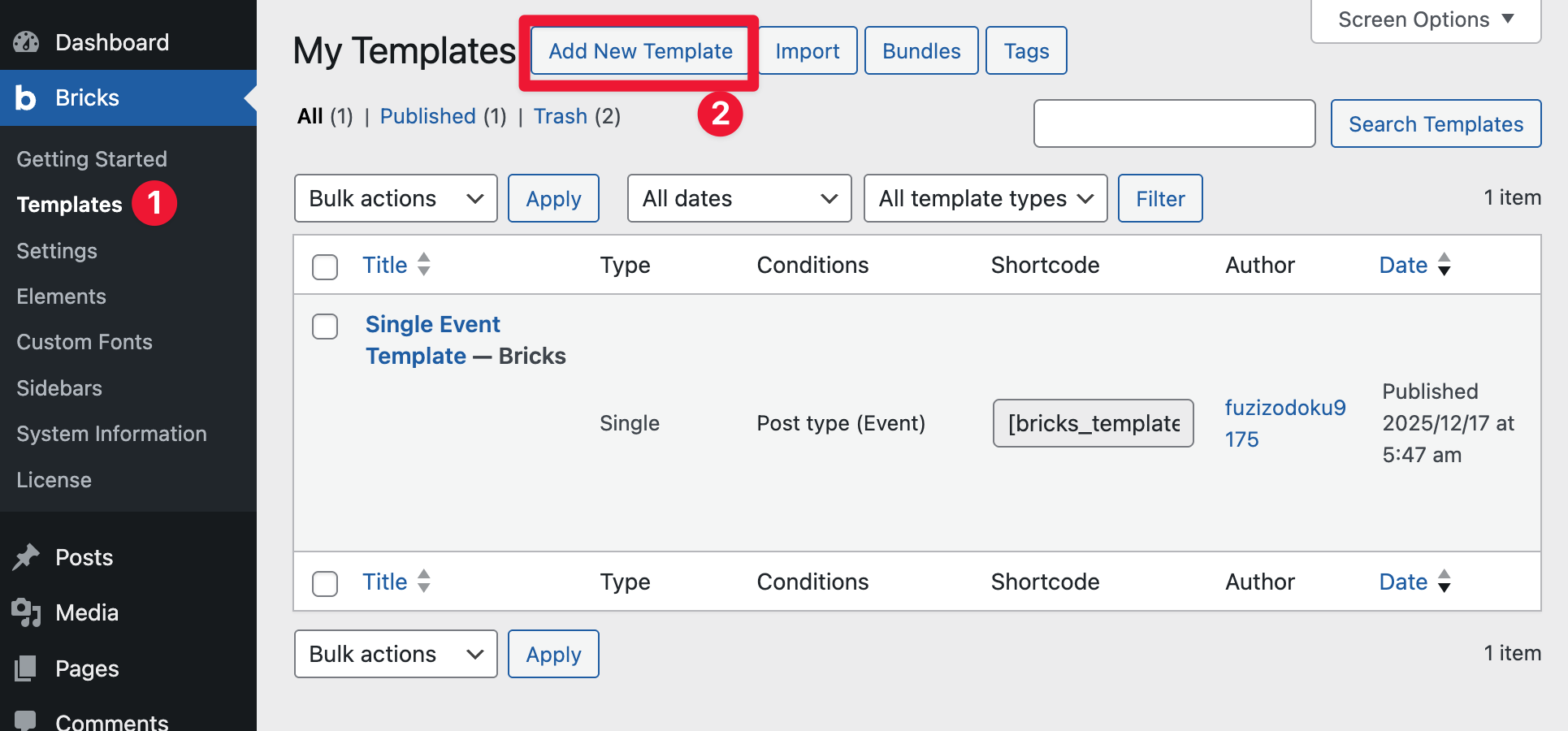
From there, you will be taken to a new page, Add New Template
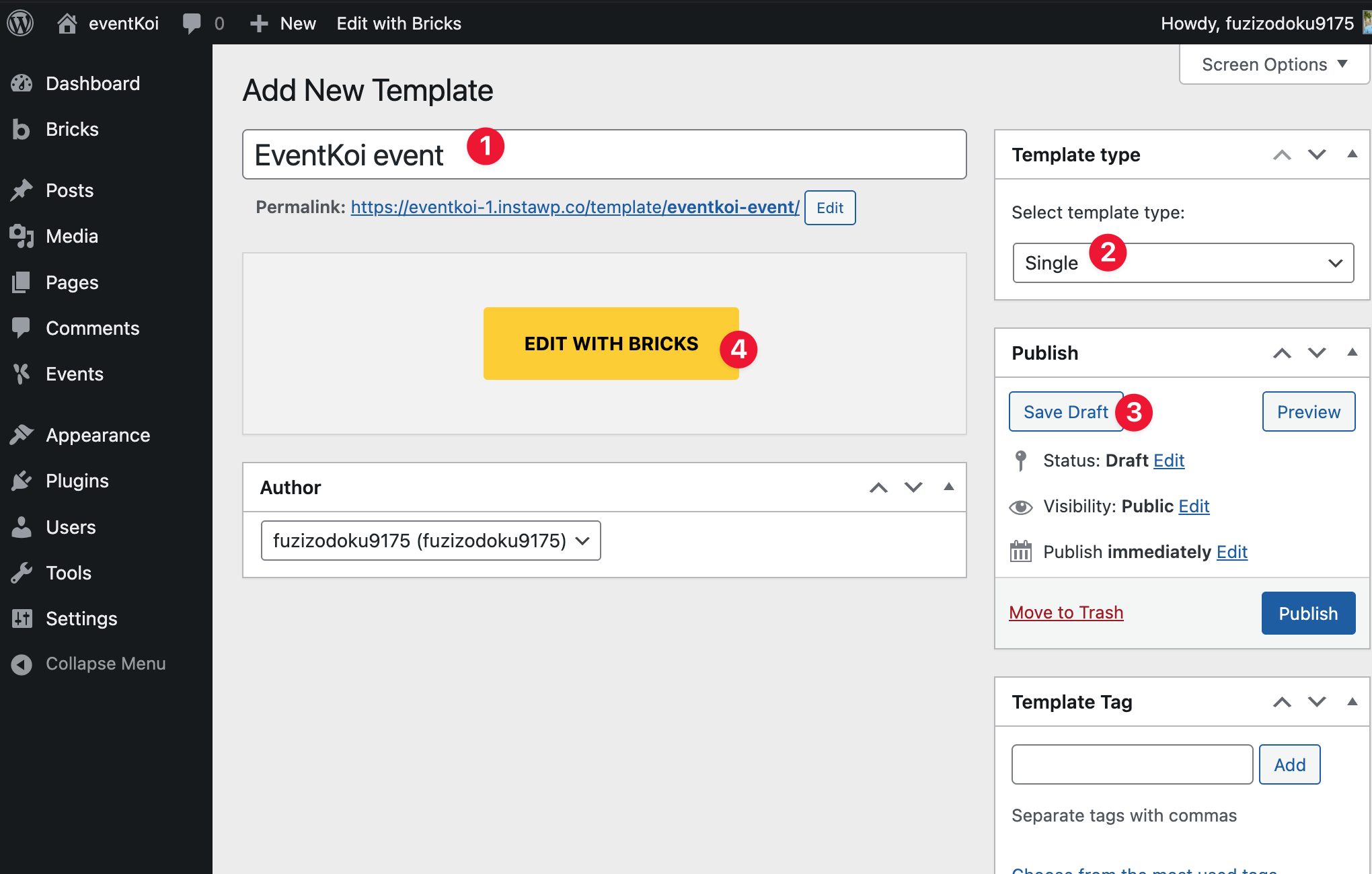
Here, you want to:
- Give your template a title.
- Then select a template type. In this case, select Single to create a template for a single event.
- Then click the Save Draft button to save your work.
- Finally, click on the Edit with Bricks button.
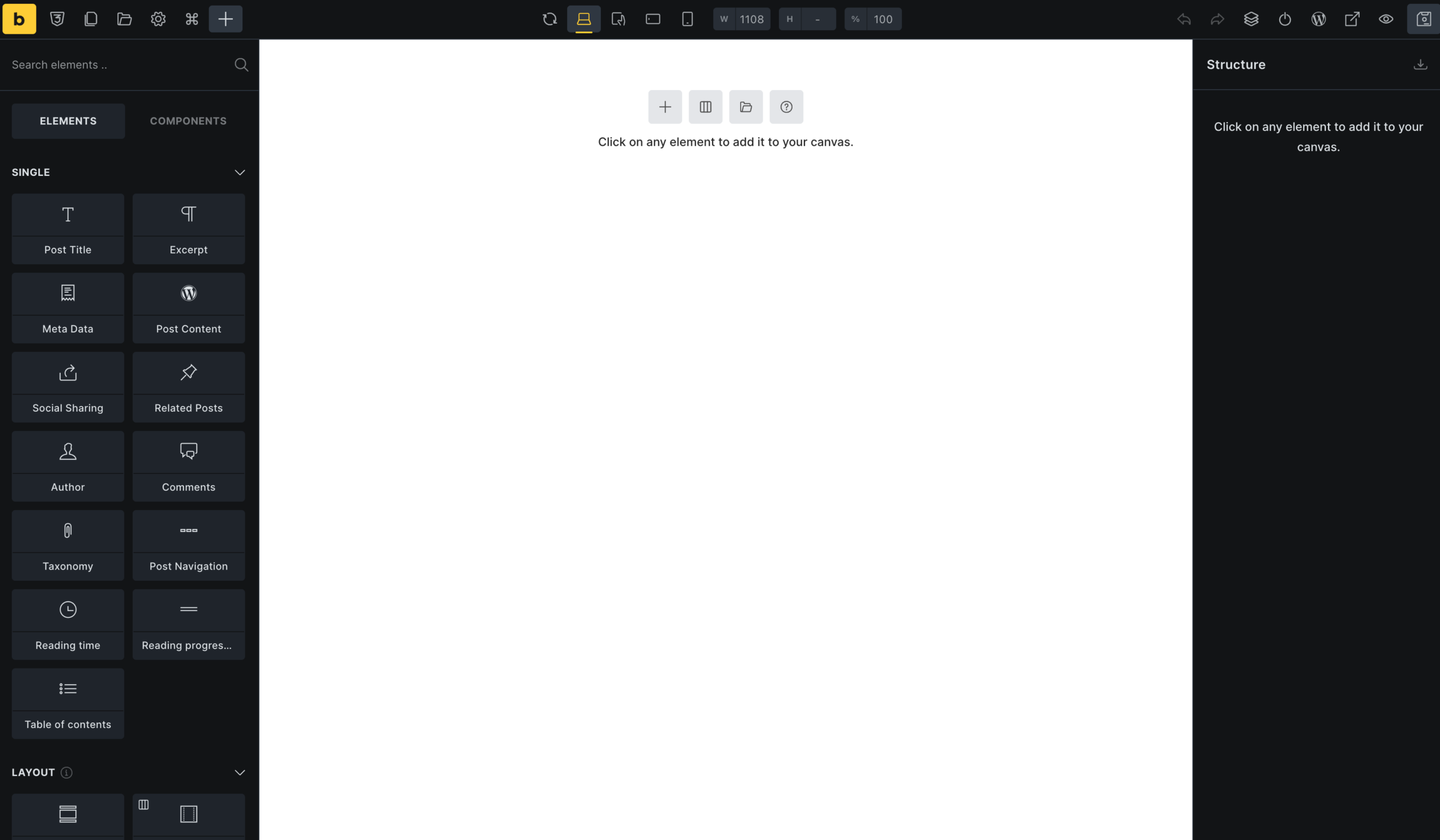
From here, you’ll be taken into the Bricks Builder Canvas, where you can create your events template. You can use our EventKoi dynamic tags to build your template.
Link your template to EventKoi events
When you are done building your template, you need to link your template to EventKoi.
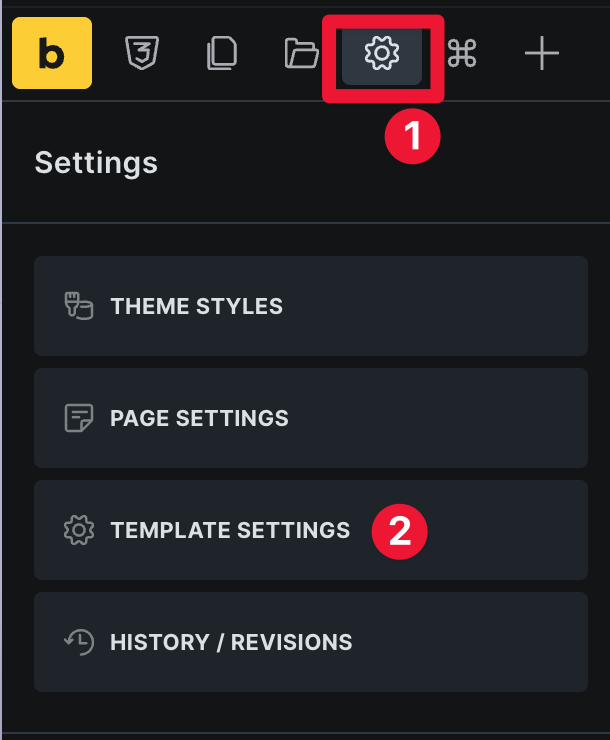
- In the top left menu bar, click on the gear icon to go into Settings.
- Then select Template Settings from the dropdown.
Inside Template Settings:
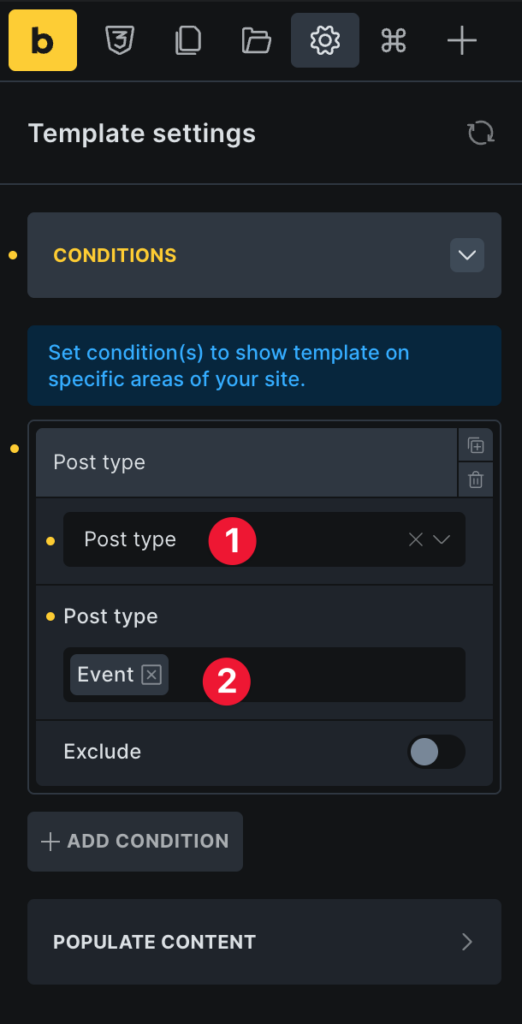
- Click on Conditions
- Then Add condition

Then you’ll want to add the following conditions:
- First, select Post type.
- Then, select Event.
Saving and publish your template
When you are done with the design of your template, and have successfully set the correct template settings and conditions, you must Publish your template in order to use it.
Assigning your Bricks template to an EventKoi event
Now that you have created and published your template, it is ready to be used in EventKoi.
Head into Events, then click on an existing event or create a new one.
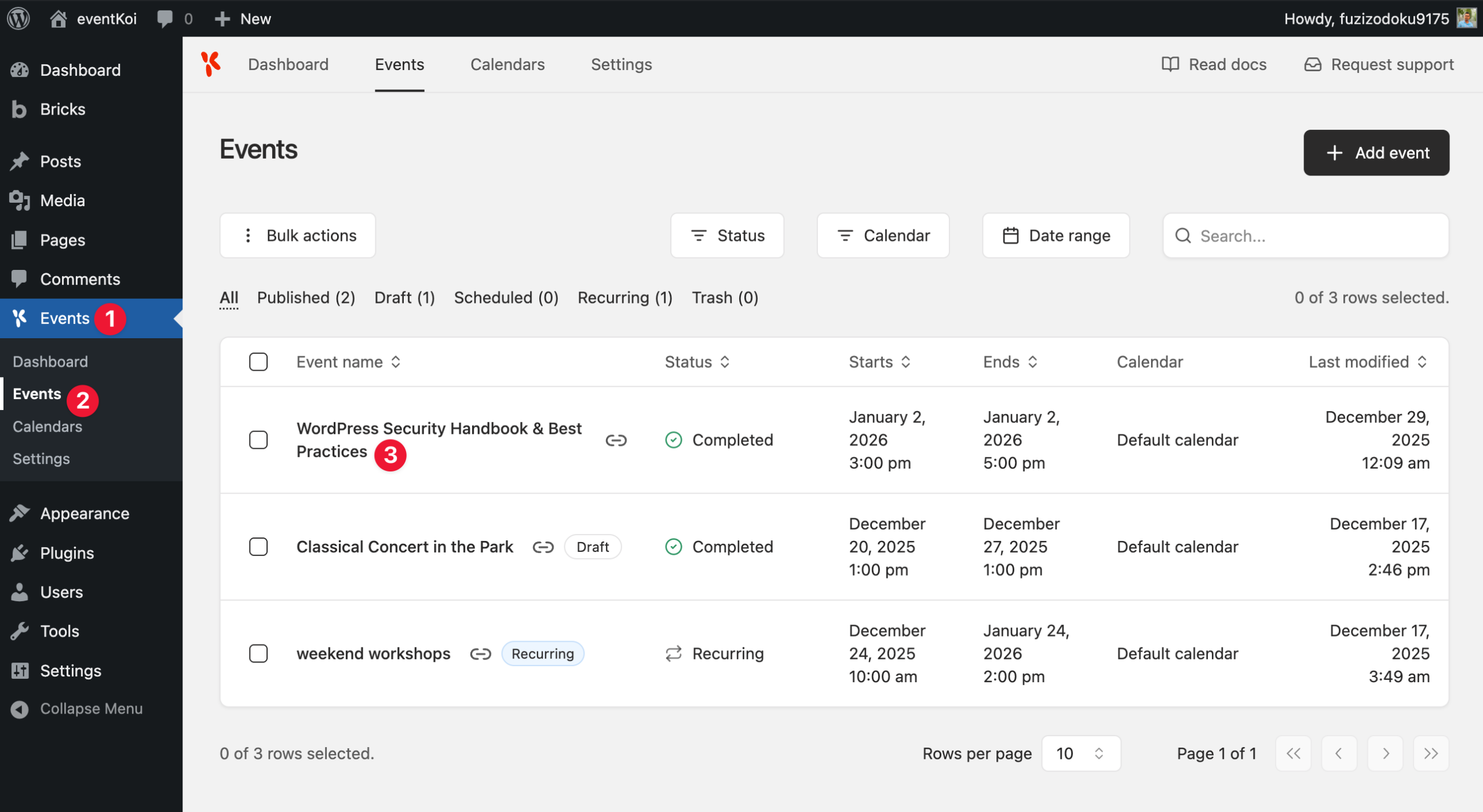
Inside the Event Settings, scroll all the way down until you see Event template.
There, click on the dropdown, and look for the Bricks category. Then select the template you want.
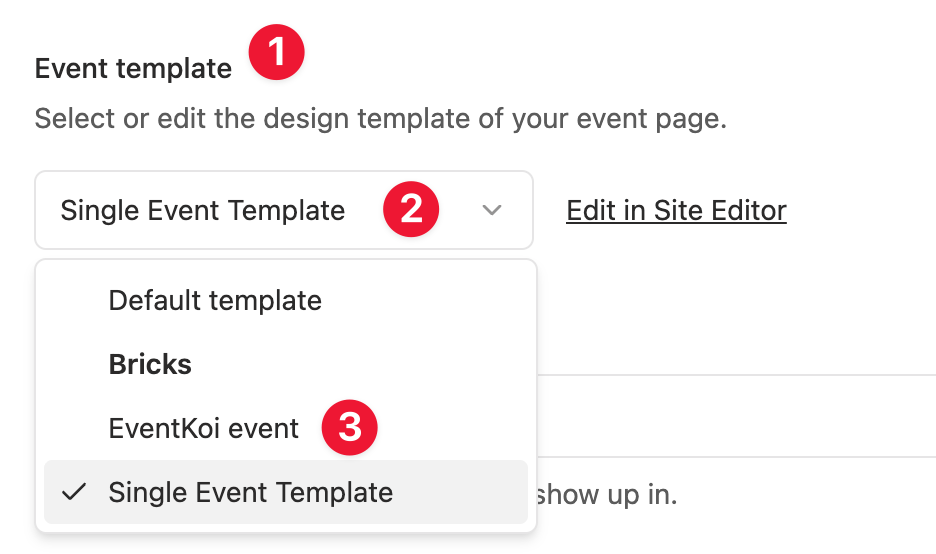
That’s it. You have successfully linked the event template you created in Bricks to EventKoi. So this event will display on the frontend using the Bricks template you have created and assigned.
Once set up, your Bricks template can be selected for any EventKoi event, giving you full control over your event layout without custom code.
Get more from your EventKoi + Bricks integration
There are multiple ways of integrating EventKoi with Bricks. From custom-built elements to advanced dynamic event data, you can control how events appear across your site using Bricks Builder canvas.
To learn about all the available approaches and ensure you choose to right path, read our EventKoi + Bricks Builder integration overview: