
This guide shows how to add and customise the EventKoi Event Calendar element in Bricks Builder. You’ll learn how to insert the calendar, choose which calendar to display, and control its default view and behaviour.
How to add the EventKoi Calendar element in Bricks
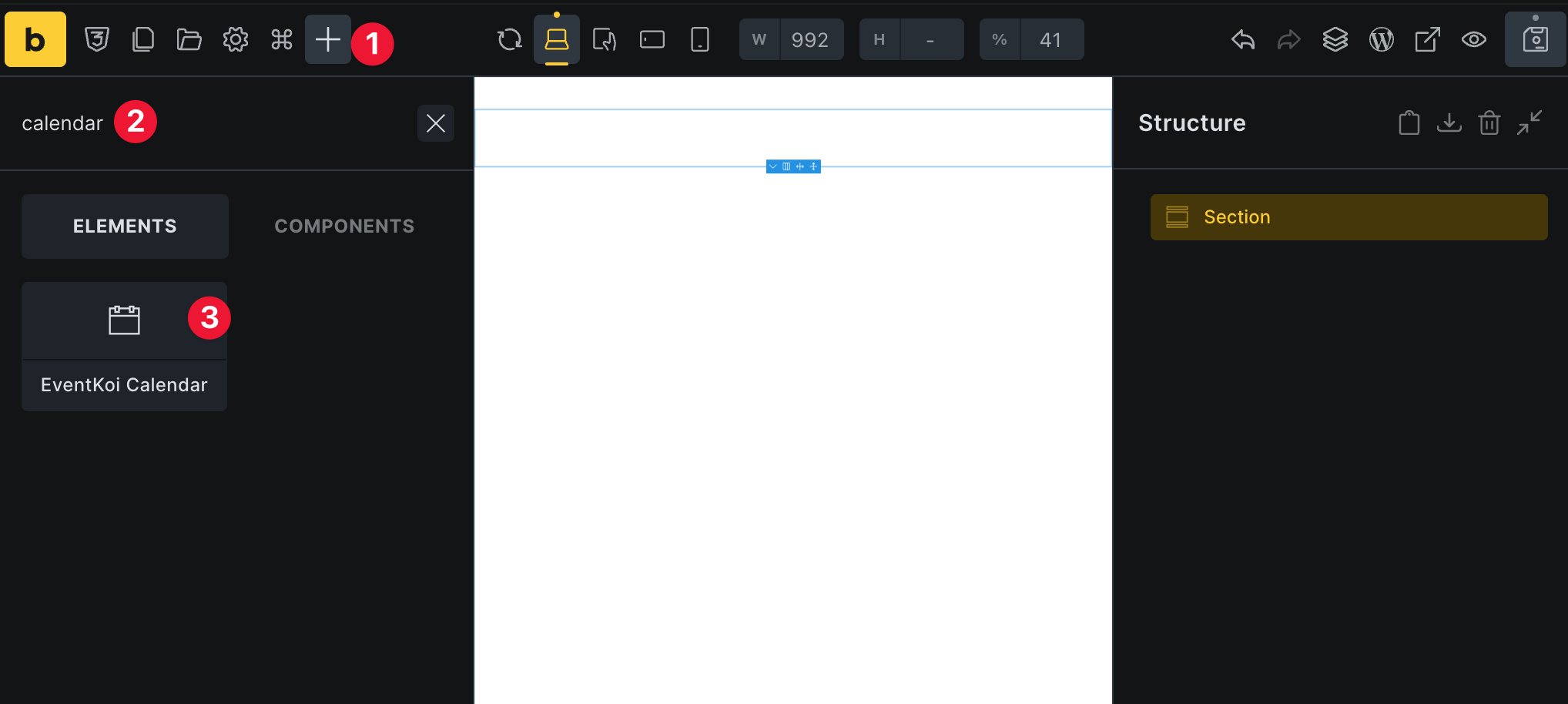
- Click the “+” button to add an element or component
- In the search bar, type in “EventKoi” or “Calendar”.
- Drag and drop the calendar element into the builder.
Customising the EventKoi Calendar element
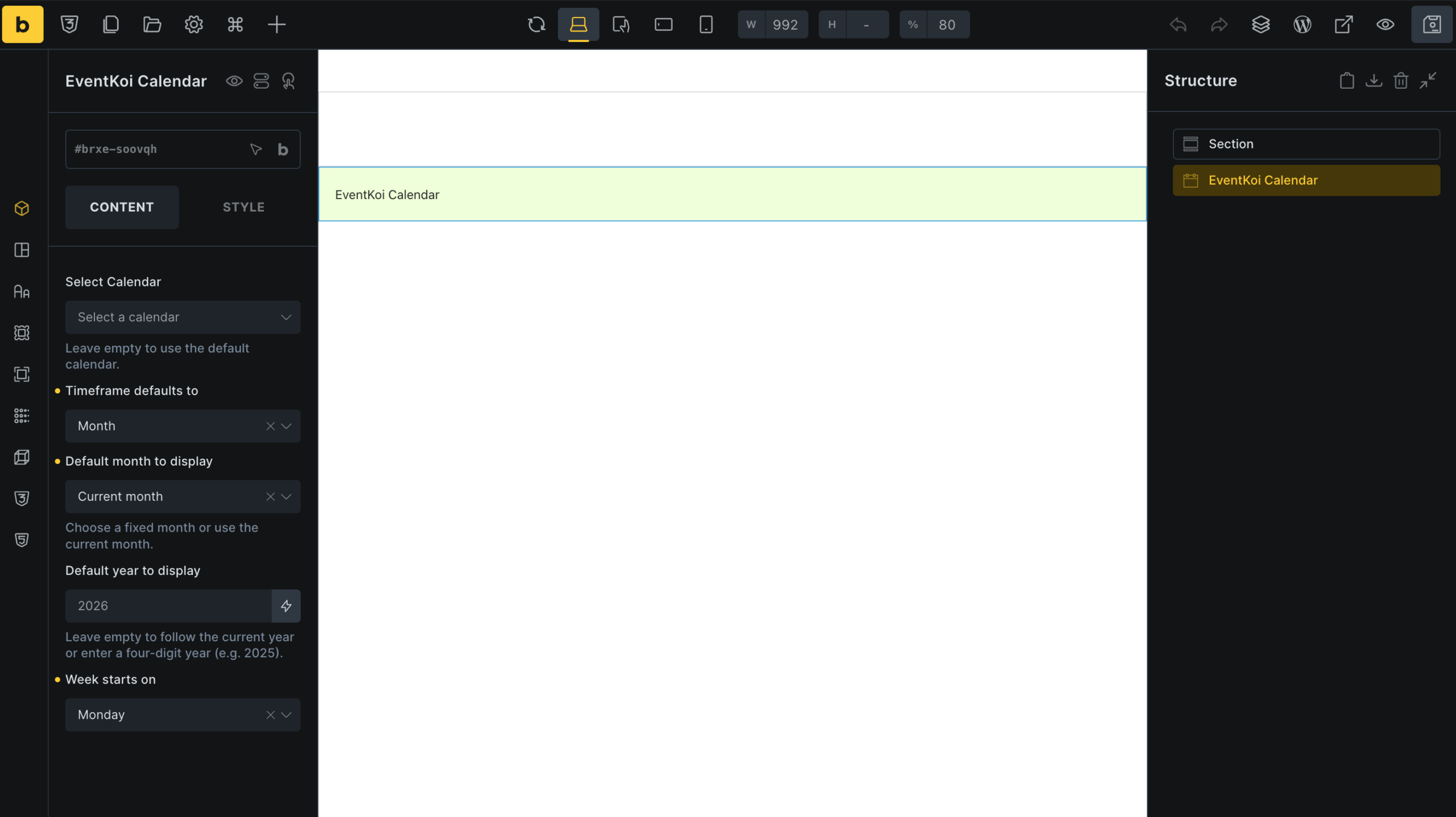
Once you add the EventKoi Calendar element, you’ll see a container with the words “EventKoi Calendar”. The actual calendar can’t be displayed in the builder, but will show up on the frontend.
Content options
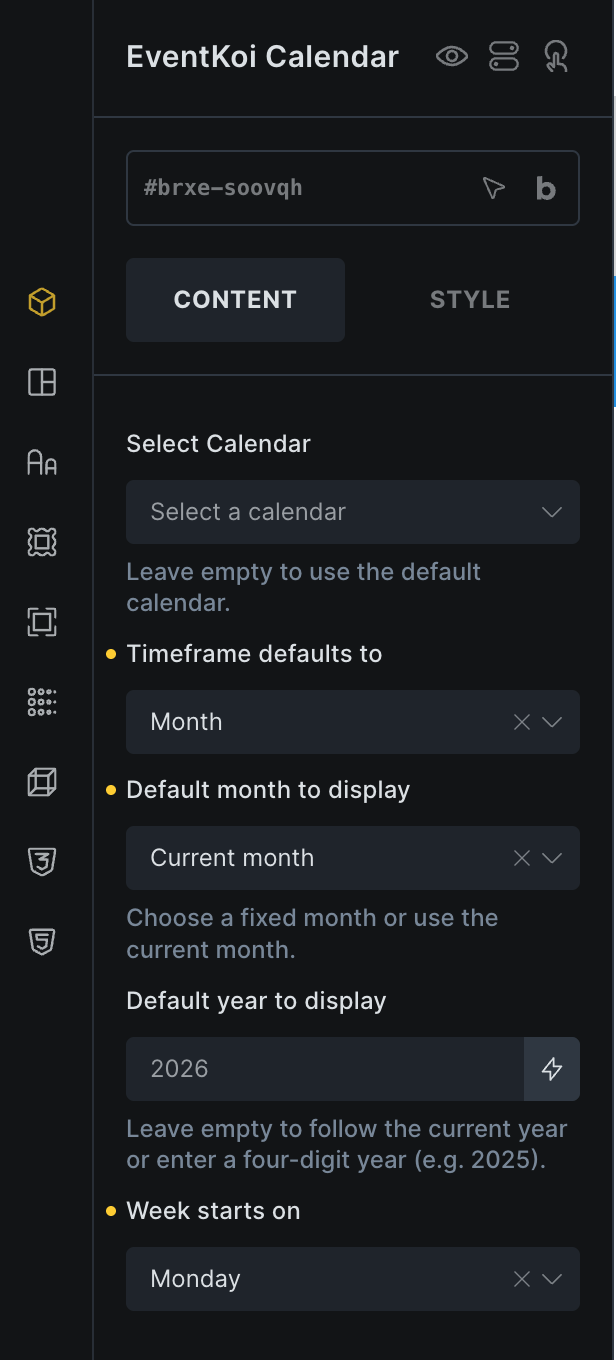
When you add the calendar, you can customise it with the following options:
- Select calendar: Choose which calendar you want to display.
- Timeframe defaults to: Choose to display monthly or weekly view.
- Default month and year to display: Select the specific month and year you want the calendar to display. When visitors arrive on your site, the calendar will display your selected month and year.
- Week starts on: Select what day should be displayed on the first column.
Preview your calendar
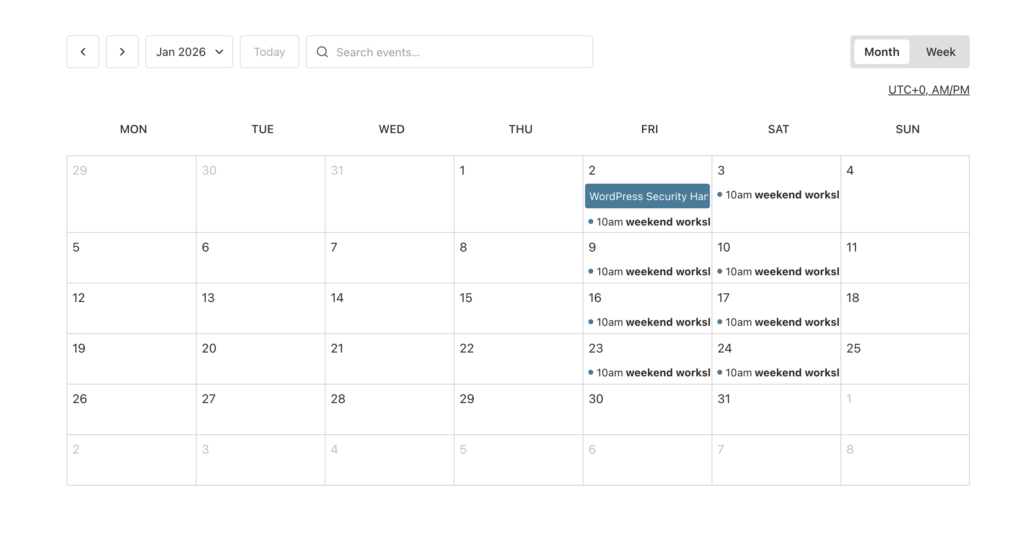
When you are ready, preview your calendar on the frontend.
Known issues
Currently, it is not possible to display your calendar and its changes in the canvas itself. Instead, we display a simple container with the text “EventKoi Calendar”.
There are some loading issues with the calendar display in the canvas. Changing the background colour, for example, will cause the whole element to be hidden in the canvas. You will still see it in the Structure (on the right hand side) and the frontend, but it won’t show up on the canvas.
We are actively exploring solutions to these issues and will update the plugin and this doc when we have fixed it.
Get more from your EventKoi + Bricks integration
There are multiple ways of integrating EventKoi with Bricks. From custom-built elements to advanced dynamic event data, you can control how events appear across your site using Bricks Builder canvas.
To learn about all the available approaches and ensure you choose to right path, read our EventKoi + Bricks Builder integration overview: