
Automatic delisting is an optional feature, and it is off until you switch it on in Events > Settings. Once it’s on, EventKoi takes past events off your site after a grace period you choose and sends anyone who opens their old links to a page you pick.
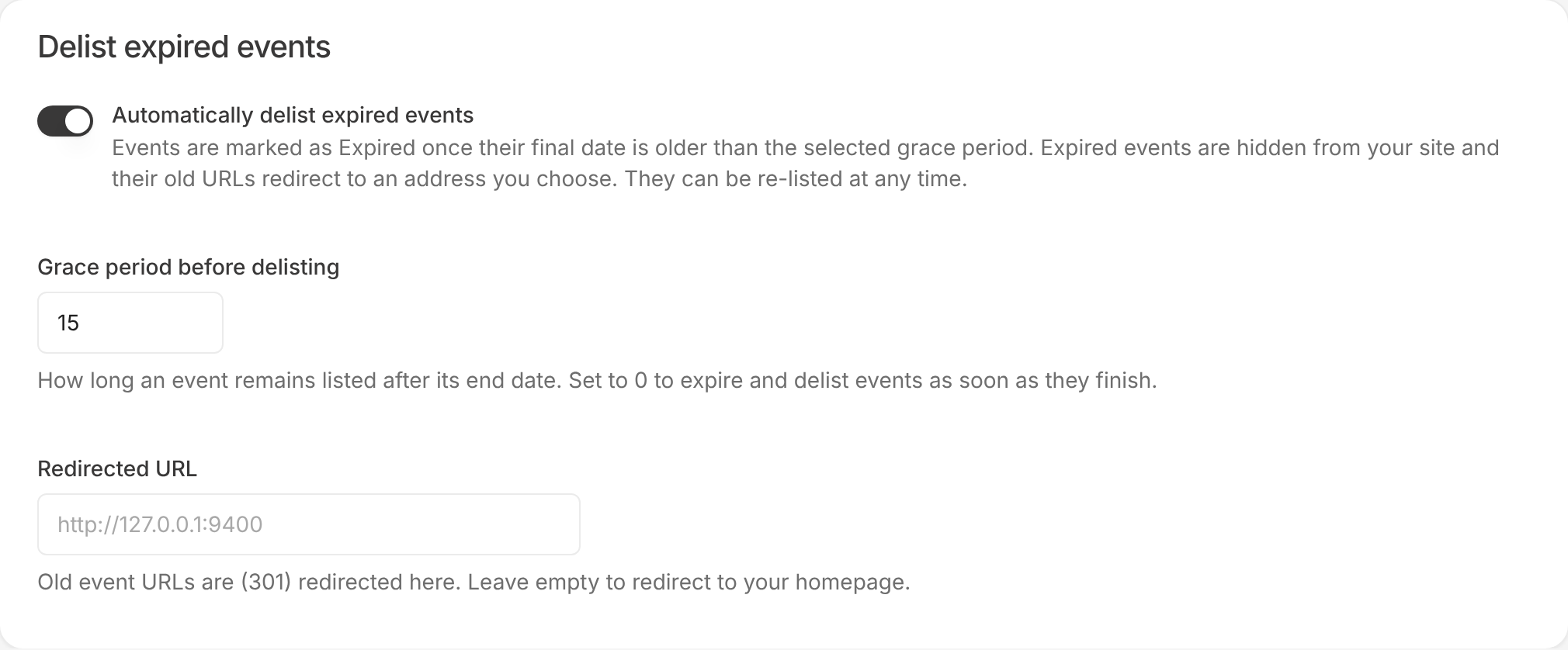
Turn on automatic delisting
- In your WordPress admin, go to Events > Settings. The Default settings tab opens.
- Scroll down to Delist expired events.
- Switch on Automatically delist expired events. Two more fields appear below it.
- In Grace period before delisting, enter the number of days an event stays listed after it ends. The default is 15. Enter 0 to delist events as soon as they finish.
- In Redirected URL, enter the address old event links should go to, such as your main events page. Leave it empty to send visitors to your homepage.
How delisting works
When an event’s last date is older than your grace period, EventKoi changes its status to Expired. Expired events are hidden from your site and from site search, and their old address redirects (301) to the page you chose. The event stays in your admin, so you can still edit, duplicate or relist it.
EventKoi checks for expired events once a day, and delists a past event straight away if someone opens its page.
To test the redirect, open an expired event’s old link in a private browser window. When you’re logged in as an editor, WordPress shows you the event instead.
Which events expire
Only published events are delisted.
- One-time and multi-day events expire once the end of their last date is older than the grace period.
- Recurring events expire only when the series has an end, meaning Ends is set to After a number of occurrences or On a date. The grace period counts from the end of the last occurrence. If a recurring event has more than one rule, every rule needs an end.
- Events with Date and time not confirmed switched on, and events with no dates, stay listed.
New recurring rules end after 30 occurrences by default. To keep a series listed, set Ends to Never.
If you import events from an ICS feed or from Eventbrite, a sync can bring delisted past events back as new copies. To prevent this, set a recent Sync events from date on the feed or on the Eventbrite connector.
Find expired events
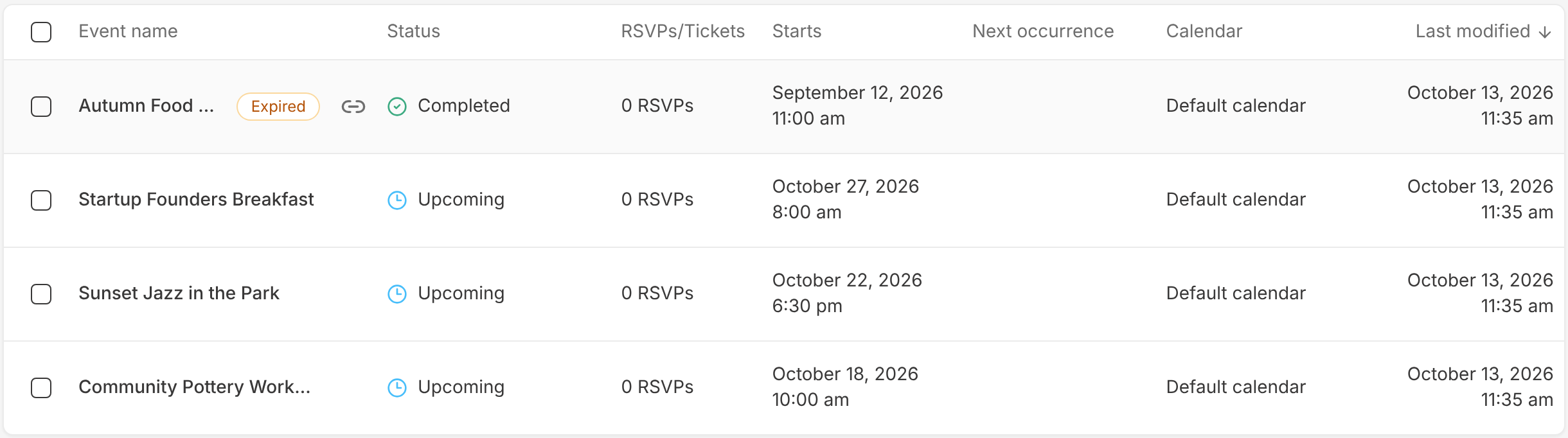
Expired events stay in your events list with an Expired badge next to the title. They appear under All, not under Published.
Edit or relist an expired event
You can open and edit an expired event as normal. Clicking Save keeps it Expired, so editing never puts it back on your site by accident.
To put an expired event back on your site:
- Open the event and give it new dates. If you keep the old dates, EventKoi delists it again at the next check.
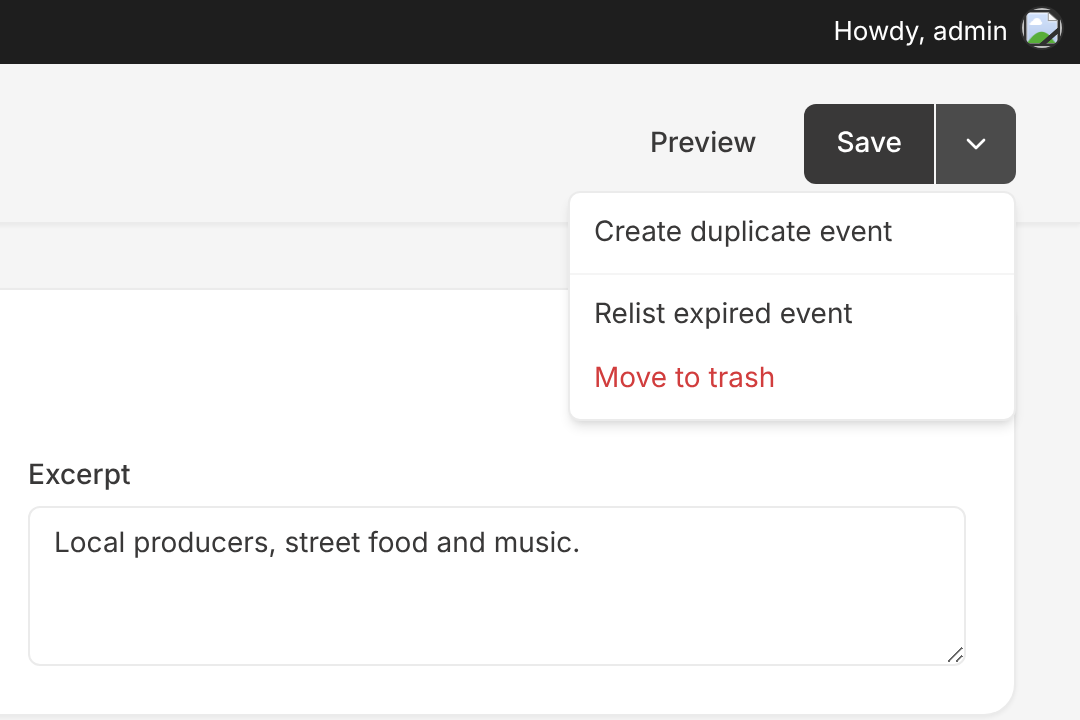
- Click the arrow next to Save to open the menu.
- Choose Relist expired event.
To run the same event again on a new date, choose Create duplicate event from the same menu. EventKoi creates a draft copy that you can give new dates and publish.
Turn automatic delisting off
Switch off Automatically delist expired events in Events > Settings > Default settings. EventKoi publishes every event it delisted again, and their old links work again.
For developers
EventKoi Pro has two actions and one filter for delisting.
eventkoi_event_expired runs after EventKoi delists an event. It passes the event ID, the end timestamp the event was measured from, and the delisting settings as an array with the keys enabled, days and redirect_url.
eventkoi_event_relisted runs for each event EventKoi publishes again when automatic delisting is switched off. It passes the event ID. It does not run when you relist a single event with Relist expired event.
eventkoi_event_expiry_redirect_url filters the redirect address for an expired event. It passes the address from your settings (or your homepage) and the event ID. This example sends expired events from a calendar with the slug workshops to an archive page:
add_filter( 'eventkoi_event_expiry_redirect_url', function ( $url, $event_id ) {
	if ( has_term( 'workshops', 'event_cal', $event_id ) ) {
		return home_url( '/past-workshops/' );
	}
	return $url;
}, 10, 2 );