
Elementor’s Loop Grid widget can display custom post types, including EventKoi events, by configuring its query settings.
You can learn all about how to use the Loop Grid widget in this Elementor doc. This doc will skip those basics.
Instead, in this guide you’ll learn how to query EventKoi events inside the Loop Grid widget, including how to include or exclude events by calendar and adjust other query options.
When to use this?
There are two ways you can add a list of events in Elementor. You can use the Loop Grid widget or the EventKoi Event widget.
The Loop Grid widget is stronger for customisation and allows you to show a dynamic list or grid of events.
However it is not made specifically for events. This means that while it can query EventKoi events as a custom post type, you might not be able to do advanced queries such as showing events happening during a specific time frame.
In contrast, the EventKoi Event widget is made specifically for events. However, it displays events one at a time. There is no dynamic queryable option available.
Summary of Loop Grid widget vs EventKoi Event widget
| Use Elementor’s Loop Grid widget if: | Use EventKoi Event widget if: |
|---|---|
| You need a dynamic list/grid of events | You do not need to dynamically query a range of events. You are satisfied with selecting events one-by-one. |
| You are comfortable working with post queries |
What is the Loop Grid widget?
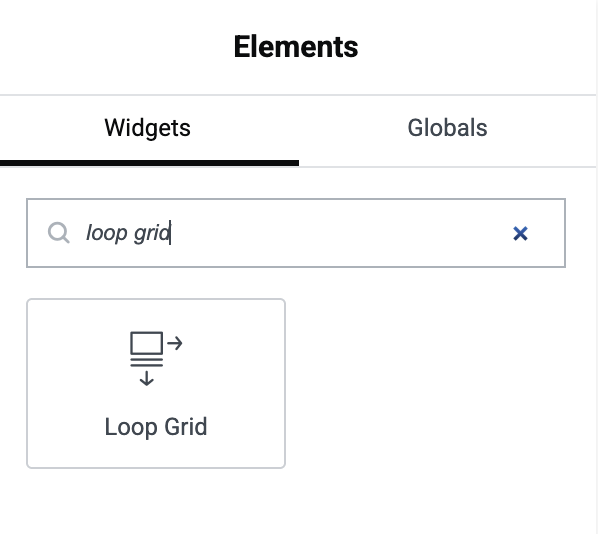
The Loop Grid widget allows you to display a list or grid of blog posts or any custom post types on your website. It automatically pulls in posts from the WordPress database and presents them in a specified layout and format.
It is only available in Elementor Pro. You can learn more about it in Elementor’s docs here.
Creating a Loop Grid template
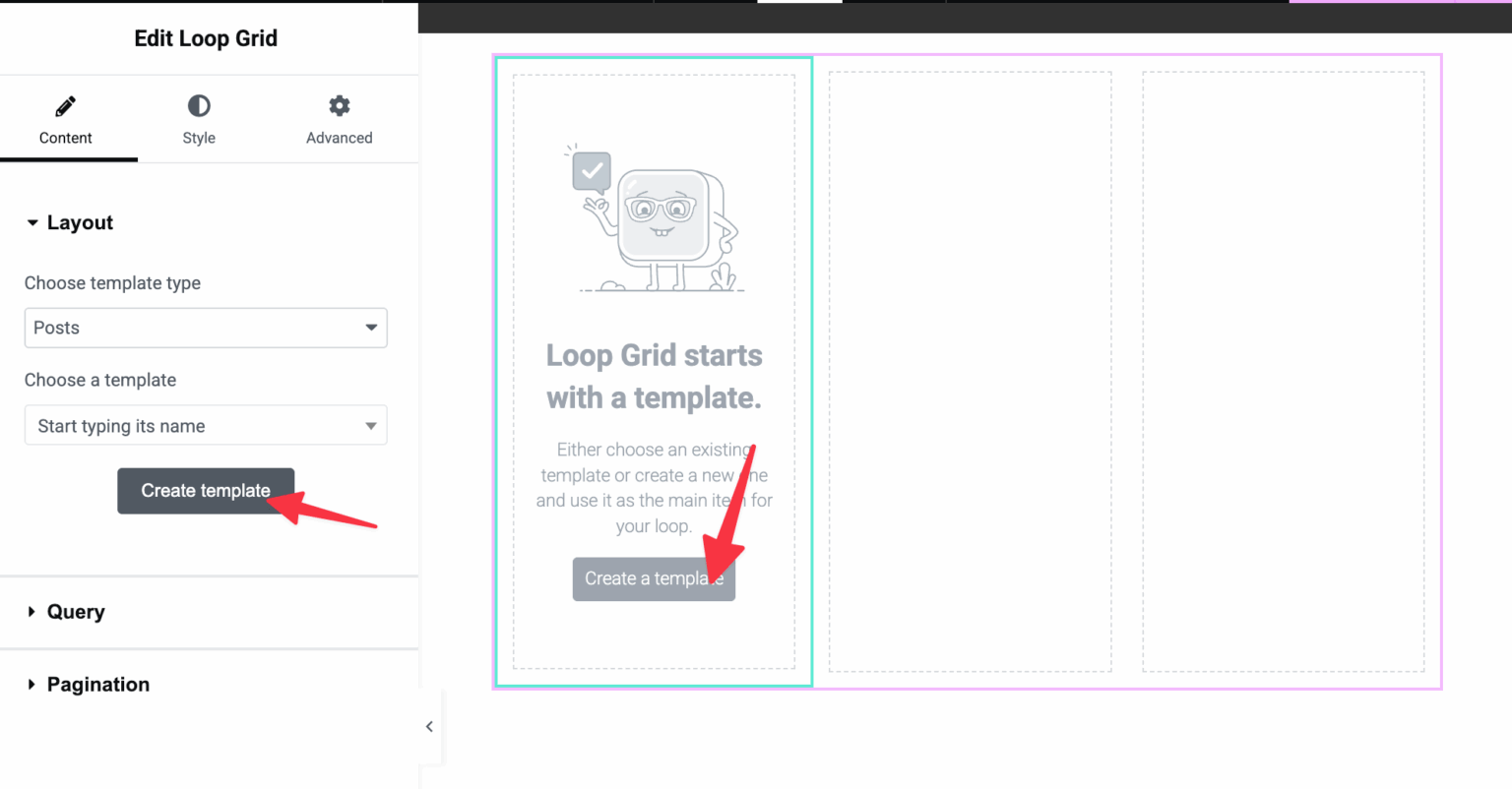
After you’ve added your Loop Grid widget to your Elementor page, you’ll be prompted to create a template. This is necessary to create your list or grid design.
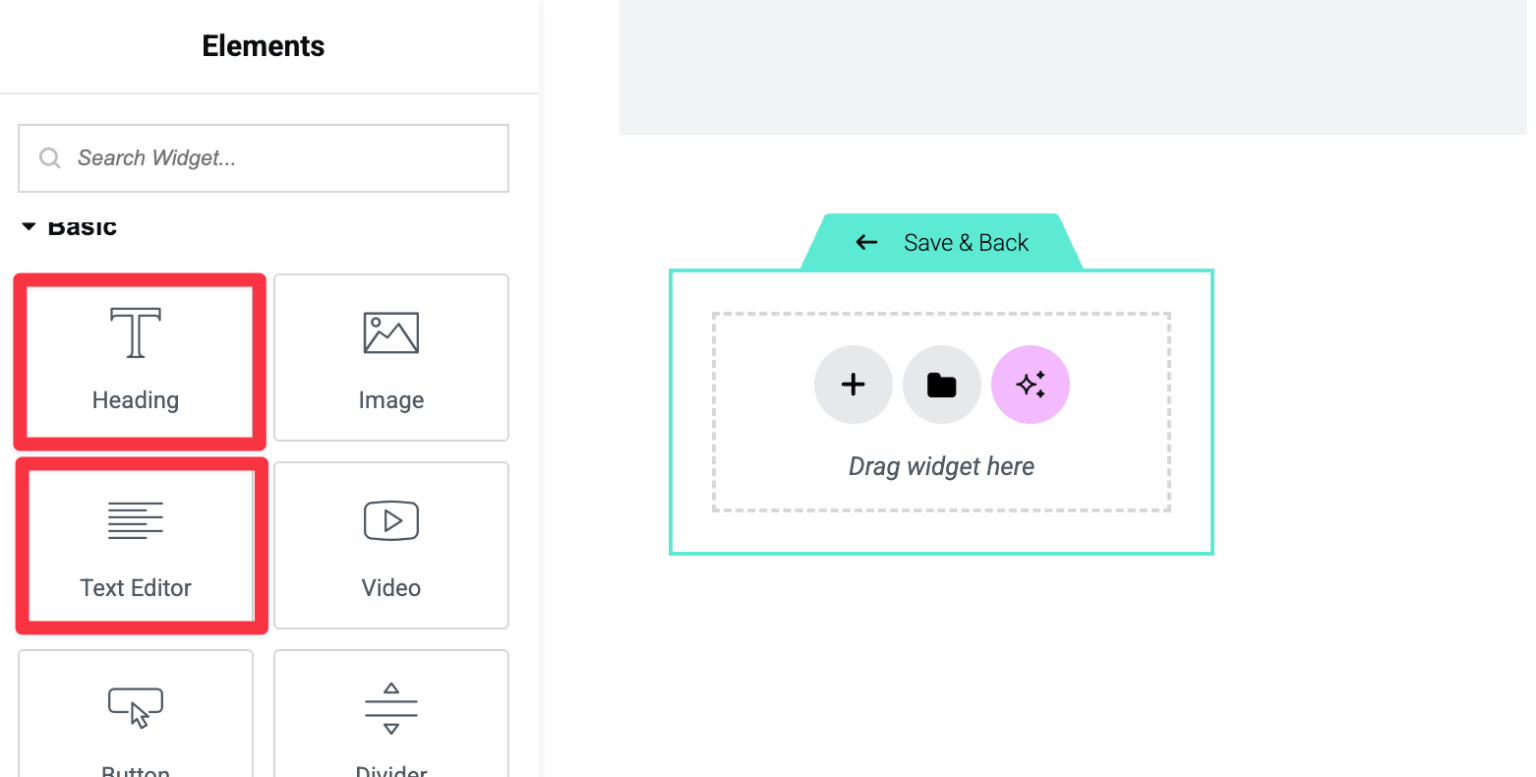
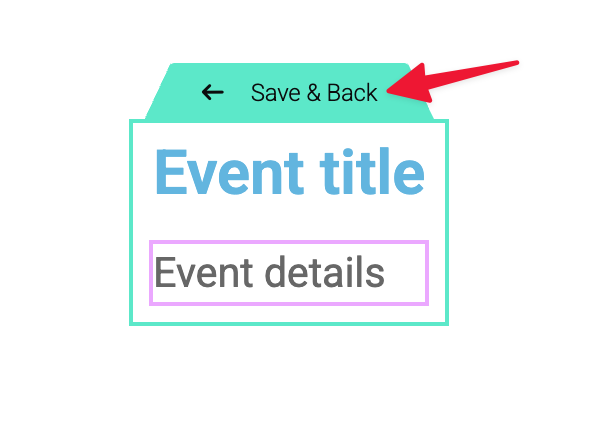
You can drag and drop widgets into the Loop Grid template to create your event list design. For the purposes of this demo, we’ll add Heading and Text Editor widgets.
After adding those two widgets, we will connect the event data using dynamic tags. To do this, click on the dynamic tag icon, then scroll down until you see the available EventKoi tags and select the one you want.
In our example, for the Heading widget, I’m selecting the Event Title tag. And for the Text Editor widget, I’m adding the Event Details tag.

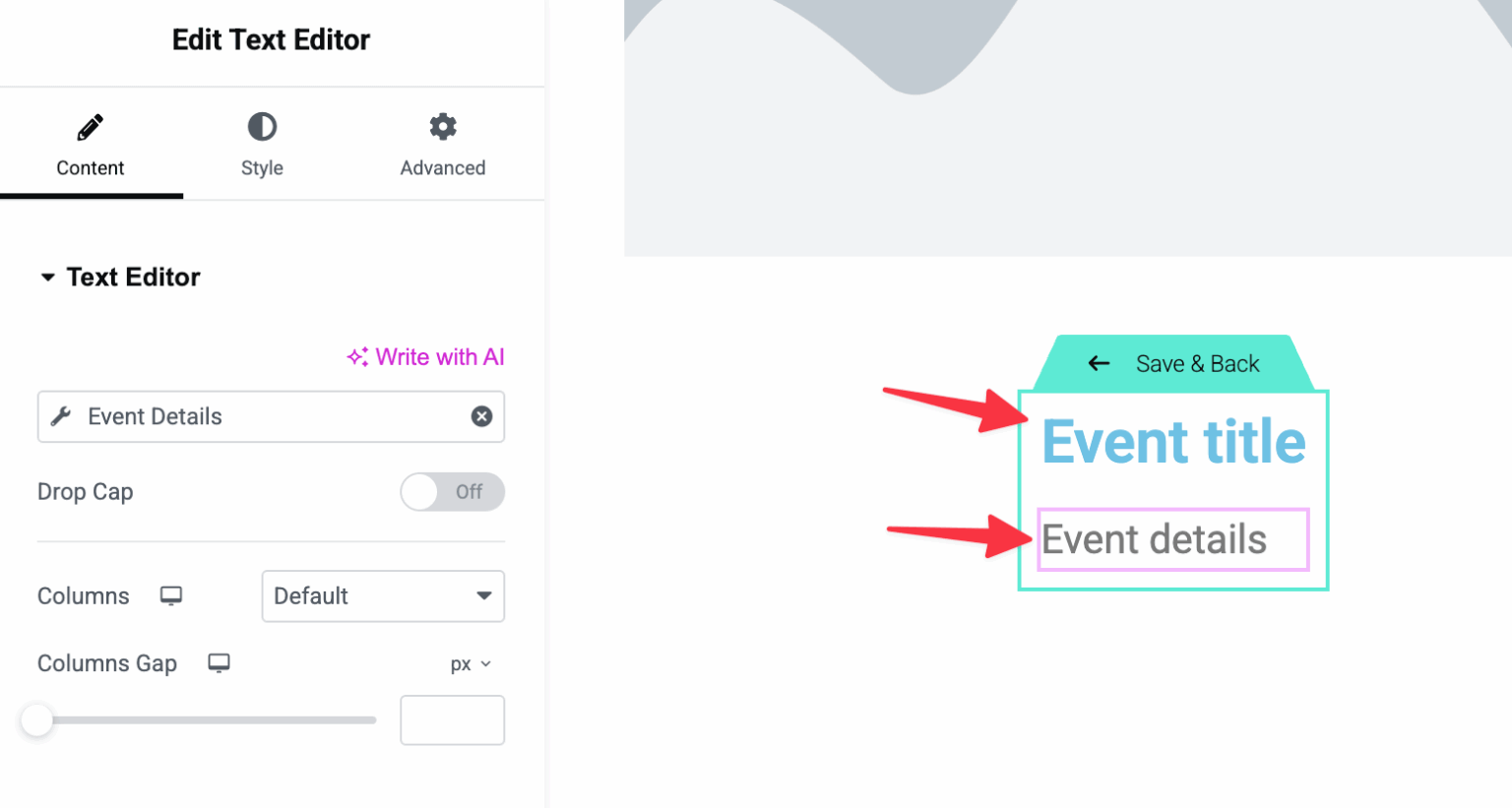
When you’re ready, click on “Save & Back”
How to query for events
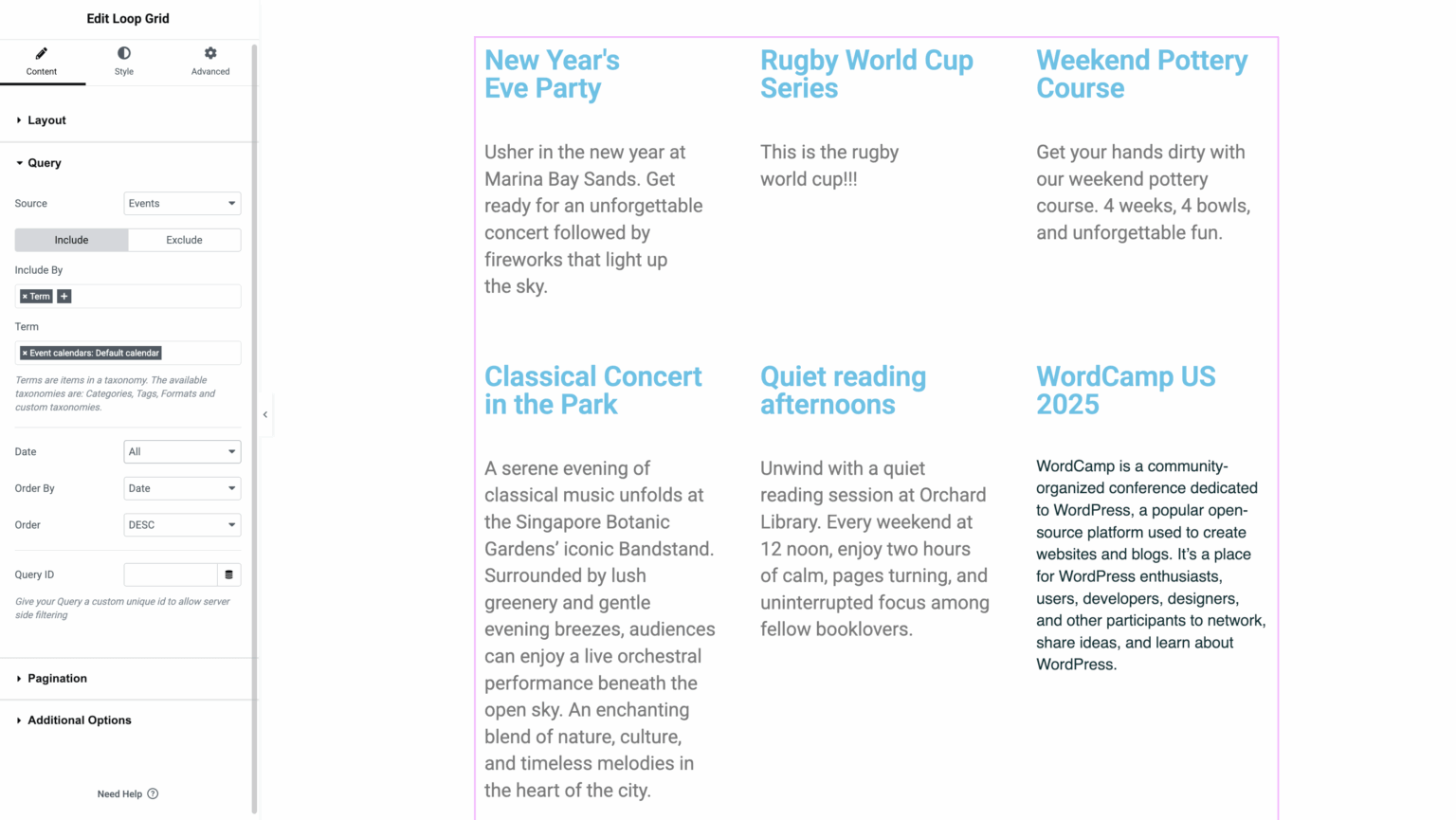
Next, finetune your event loop in the Loop Grid widget.
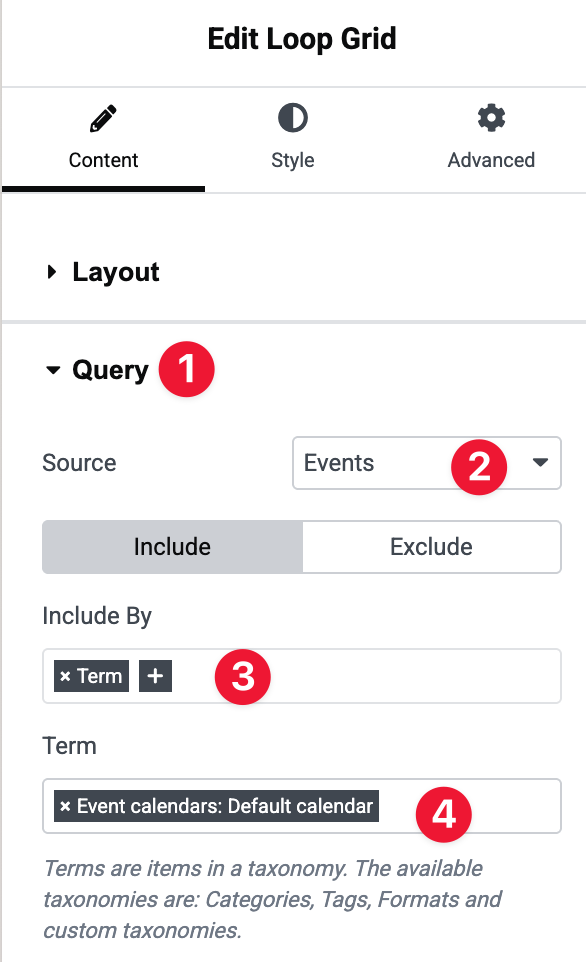
- Locate the Query section and expand it.
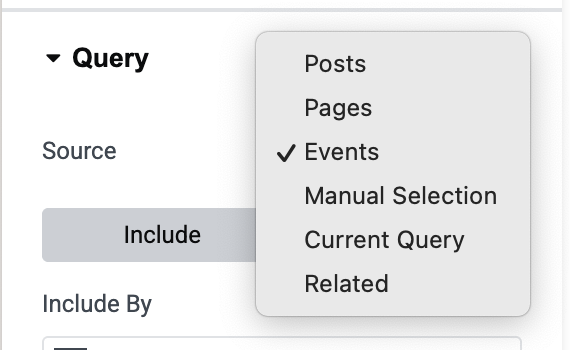
- Click on the Source dropdown and select Events
- Then in the Include By area, select Term
- Finally, search which calendars you would like to include
In Source, click the dropdown, and select Events.
Additional queries
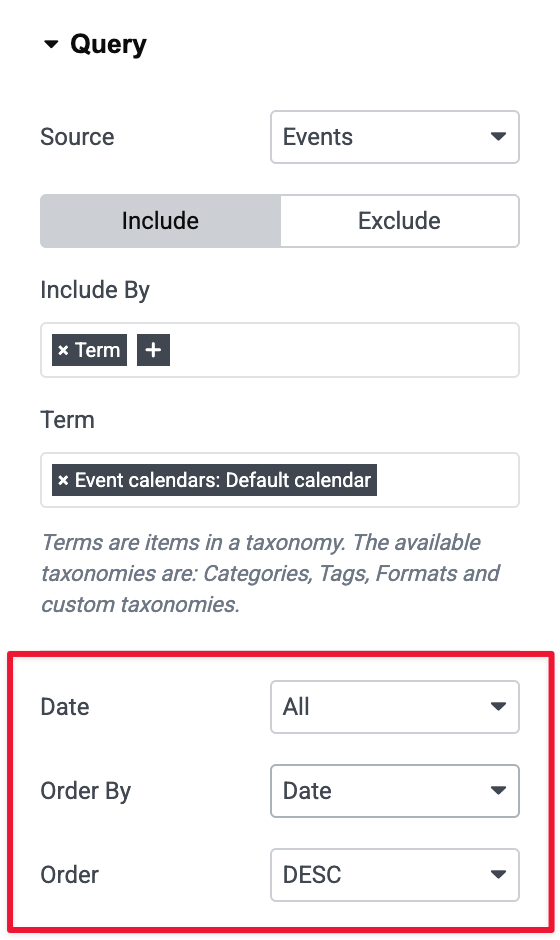
You can also query and display queries by Date, Order by and Order.
The key thing to note here is that Date refers to post creation date, not event date. More on this below.
Your events Loop Grid is now ready! Since the Loop Grid is a template made out of other widgets that are completely customisable, this means you can style your events list however you want.
Get more from your EventKoi + Elementor integration
There are multiple ways of integrating EventKoi with Elementor. From custom-built widgets to advanced dynamic event data, you can control how events appear across your site using Elementor’s editor.
To learn about all the available approaches and ensure you choose to right path, read our EventKoi + Elementor integration overview: