
The EventKoi Event Widget lets you display a single event’s details directly within any Elementor-built page or post.
Simply drag the widget into your layout, choose which event to show, and control exactly what event data appears. This guide shows you how to add the widget in Elementor and customise its content and appearance.
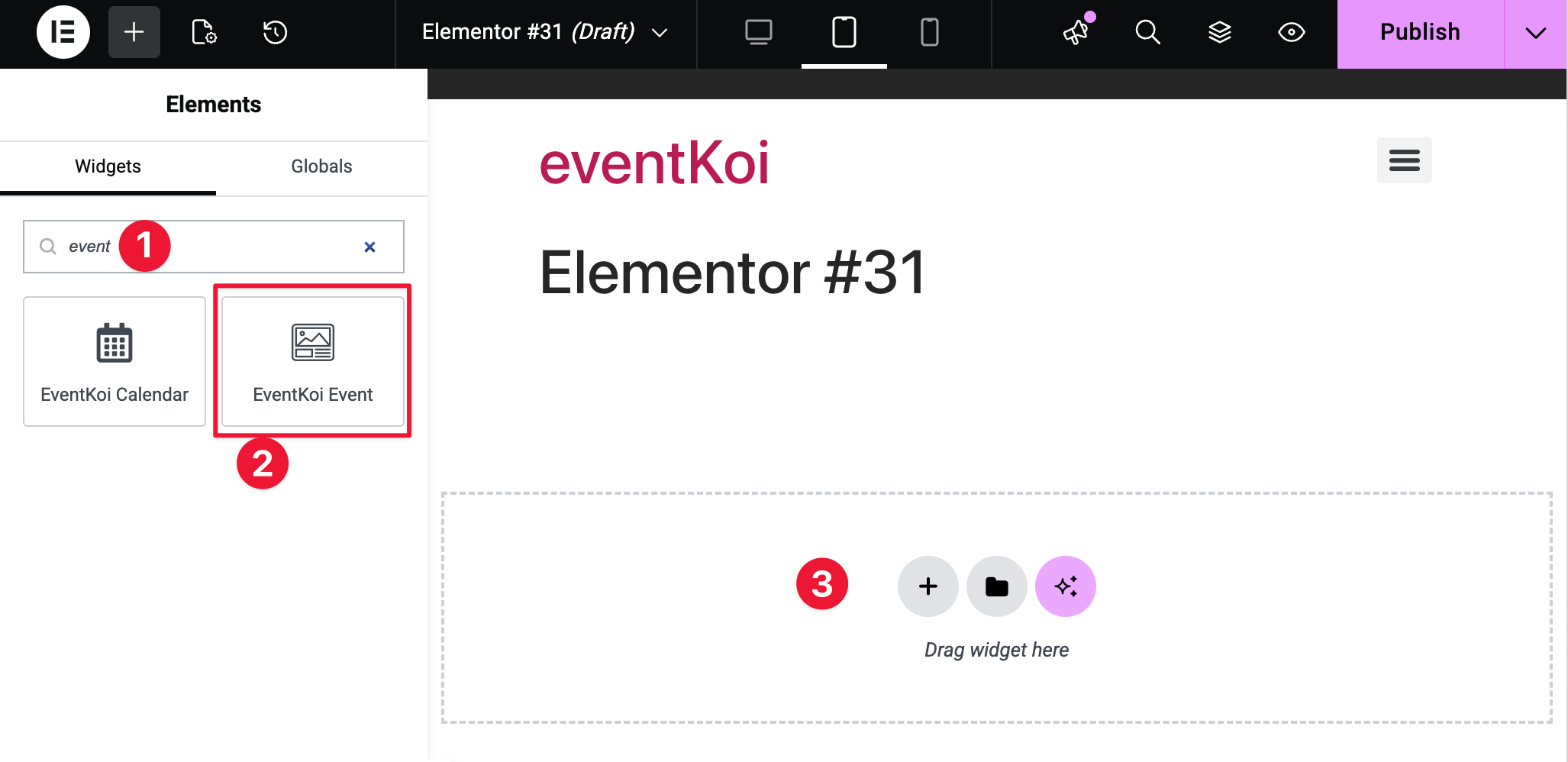
How to add the EventKoi Event widget in Elementor
- Search “Event” to find the EventKoi Event widget
- Select widget from the left-hand panel
- Drag and drop widget into the main canvas.
Customising the EventKoi Event widget
Once you’ve added the widget into the canvas, you’ll see several Content, Style, and Advanced options.
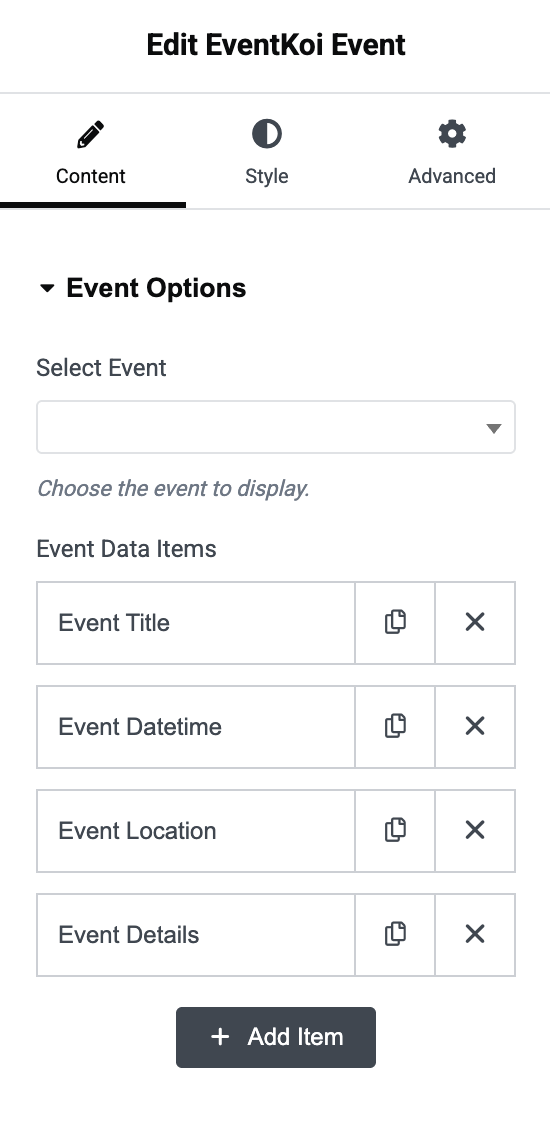
Content tab
Here you’ll see all the available Event Options.
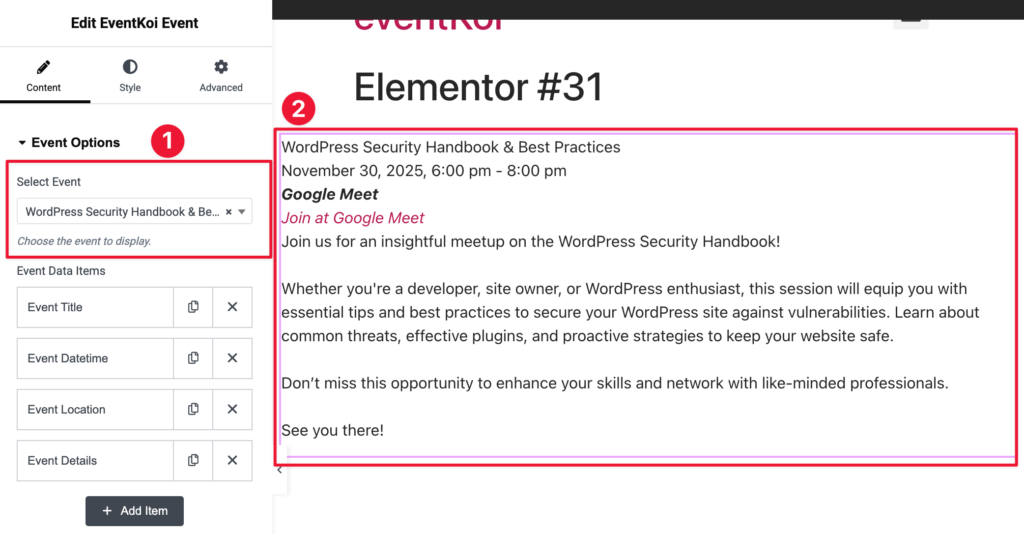
Select Event
- Start by selecting the event you want to display.
- When you select the event, you’ll see the event details appear on the canvas.
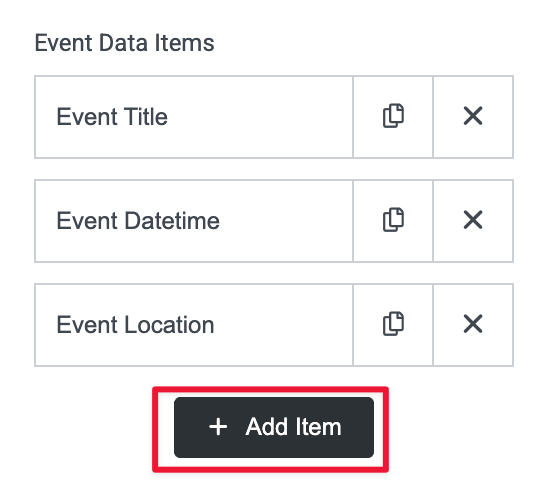
Event Data Items
Here, you can decide what information you want to display.
As a default, you’ll see: Event Title, Event Datetime, Event Location, and Event Details.
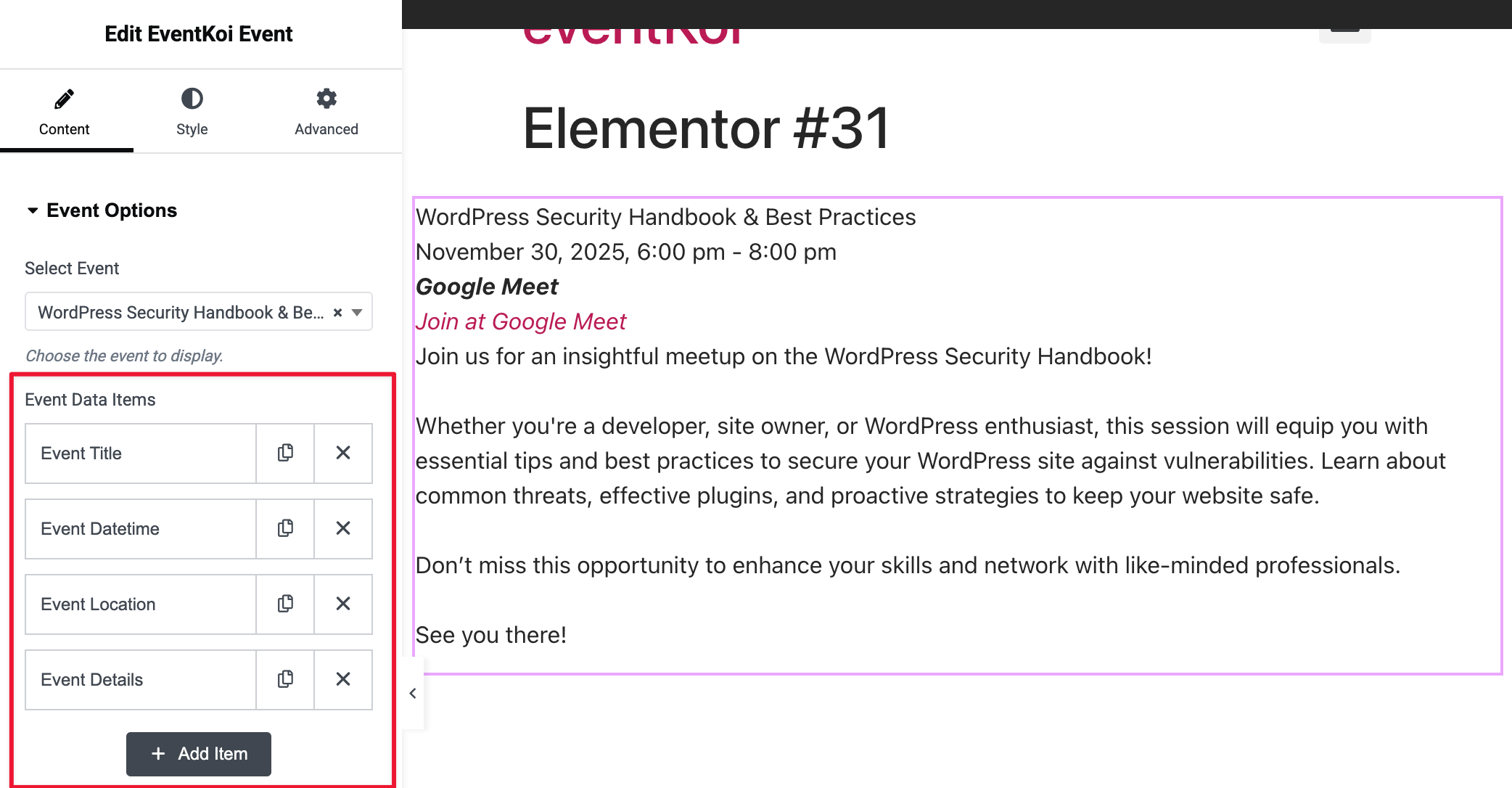
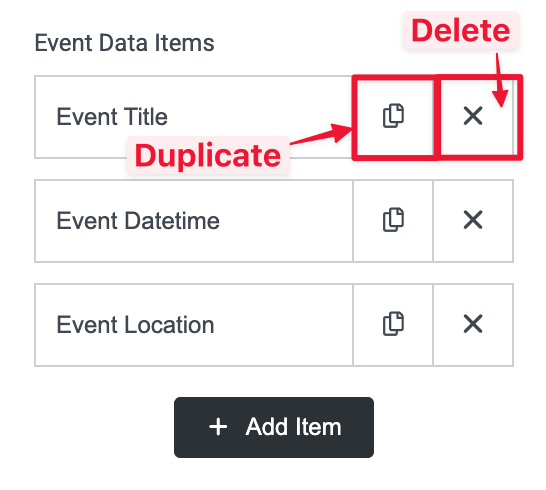
You can Delete and Duplicate items by clicking the icons on the right hand side of each item.
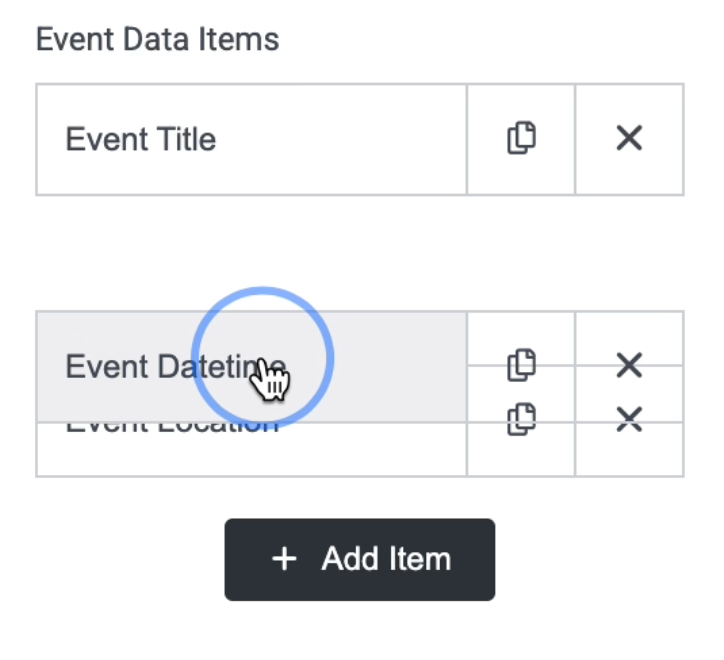
You can shift the order of different items simply by dragging and dropping them.
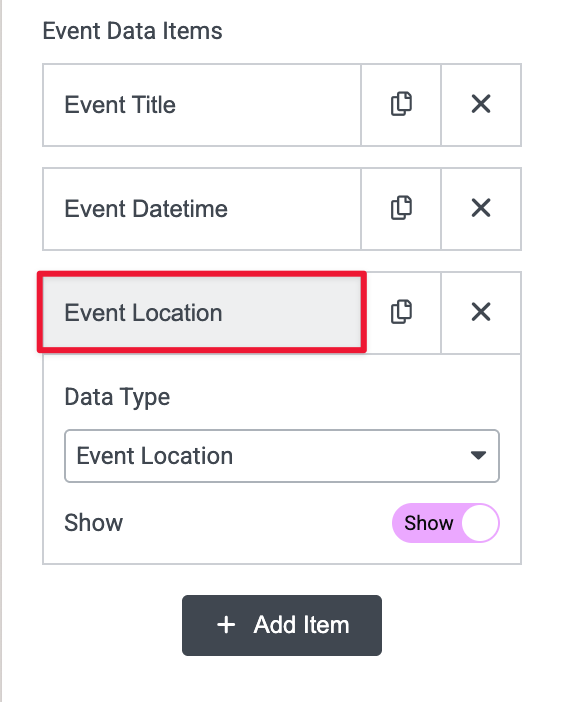
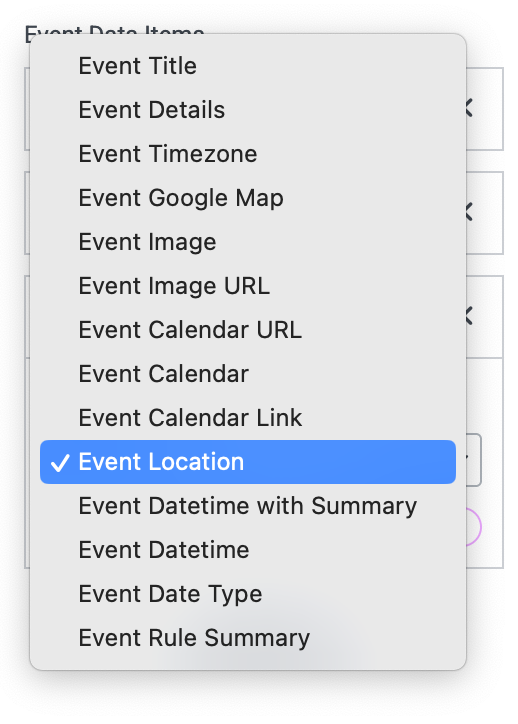
Clicking on the item name expands the item and lets you change the type of data it displays.
You can select from 14 different data types.
Add a new item by clicking the Add Item button.
Style tab
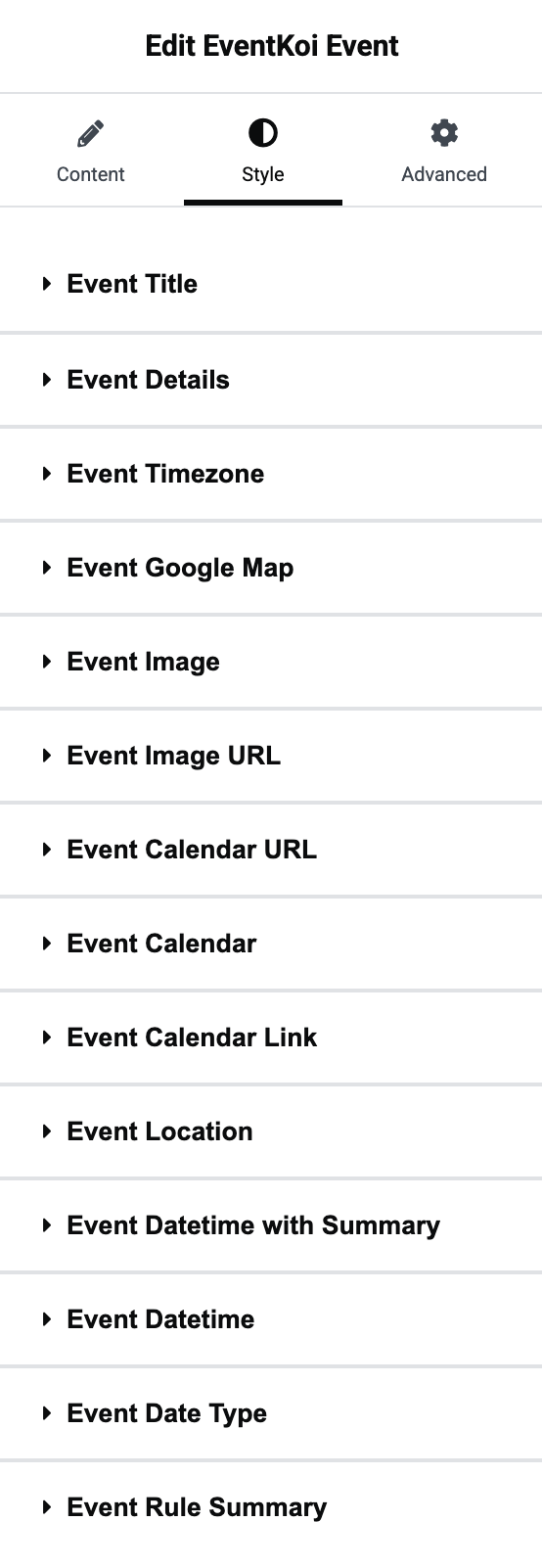
In the EventKoi Event widget’s Style tab, you are given the option to style every available data type. Simply click on the data type you want to style to expand it and start customising.
Style options
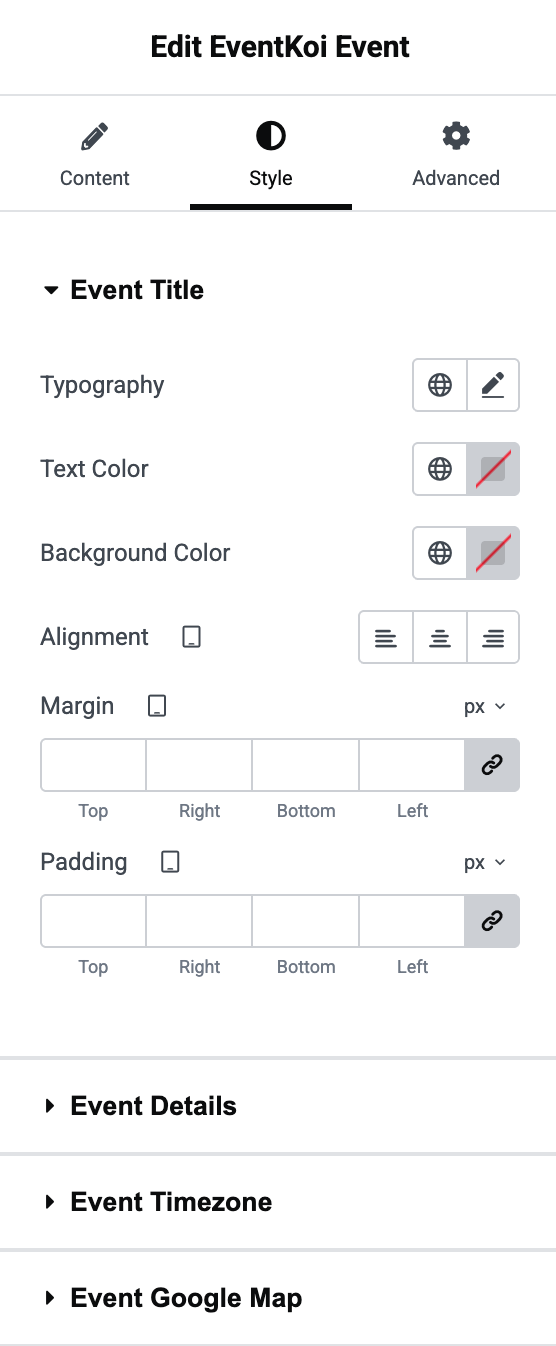
When you expand on any of the data types, you will see the same few options:
- Typography
- Text Color
- Background Color
- Alignment
- Margin
- Padding
Advanced tab
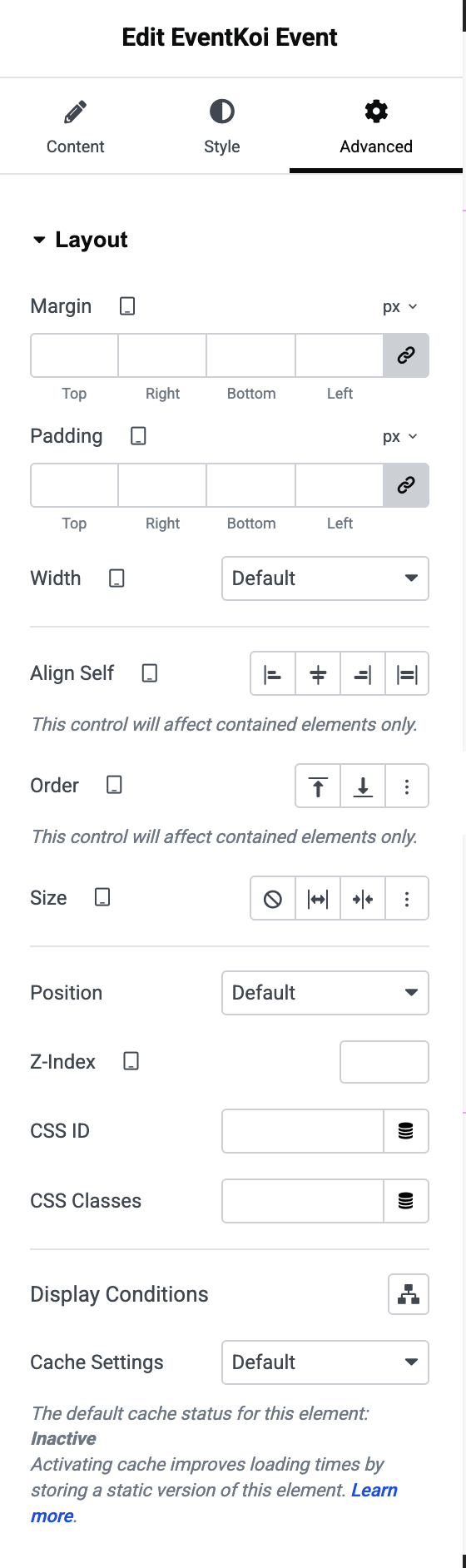
Finally, in the Advanced tab, you will see a variety of Layout options. These are standard in Elementor widgets.
Preview your event
- Once you have Published your page or Save Draft,
- You can Preview it by clicking the eye icon.

Depending on the settings you have made, you’ll see the changes reflected in your preview.
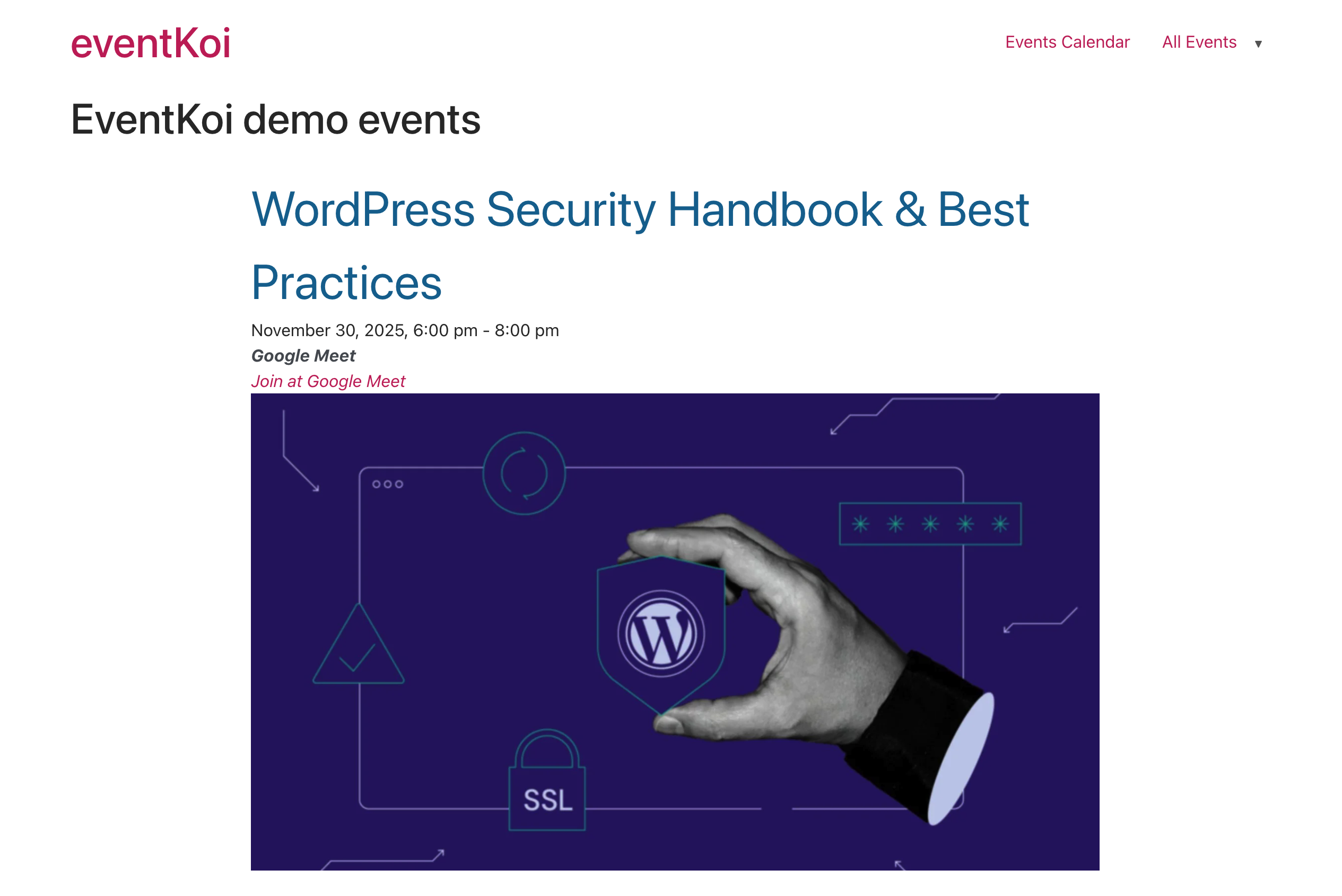
Get more from your EventKoi + Elementor integration
There are multiple ways of integrating EventKoi with Elementor. From custom-built widgets to advanced dynamic event data, you can control how events appear across your site using Elementor’s editor.
To learn about all the available approaches and ensure you choose to right path, read our EventKoi + Elementor integration overview: